Play playlists from the Chrome extension
Open, search, and share Walnut demos and playlists from the Chrome extension's Play Demos mode, filter by creator or asset type, and download offline demos.
Play playlists from the Chrome extension
About This Feature
The Walnut Chrome Extension makes it easy to access and play demos and playlists directly from your browser. Whether you’re an Admin, Editor, Presenter, or Viewer, you can quickly browse your library, filter shared assets, and share demos and playlists with just a click.
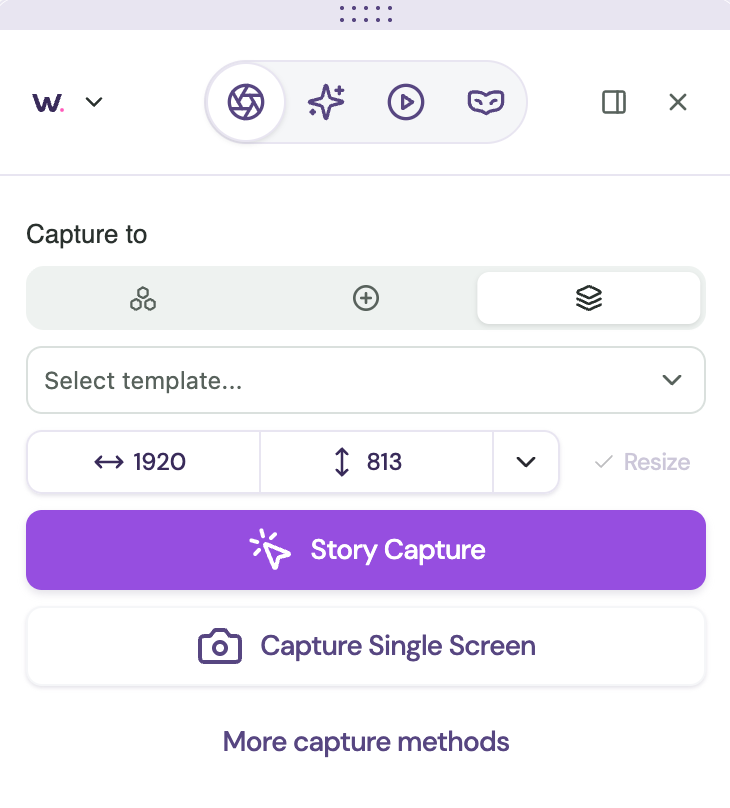
- Admins and Editors have full access to both Capture Screens and Play Demos modes within the Walnut Chrome Extension.
- Presenters and Viewers can access the Play Demos mode only and can use the extension to launch demos and playlists they’ve created or that have been shared with them.
- If your company has Walnut Live, the extension also has a Live mode (the mask icon) for personalizing your real product on a call. Admins and Editors create and edit live overlays there; Presenters can switch on and present overlays shared with the company. See Present a live overlay on a call.
Snapshot 📸
- Feature Status: Core Feature
- Role Access: Admin, Editor, Presenter, Viewer
- Location: Walnut Extension
Download the Extension
Quick Start Guide
-
Install the Walnut Chrome Extension.
-
Pin the extension to your browser toolbar for quick access.
-
Launch the extension by clicking the Walnut icon in your browser toolbar.
-
Click the Play Demos icon (the play button) in the mode switcher at the top of the extension. It's the default for Presenters.
-
Search for or select a demo or playlist:
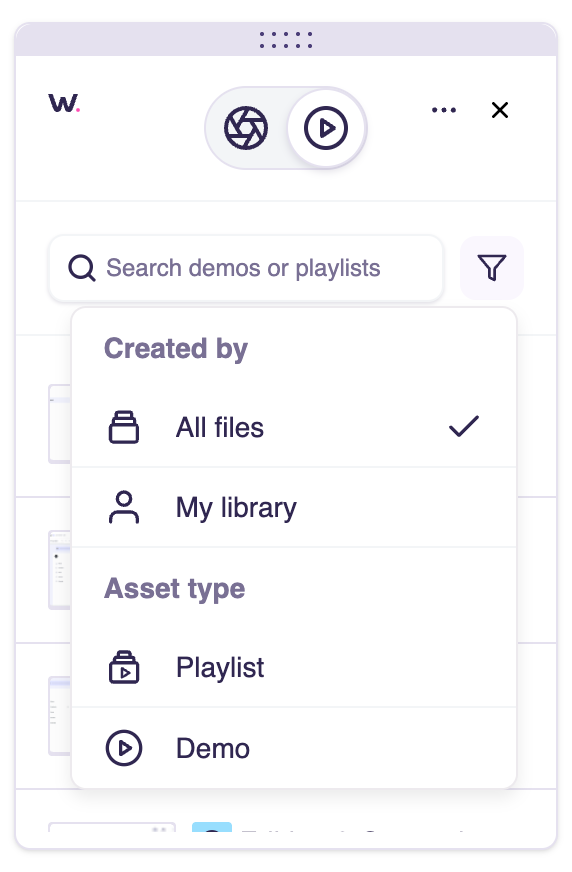
- Filter by Created By or Asset Type.
- All files show assets created by you and shared with you.
- My library shows only the assets you've created.
- With Walnut Live, filter to Live overlays and click one to switch it on. Overlays for the current site are listed first.
-
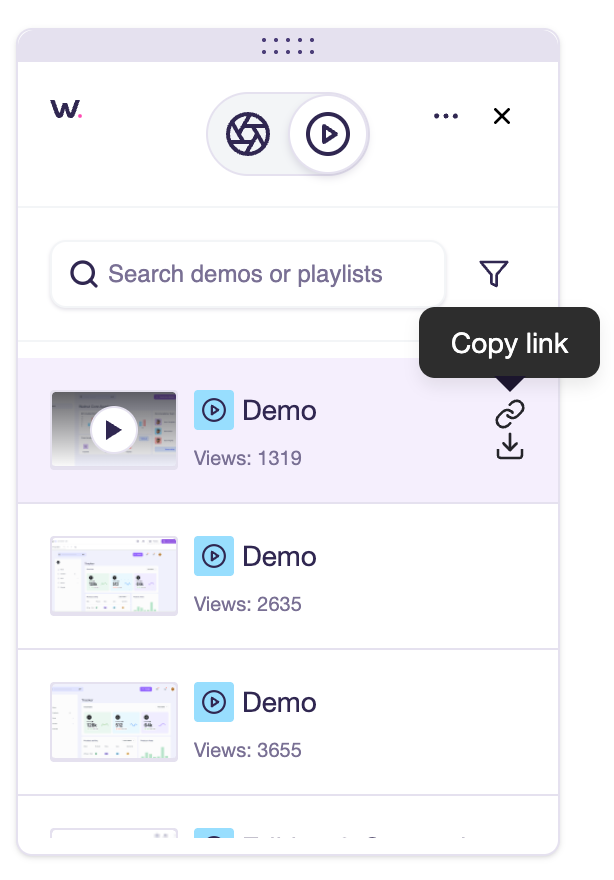
Click a demo or playlist to open it in your browser, or click the link icon to copy its URL.
-
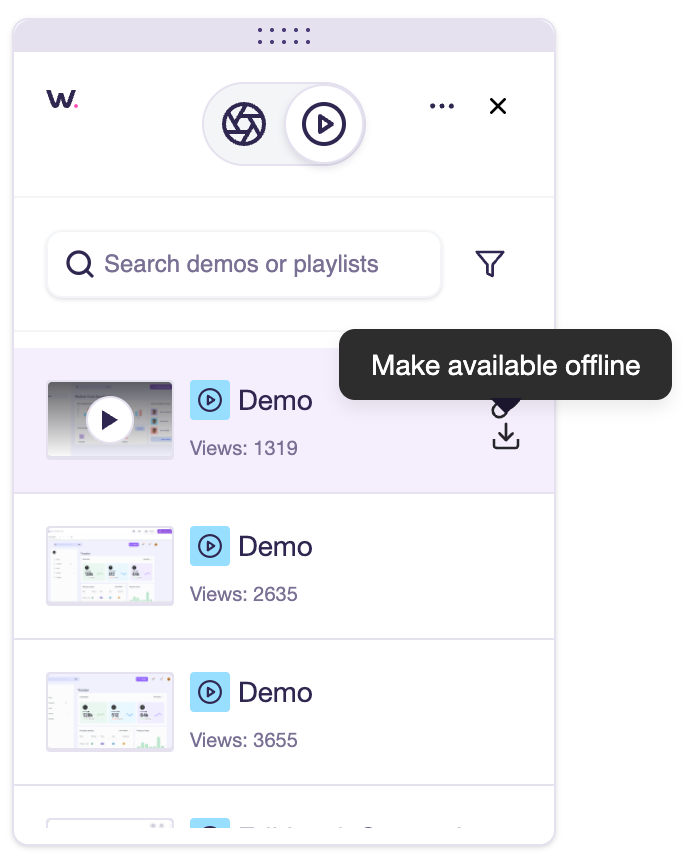
If Offline Demos are enabled in your Walnut Subscription, click the download icon to save an offline version. Learn more about Offline Demos →