Notify deal owners and teammates on playlist and deal room activity
Email deal owners, account owners, and teammates when prospects view a playlist, deal room, or demo. Set a company default, then override it per asset.
Notify deal owners and teammates on playlist and deal room activity
About This Feature
Walnut can email you and your teammates when a prospect views a playlist, deal room, or demo, so the people working the deal hear about it even if they didn't create the asset. Recipients can include the deal owner and account owner from your CRM, as well as any Walnut users you add.
Snapshot
- Feature Status: Core Feature
- Role Access: Admin (Company Settings), Asset Owner (playlist, deal room, and demo settings)
- Locations:
- Company Settings → Account Settings → Notifications and Emails
- Playlist and deal room Settings menu → Notifications
- Demo preferences → Notifications
Notification types
| Notification | Where | What it sends |
|---|---|---|
| Viewer Alert | Playlists, deal rooms, and demos | An email to the selected recipients when someone views the content. |
| Update Email | Deal rooms only | A summary email of recent activity from all participants in the deal room. |
| Weekly deals summary | Company-wide | A weekly email to each deal owner about their open deals. See Weekly deals summary below. |
CRM recipients
- Deal owner (from CRM): the owner of the deal in your connected CRM. Deal owners are notified even if they don't have a Walnut account.
- Account owner (from CRM): the owner of the account behind the deal. In Salesforce this is the Account Owner; in HubSpot it's the Company Owner. Account owners are notified even if they don't have a Walnut account.
If one person owns both the deal and the account, they get a single email.
Quick Start Guide
Set a Company-Wide Default
🔐 You must be an Account Owner or Company Admin to access this setting.
- Go to Company Settings and open the Account Settings tab.
- In the Notifications section, open the Enabled notifications dropdown.
- Select who should be notified by default when someone views content. You can select more than one:
- Creator: the person who created the asset.
- Deal owner (from CRM)
- Account owner (from CRM)
This is the default for new content. You can change it for each playlist, deal room, or demo.
Set Notifications for a Playlist or Deal Room
⚠️ These settings override the company default.
- Open the playlist or deal room and click the Settings icon in the editor header.
- Scroll to the Notifications section.
- Under Viewer Alert:
- Check Deal owner (from CRM) and/or Account owner (from CRM). These options appear when your company has a CRM connected. The playlist doesn't need to be linked to a deal: Walnut matches the viewer to a deal by their email, then by their company domain.
- Click Add Walnut users to open Manage notifications and choose the teammates who should get the email. The number of users you've added is shown next to the link.
- Deal rooms only: under Update Email, choose recipients the same way. The Deal owner (from CRM) and Account owner (from CRM) options appear only when the deal room is linked to a CRM deal.
Set Notifications for a Single Demo
⚠️ This setting overrides the company default.
- Click the three-dot menu on a demo and select Demo preferences.
- Open Notifications. Under Tell me when someone views this demo, turn on Deal owner and/or Account owner. Both come from your CRM and are notified by email or Slack.
- Under Teammates, open Add teammates and pick anyone else on your team who should be notified. Viewers can't get notifications.
Each change saves right away.
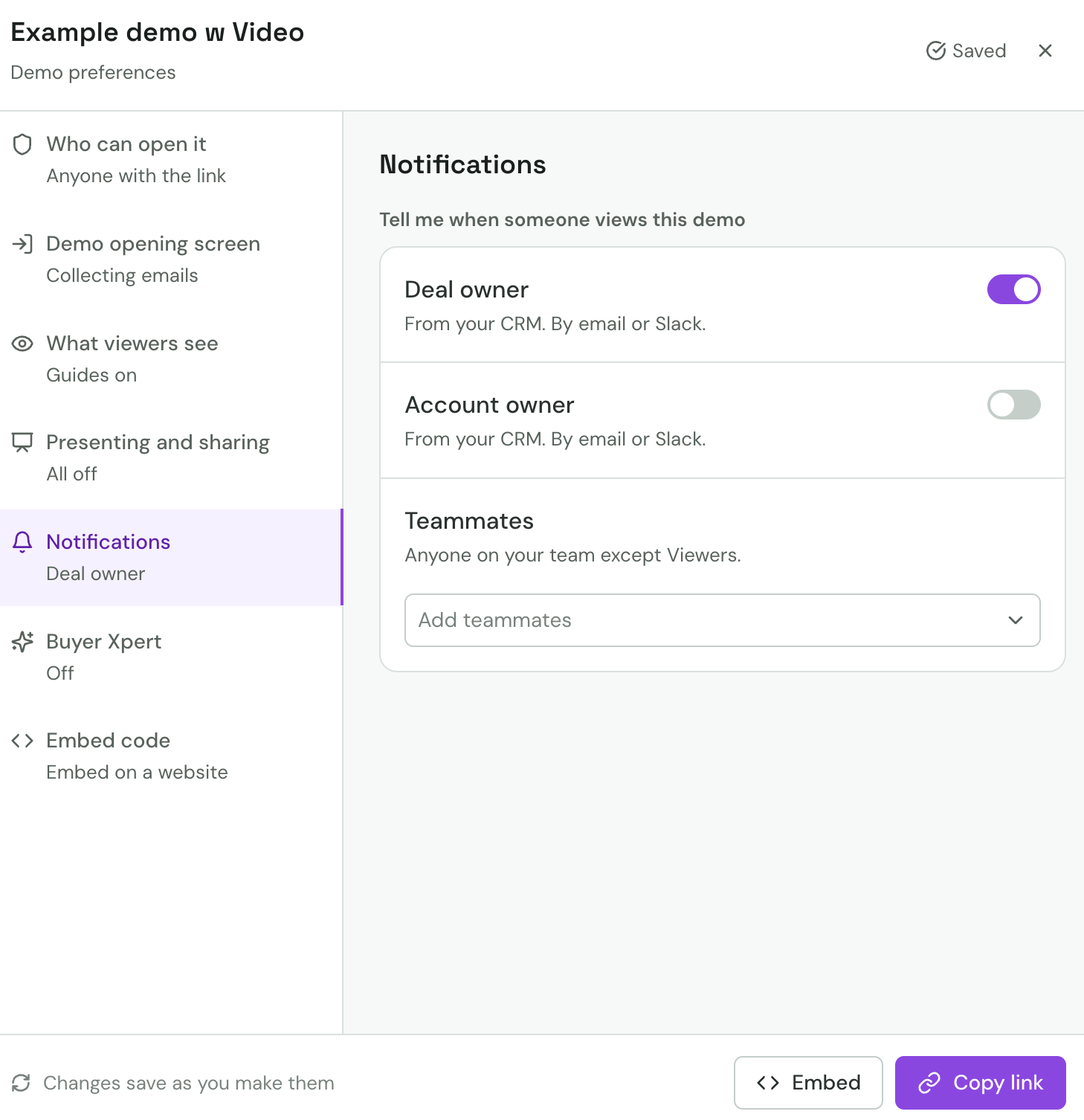
For more on demo notifications, see Enable demo notifications.
Weekly deals summary
The Weekly deals summary is an email Walnut sends each Monday to every deal owner, with suggestions on how to move their open deals forward. It highlights:
- Deals with new stakeholders
- Deals with demo activity in the past week
- Deals that have lost momentum
- Deals closed won in the past week
Deal owners only get the email when at least one of their open deals has new stakeholders, recent demo activity, or lost momentum.
Requirements: your company must have the Salesforce integration connected. The email goes to Walnut users who own open Salesforce opportunities.
To turn it on or off:
🔐 You must be an Account Owner or Company Admin to access this setting.
- Go to Company Settings and open the Account Settings tab.
- In the Emails section, toggle Weekly deals summary.
The Weekly deals summary is on by default.