Setup step 4: Share reports and dashboards
Setup step 4: Share reports and dashboards
Efficient collaboration and transparency within your organization are vital for successful business operations. To ensure that all members of your organization have access to reports and dashboards, Walnut provides a straightforward folder sharing feature.
Sharing Walnut Reports
Click the settings icon  in the top left corner and look up Reports.
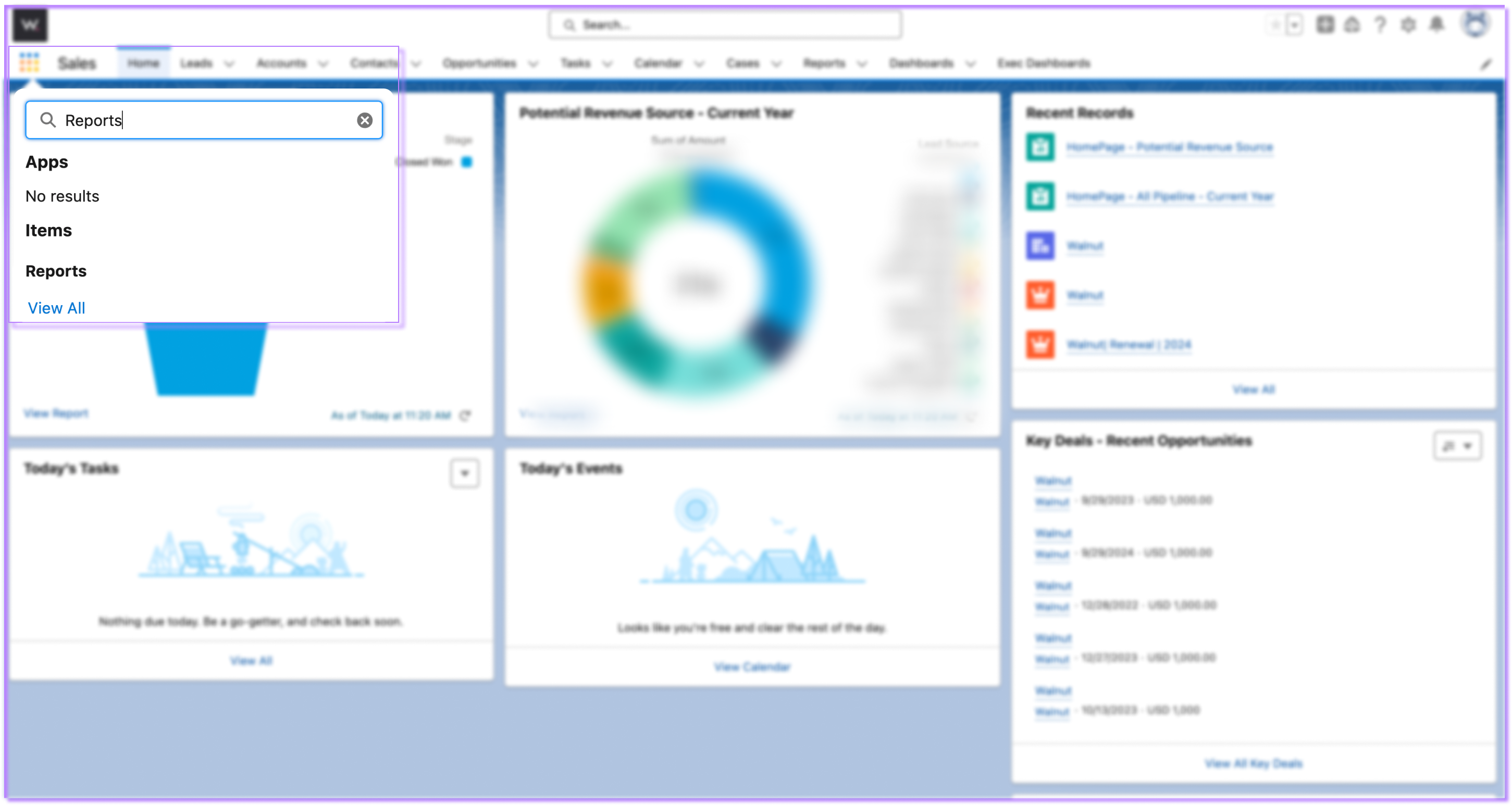
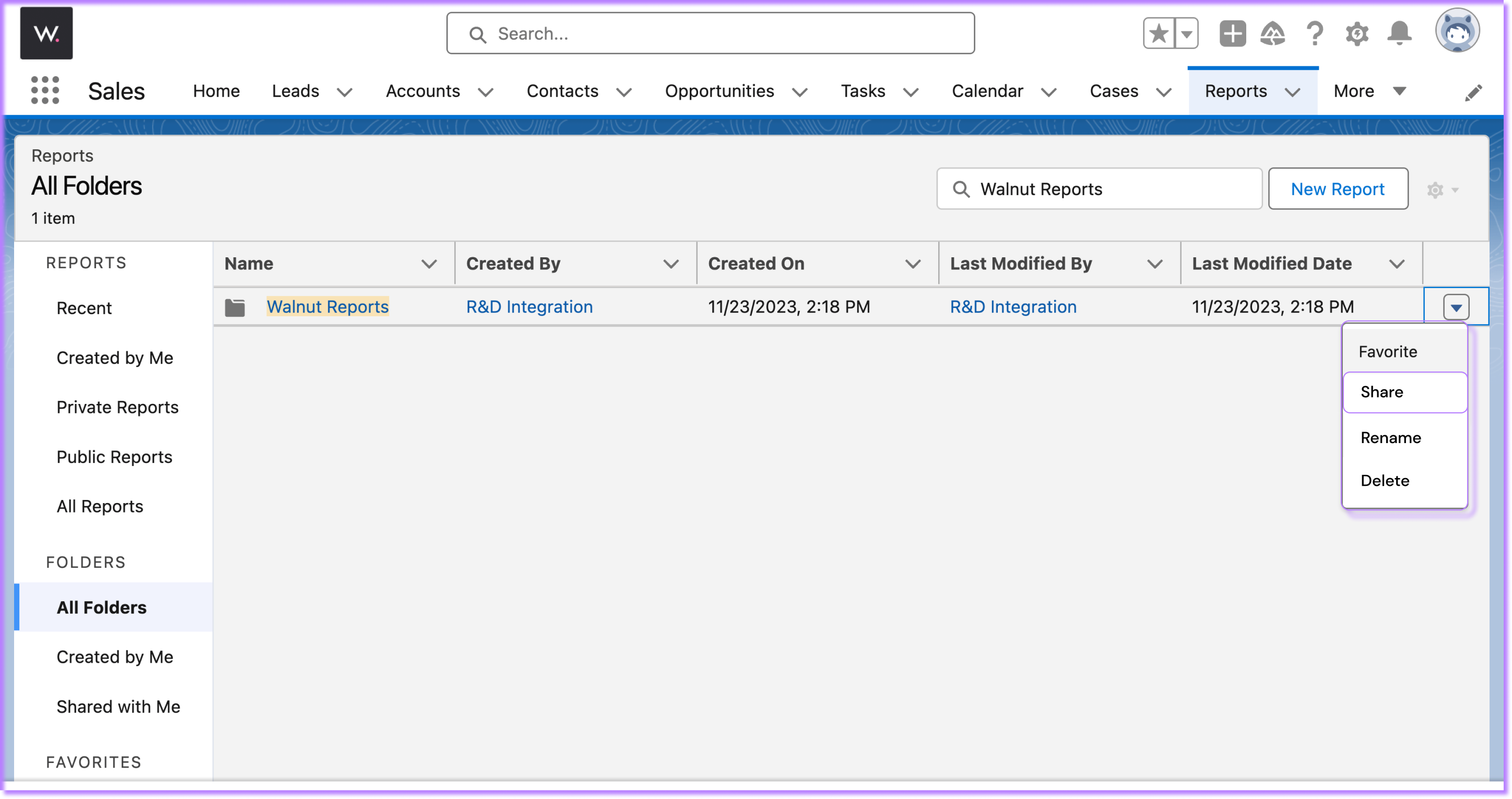
Within the Reports section, navigate to the All Folders tab.
- Search Walnut Reports
 Open the drop down menu in the far right and click share
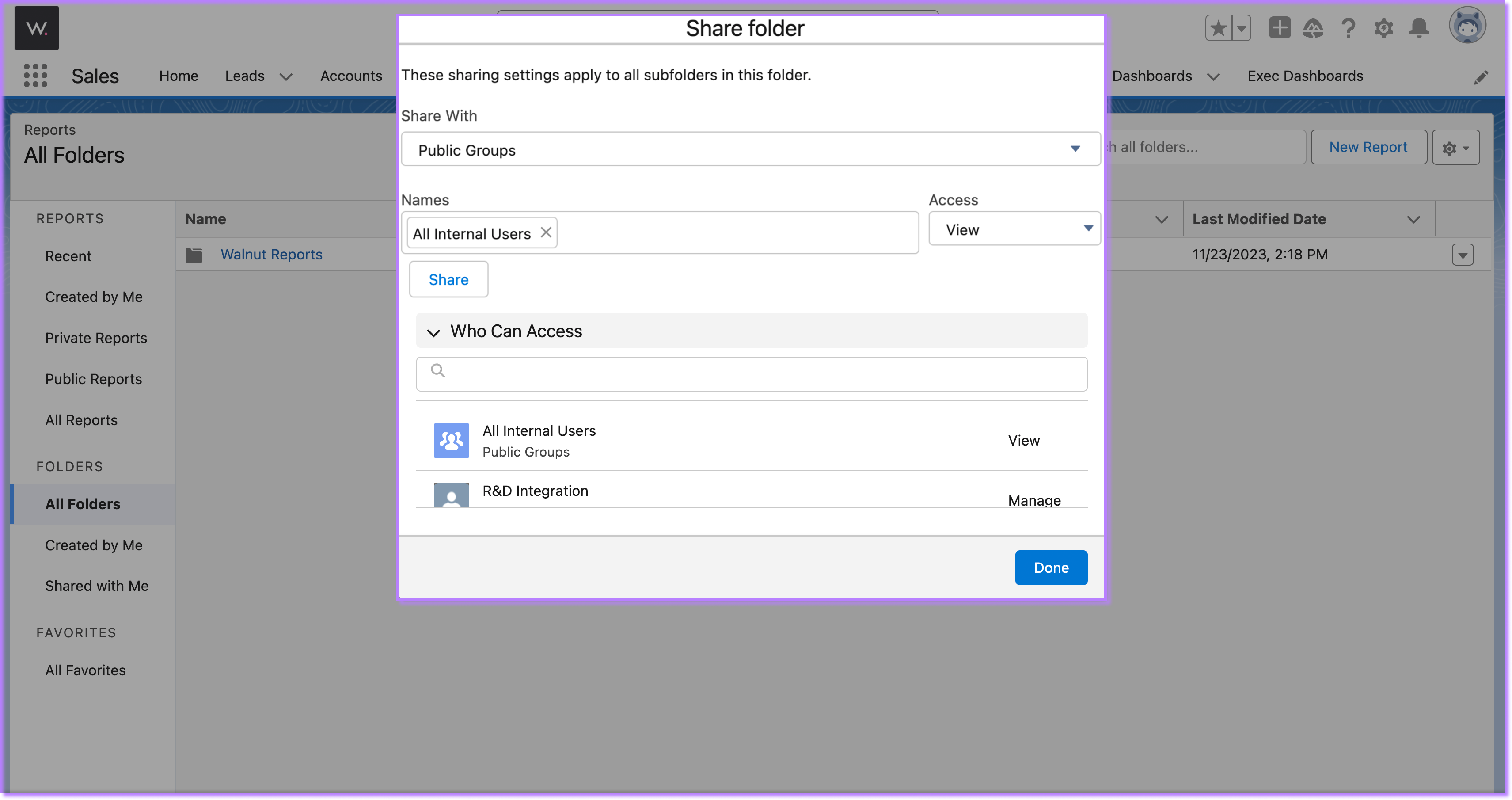
Choose to share with Public Groups.
- Specify the group as All Internal Users
- Assign access accordingly (view, edit, or manage)
- Click Done
Sharing Walnut Dashboards
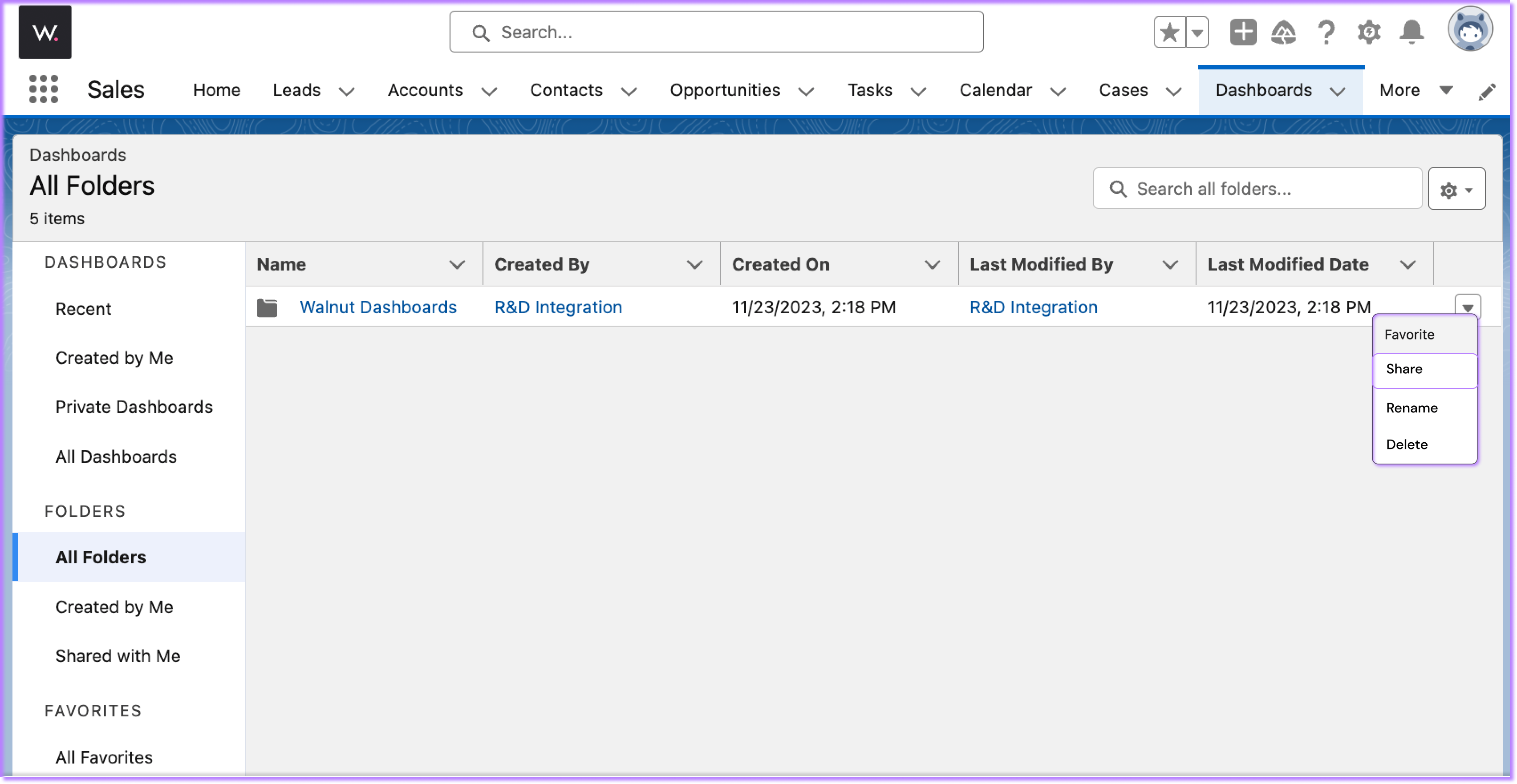
Click the settings icon in the top left corner and look up Dashboards.
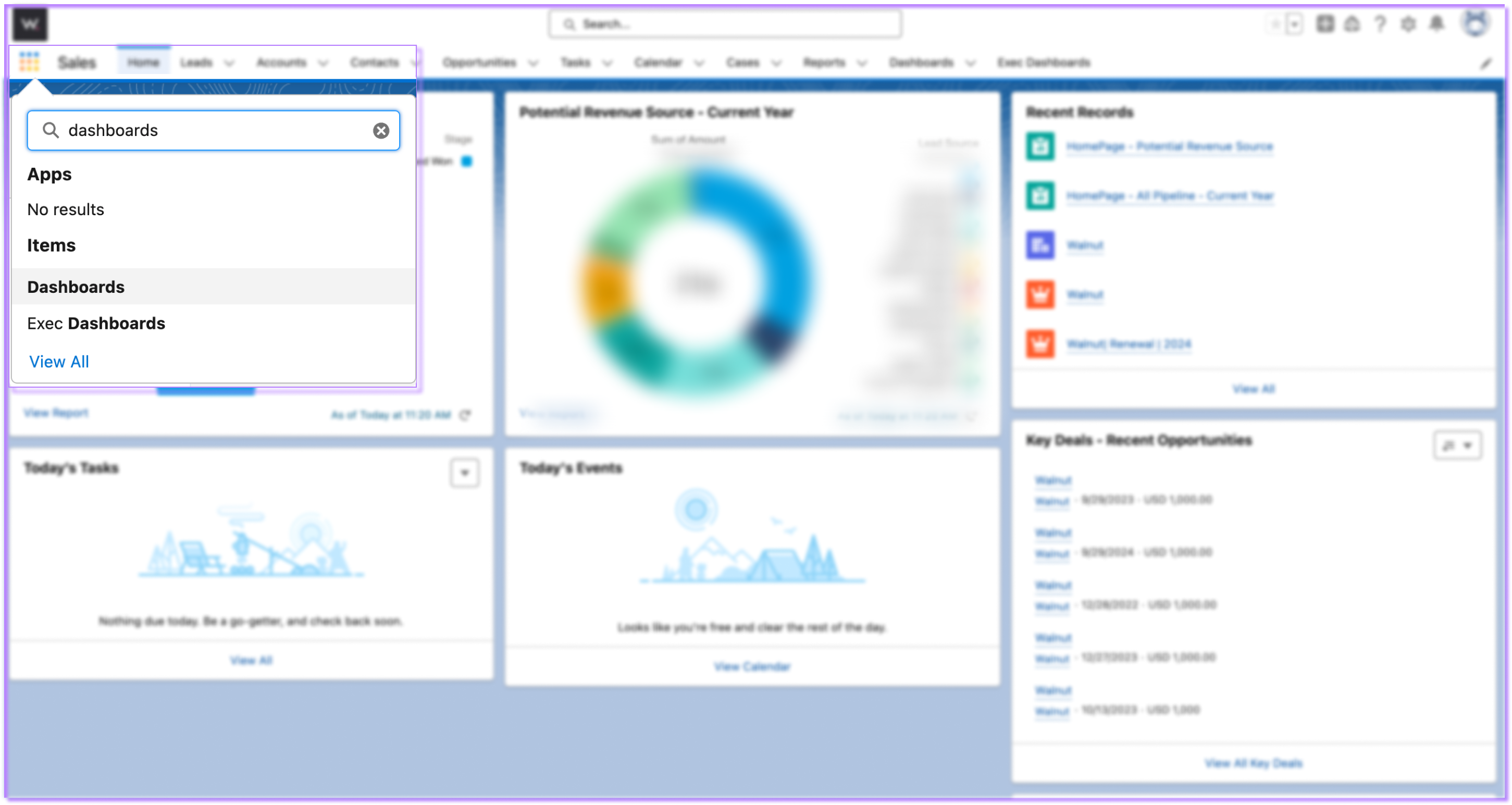
Within the Dashboards section, navigate to the All Folders tab.
- Search Walnut Dashboards
- Open the drop down menu in the far right and click share
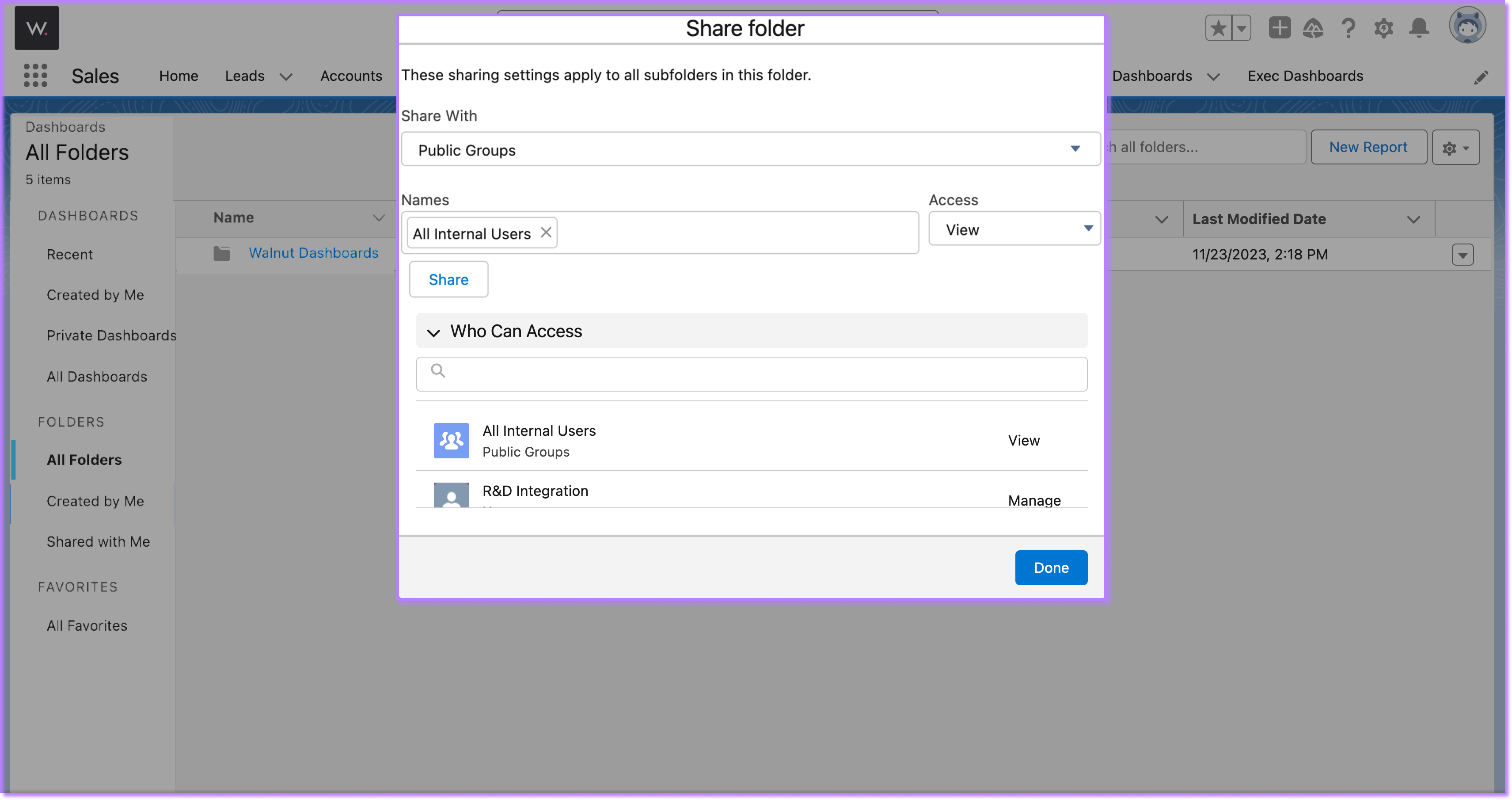
Choose to share with Public Groups.
- Specify the group as All Internal Users
- Assign access accordingly (view, edit, or manage)
- Click Done
Was this helpful?