Navigate opportunities with Deals
Navigate opportunities with Deals
Easily exploring and managing your opportunities is a key part of the Walnut experience. On the Deals dashboard, users can access and review all the opportunities from your integrated Salesforce account.
Be sure to set up the Walnut and Salesforce Integration before proceeding to the Walnut Deals View page.
Filtering and Reviewing Deals
From Walnut's home page, select the  tab in the left navigation menu. There, you'll see a full list of deals your team has in their pipeline.
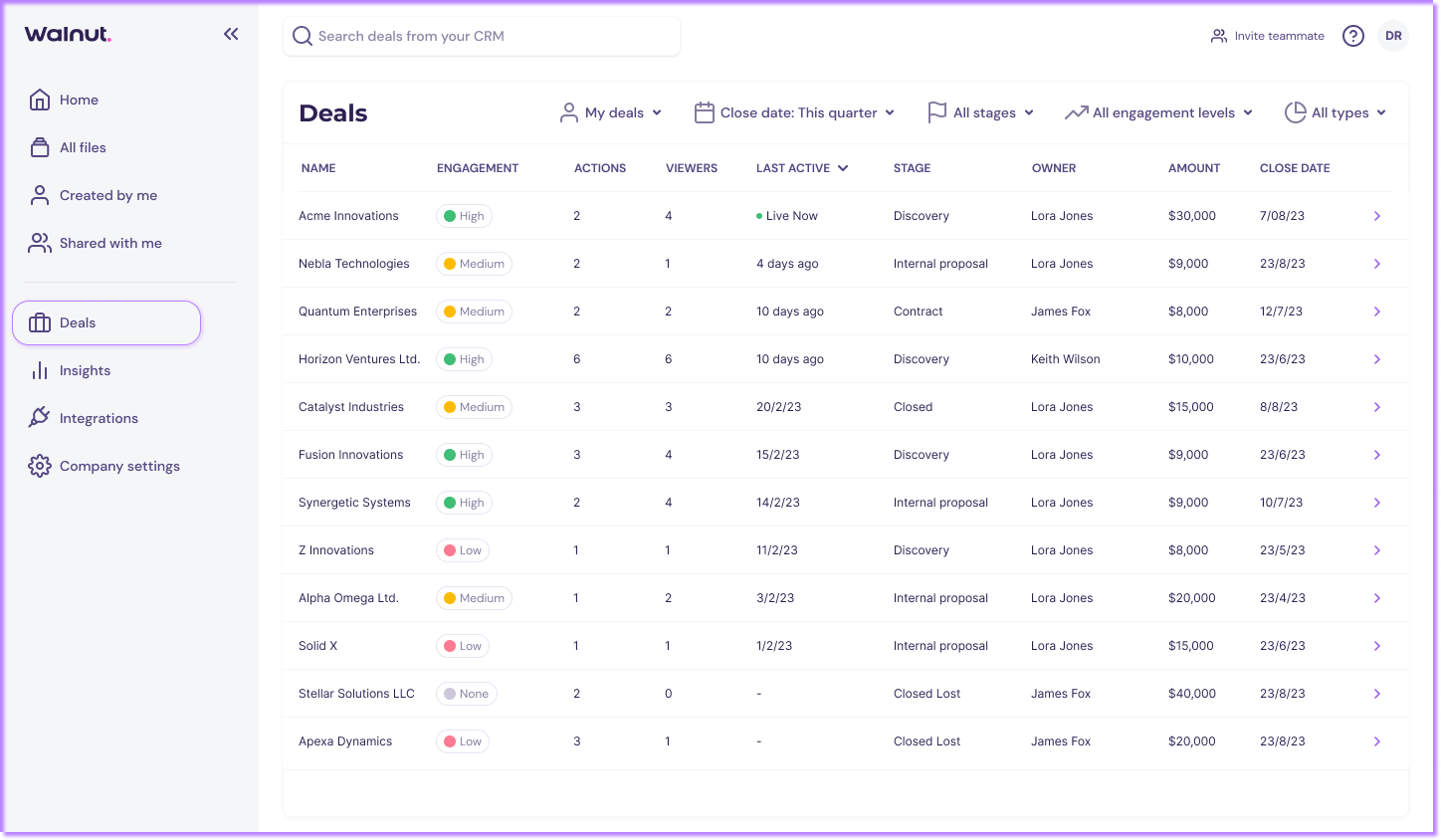
The deals list displays the following details:
- Name of the opportunity.
- Engagement level of the deal according to Walnut's calculation.
- Risks identified from reviewing the demo data of this deal
- Viewers for this deal
- Last Active date of the last demo activity
- Stage of the deal, from Salesforce
- Owner of the deal, from Salesforce
- Amount of the deal is set for, from Salesforce
- Close Date of the deal, from Salesforce
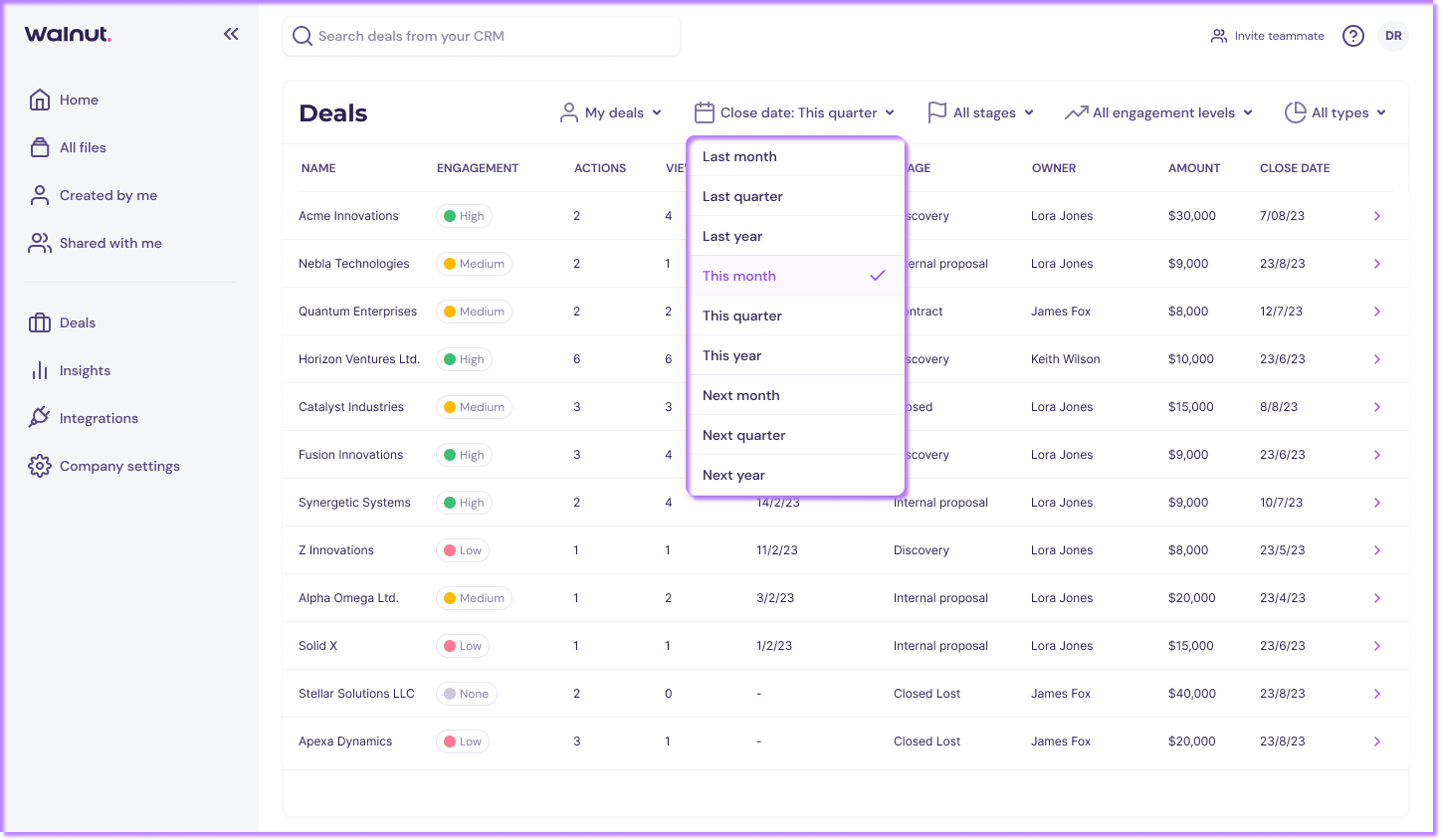
At the top, you have a few different filtering open. Filter through deals based on Closed Date, with options like closed last month, quarter, year, closing in this month, quarter, year.
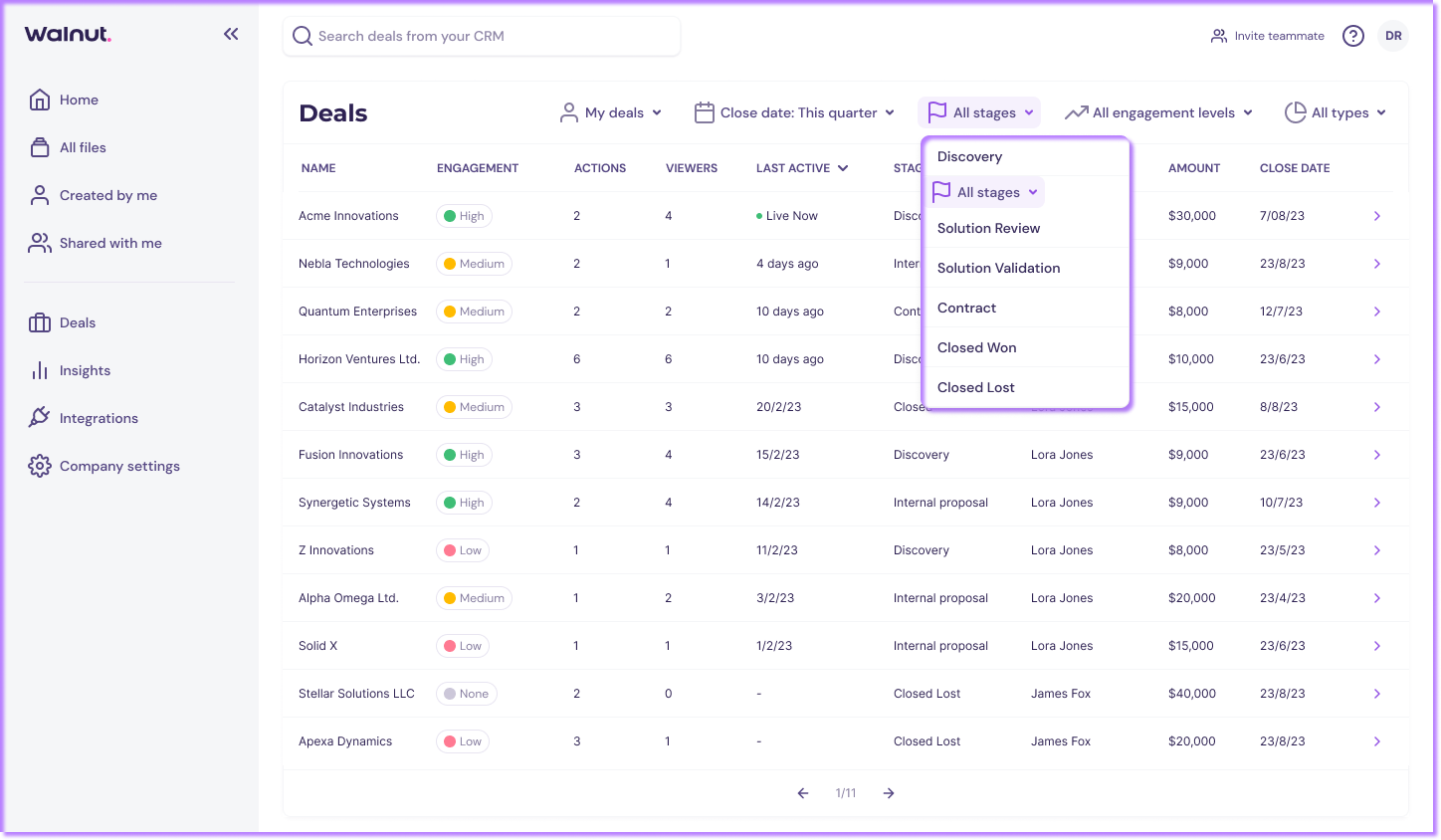
Or filter by deals based on their current stage in your CRM.
Additional filtering options include:
- Deal Owner — filter to All deals, My deals, or one or more specific owners from your CRM.
- Deal Stage — pick one or more stages from your CRM pipeline.
- Deal Type — filter by the CRM deal type values.
- Record Type (Salesforce) / Pipelines (HubSpot) — narrow to specific record types or HubSpot pipelines.
- Amount — set a From and Up to range for the deal amount.
- Engagement Level — High, Medium, Low, or None.
- Action items (Signals) — filter deals by Walnut‑detected signals: No activity, Low activity, Recent activity, Low activity closing soon, Single threaded, Single stage, Multi stage, New stakeholder, Popular demo, and Lost momentum.
- Deal rooms — show all, only deals With a deal room, or only those Without.
- Walnut activity — show all, only deals that Has Walnut activity, or those with No Walnut activity.
- Link sources — filter by how the demo‑to‑deal link was created (for example, associated from the app vs. automatically).
- Close date — preset ranges (last / this / next month, quarter, or year) or a Custom date range.
A search box at the top of the page lets you search across deal rooms and deals by name.
Deals summary (Action items)
Above the table, the Deals page shows a summary of action items you can click to filter the list:
- Walnut engagement score — a pie chart showing the distribution of WES across your deals (High, Medium, Low, None). Click a slice to filter by that engagement level.
- Deals with asset activity — count and percentage of deals with viewed assets, plus the average asset viewers per deal. Click to filter to deals with any engagement.
- Recently active deals — deals with asset views or interactions in the past week. Click to apply the Recent activity signal filter.
- Deals that lost momentum — deals with declining asset interactions over time. Click to apply the Lost momentum signal filter.
- Multi‑stage demo utilization — shows how many deals used demos in a Single stage, Multiple stages, or had No demo activity. Click a segment to apply the matching signal filter.
To get the best filtering results, we suggest using the following filtering combinations
- Hot Deals: Use the closed date for this quarter filter, together with engagement level set to high.
- Stalled Deals: Use the low/none engagement level filter and sort by amount to review significant deals in your pipeline, aiming to boost demo engagement with current stakeholders.
Important To Note 📝
- The list of deals in this page is based on your company's Salesforce details. If the integration and is enabled it will provide immediate updates. Note that the engagement score may take up to two hours to update from the moment the demo is viewed.