Connect Walnut to Claude, ChatGPT, Codex, or Copilot with the Walnut MCP
Connect your Walnut account to Claude, ChatGPT, Codex, or Microsoft Copilot Studio with the Walnut MCP, then build Demos and ask about your Demos, library, users, and seats.
Connect Walnut to Claude, ChatGPT, Codex, or Copilot with the Walnut MCP
The Walnut MCP connects your Walnut account to your AI assistant, so you can ask plain-language questions about your workspace and get answers from your live Walnut data. You don't need dashboards or exports.
It works with Claude, ChatGPT, Codex, and Microsoft Copilot Studio. Setup takes about a minute in any of them.
Before you start
- You need Claude, ChatGPT, the Codex app, or Microsoft Copilot Studio, signed in to your account. In Copilot Studio, you need permission to edit the agent you add Walnut to.
- You need a Walnut account. You approve the connection with your Walnut login.
- The Walnut MCP server URL is
https://api.teamwalnut.com/mcp. You sign in with your Walnut account, so there's no API key to paste.
Connect in Claude
-
Open the Claude desktop app and go to the main page.
-
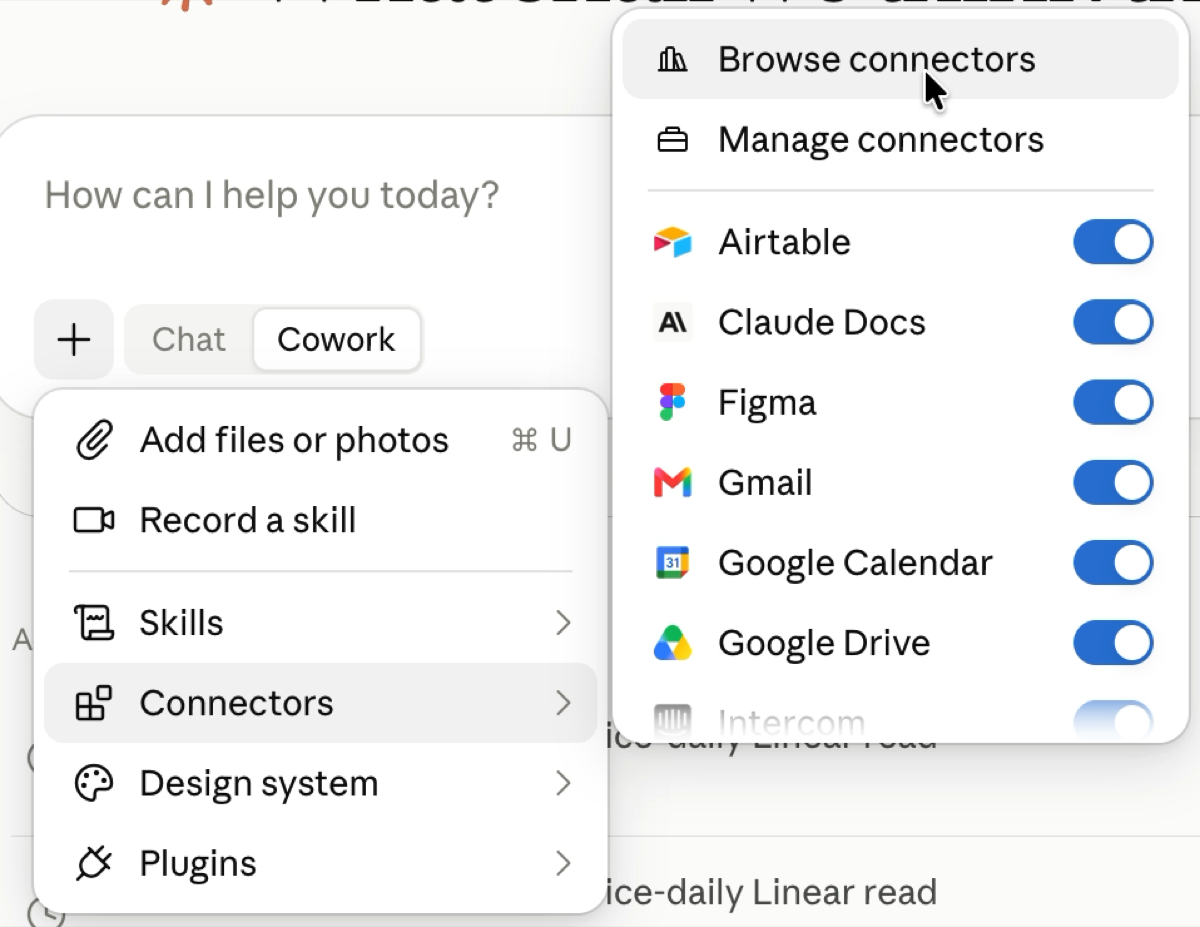
In the message box, click the + button.
-
Hover over Connectors and click Browse connectors.
-
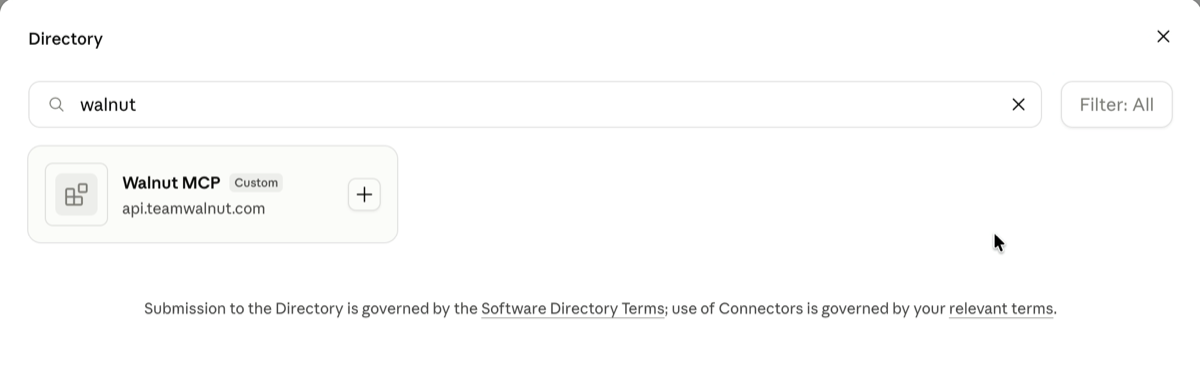
In the Directory, click the "browse connection" and then click the "+ADD" to add a custom connector for Walnut MCP
-
In the opened panel, you should add the MCP's URL https://api.teamwalnut.com/mcp and click 'connect'.
-
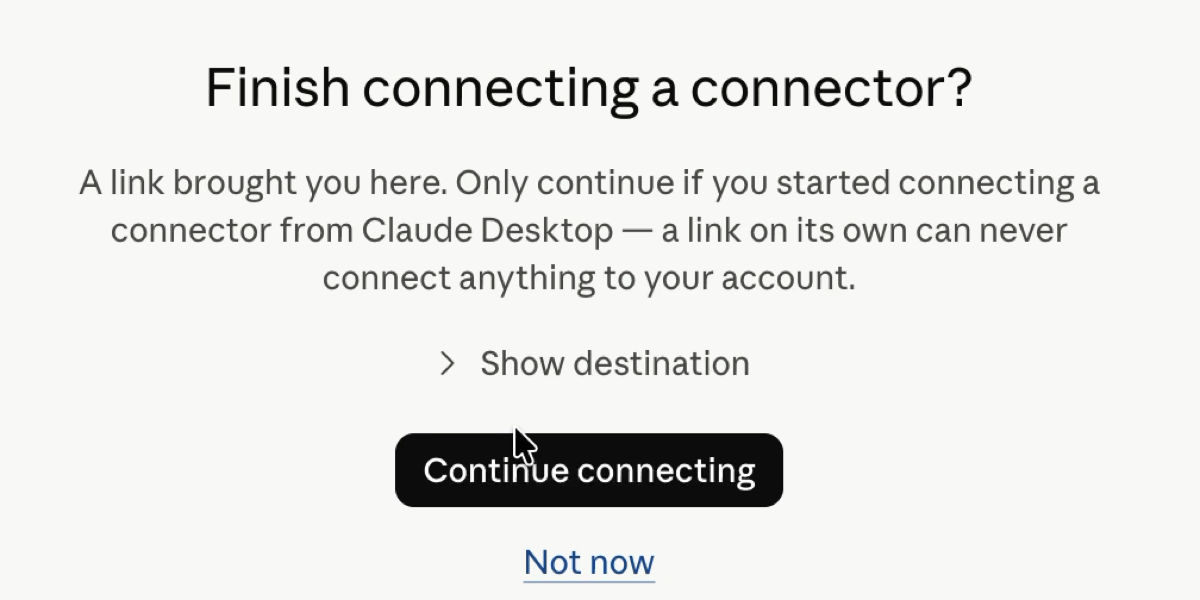
A browser tab opens and asks you to finish connecting. Click Continue connecting.
-
On the Walnut approval screen, choose an Access level:
- Full access: Claude can read your data and make changes, such as renaming or archiving items.
- Read-only: Claude can read your data but can't change anything.
-
When you see Connected, return to the app. You can close the browser tab.
-
Click + > Connectors again and make sure the Walnut MCP toggle is on.
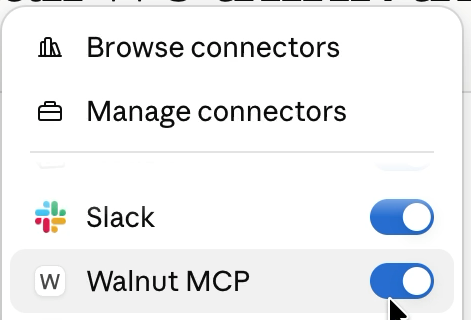
That's it. Claude shows Connected to Walnut MCP when the connection succeeds.
Connect in ChatGPT
Add the Walnut MCP to ChatGPT as a custom connector using the server URL https://api.teamwalnut.com/mcp. When ChatGPT asks you to sign in, a browser tab opens the Walnut approval screen. Choose Full access or Read-only, then click Authorize.
Connect in Codex
-
Open the Codex app and go to Settings > Plugins.
-
Open the MCPs tab, click Add, and choose to connect a custom MCP.
-
Fill in the form:
- Name:
walnut_mcp - Type: Streamable HTTP
- URL:
https://api.teamwalnut.com/mcp
Leave Bearer token env var, Headers, and Headers from environment variables empty. You sign in with your Walnut account instead, so there's no token or API key to add.
- Name:
-
Click Save.
-
Back in the MCPs tab, find walnut_mcp under Servers and click Authenticate.
-
A browser tab opens with Codex wants to access your Walnut account. Choose an Access level:
- Full access: Codex can read your data and make changes, such as renaming or archiving items.
- Read-only: Codex can read your data but can't change anything.
Check the list of resources and permissions Codex will get, then click Authorize.
-
Return to the Codex app. You can close the browser tab.
-
Make sure the walnut_mcp toggle is on.
Connect in Microsoft Copilot Studio
In Copilot Studio, you add the Walnut MCP as a tool on an agent. The agent can then answer questions and take actions in Walnut.
-
In Copilot Studio, open your agent and go to its Tools page.
-
Select Add a tool > New tool > Model Context Protocol.
-
Fill in the form:
- Server name:
Walnut MCP - Server description: what the agent can use Walnut for, for example "Walnut demos, playlists, deal rooms, library, settings, and demo performance." The agent reads this description to decide when to use Walnut, so make it clear.
- Server URL:
https://api.teamwalnut.com/mcp
- Server name:
-
Under authentication, select OAuth 2.0, then select Dynamic discovery as the type. You don't need a client ID, client secret, or API key.
-
Select Create, then Next.
-
In Add tool, select Create a new connection. A Walnut sign-in window opens. Sign in with your Walnut account and choose an Access level:
- Full access: the agent can read your data and make changes, such as renaming or archiving items.
- Read-only: the agent can read your data but can't change anything.
Then click Authorize.
-
Select Add to agent.
The Walnut tools now appear on the agent's Tools page. Try a question in the agent's test chat.
Ask your first question
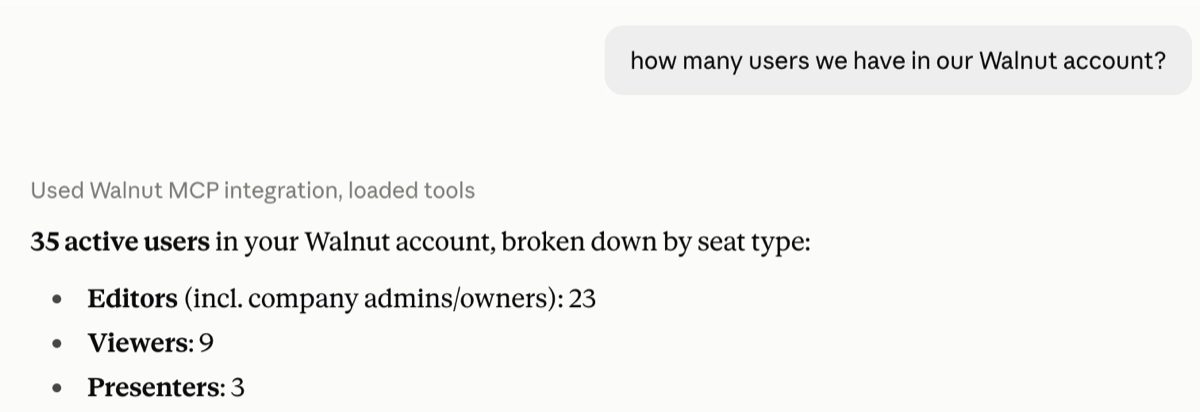
Type a question in the message box, for example "Which of my Demos never expire?" If you're an Account owner or Company admin, try "How many users do we have in our Walnut account?"
Your assistant uses the Walnut MCP to look up the answer. In Claude, you'll see Used Walnut MCP integration above the reply.
The Walnut MCP works with the same permissions you have in Walnut. Your assistant only sees, and only changes, what you can access yourself.
Troubleshooting
I don't see Walnut MCP when I search the Claude Directory. Your Claude workspace may need an admin to make the connector available. Ask your Claude admin, or contact your Walnut account team.
My assistant doesn't use Walnut to answer my question. In Claude, click + > Connectors and check that the Walnut MCP toggle is on. The connector can be connected but switched off for a conversation. In Codex, go to Settings > Plugins > MCPs and check that the walnut_mcp toggle is on. In Copilot Studio, check that the Walnut MCP tool is on the agent's Tools page, and make the Server description more specific if the agent doesn't pick it.
Copilot Studio can't add the Walnut MCP.
Check that the Server URL is exactly https://api.teamwalnut.com/mcp, and that authentication is OAuth 2.0 with Dynamic discovery. If your organization uses Power Platform data policies, an admin may need to allow custom MCP connectors in your environment.
Codex won't connect.
Check that the URL is exactly https://api.teamwalnut.com/mcp and the type is Streamable HTTP, then click Authenticate again. To change the server type, Codex asks you to uninstall the server first: open walnut_mcp, click Uninstall, and add it again.
My assistant says it can't make a change. You may have connected with Read-only access, or the change may need an Account owner or Company admin. Demo analytics, users, and seats also need an Account owner or Company admin role. If your assistant says a capability isn't available for your account, contact your Walnut account team. To switch to Full access, reconnect: in Claude, disconnect Walnut MCP in Manage connectors and connect again; in Codex, uninstall walnut_mcp and add it again; in Copilot Studio, create a new connection for the Walnut MCP tool and sign in again.
I closed the approval screen by mistake. Start the connection steps again. Connecting a second time is safe.
What you can do
Anyone in your Walnut account can:
- Build and publish Demos: describe the Demo you need, approve an outline and a plan, and get a Template and a share link built from your Screens Library. You can also personalize a Demo, publish new links, and republish Demos
- Translate Templates: into another language, guides, screen text, or both
- Search and organize the library: find, rename, move, tag, archive, share, and duplicate Templates, Demos, Playlists, and Deal rooms
- Check and change settings: expiry, access codes, who can open a Demo, Playlist, or Deal room, the email gate, view notifications, and Demo link options
- Analyze performance: compare Demos, Playlists, and Deal rooms, or take a close look at one of them against a company benchmark
Account owners and Company admins can also ask about:
- Demo analytics: sessions, completions, bounces, and top Demos
- Users and activity: who's in your account, their role, and when they last signed in
- Seats and licenses: how many Editor, Presenter, and Viewer seats are used and left
- Members and ownership: inviting people, changing roles, offboarding, and transferring ownership
See What you can do with the Walnut MCP for the full list, including which capabilities need an admin role or Full access. For ideas, see the MCP Prompt Library.
Share your feedback
We're building out the Walnut MCP and want to hear what worked, what didn't, and what you'd like it to answer next. Contact your Walnut account team or reach out to support.