Engagement data in HubSpot
Engagement data in HubSpot
Overview
Demo engagement data from Walnut will appear in HubSpot as long as your HubSpot Integration is set up, whether you’ve added a lead form or not.
Need to connect HubSpot first? Follow the HubSpot Integration Setup Guide here.
Session Identification & Sync Timing
Walnut only enriches CRM records when a session can be tied to a known person. In other words, email identification is what turns a demo view into CRM-ready engagement data.
Walnut supports multiple primary identification methods, including HubSpot lead forms, Walnut email gates, or URL parameters. Once a viewer is identified, Walnut can associate their activity to a HubSpot record and begin syncing enriched session data.
How the Automatcher Bubbles Up Engagement Data
Once a Walnut session is identified, Walnut uses an internal automatcher to decide which HubSpot record or records should receive that engagement data.
In simple terms, the automatcher evaluates the identified viewer, their associated HubSpot contact record, and related company or deal context to determine where the demo activity should be reported.
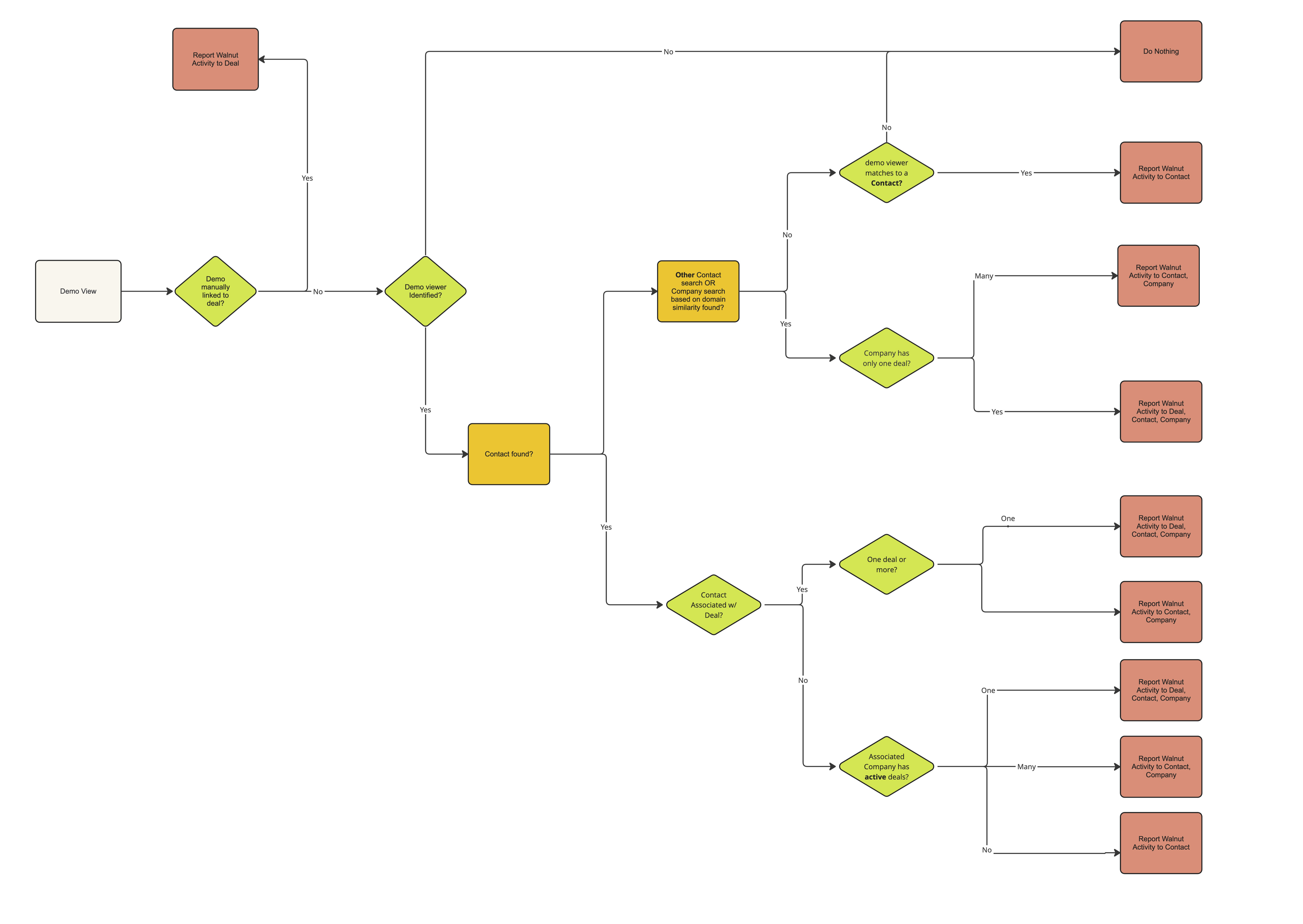
This means the cleanest enrichment usually happens when:
- The viewer is clearly identified
- The matching HubSpot contact exists
- The contact is associated with the correct company and deal
- The demo or playlist is connected to the right sales context when possible
Session-Level Data (Including Session ID)
When a viewer is identified, Walnut syncs session-level engagement details that help your team understand exactly what happened during that visit.
Sync Timing
Walnut sync timing is designed to capture the full session before enrichment is written to HubSpot. This prevents partial sessions from being logged too early.
Locate Demo Data in HubSpot
Start by logging into HubSpot. Then navigate to the contact who viewed your demo (or find them via the form submissions flow described below).
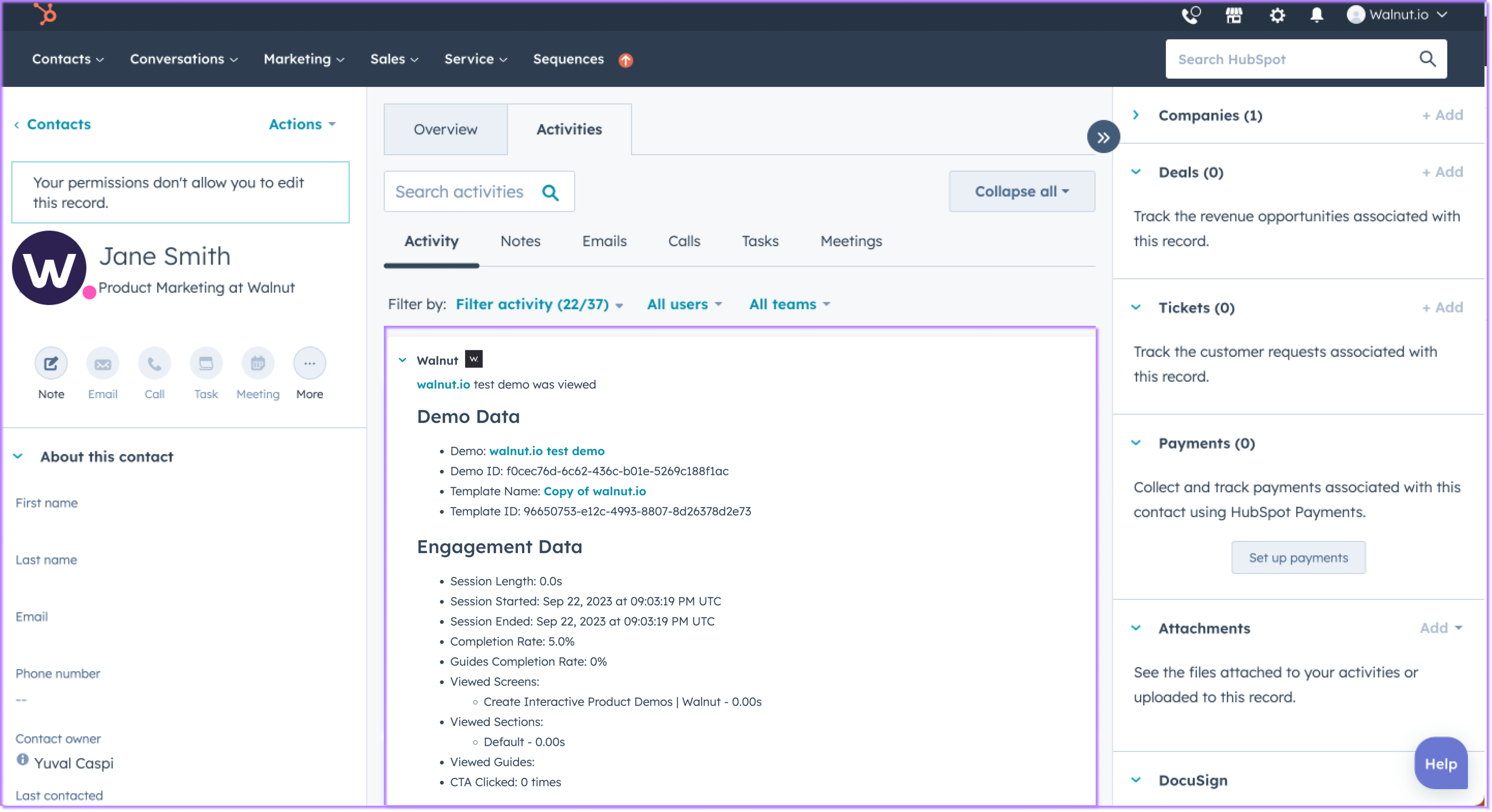
When a lead submits a form inside your demo, you’ll see Walnut data in HubSpot in two places:
Under Activities, you’ll see a new Walnut section that includes enriched demo and engagement data.
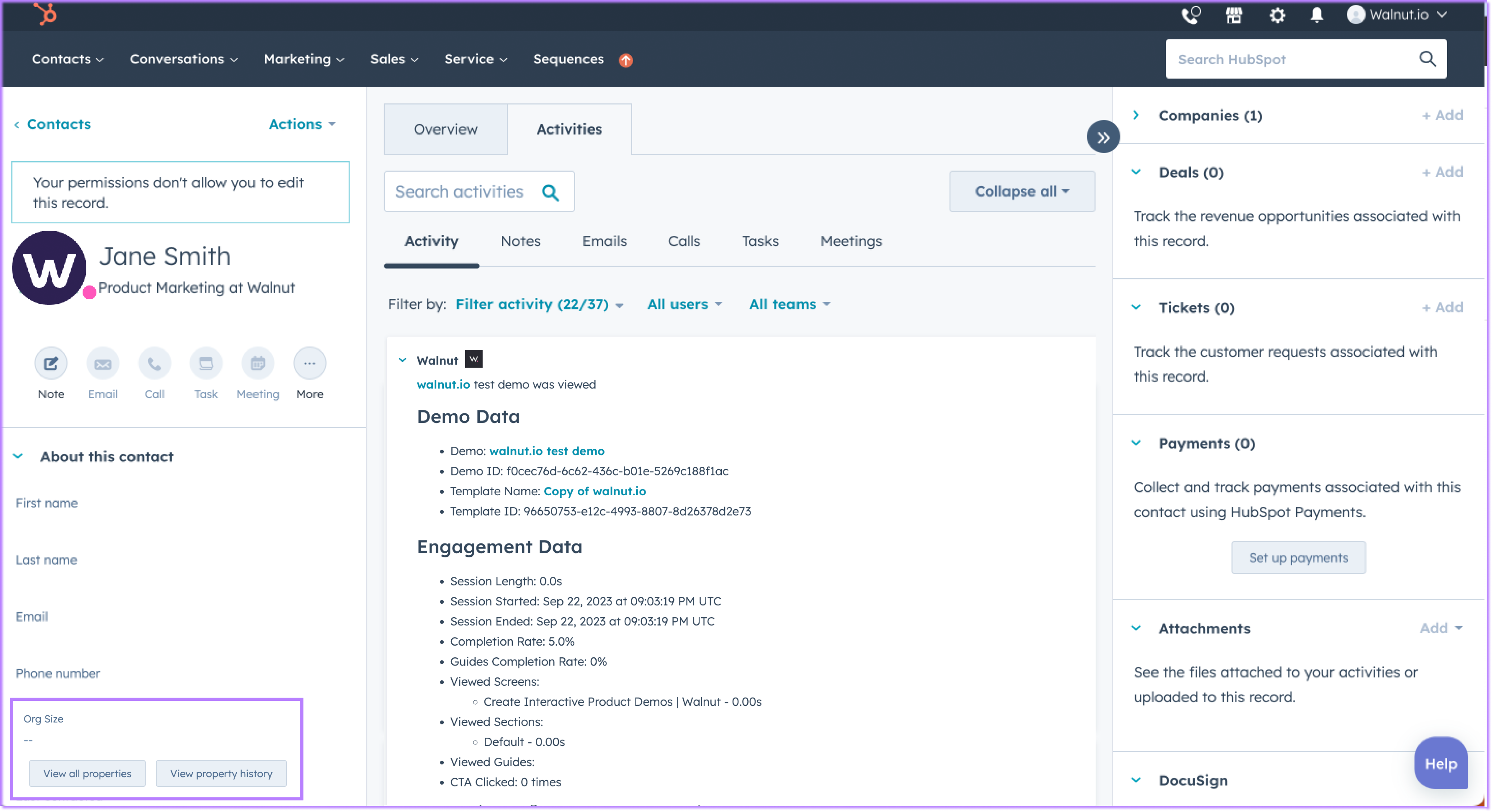
Next, from the contact record, scroll down and click View all properties.
You’ll see a property group called Walnut Demo that contains session-level details tied to that contact.
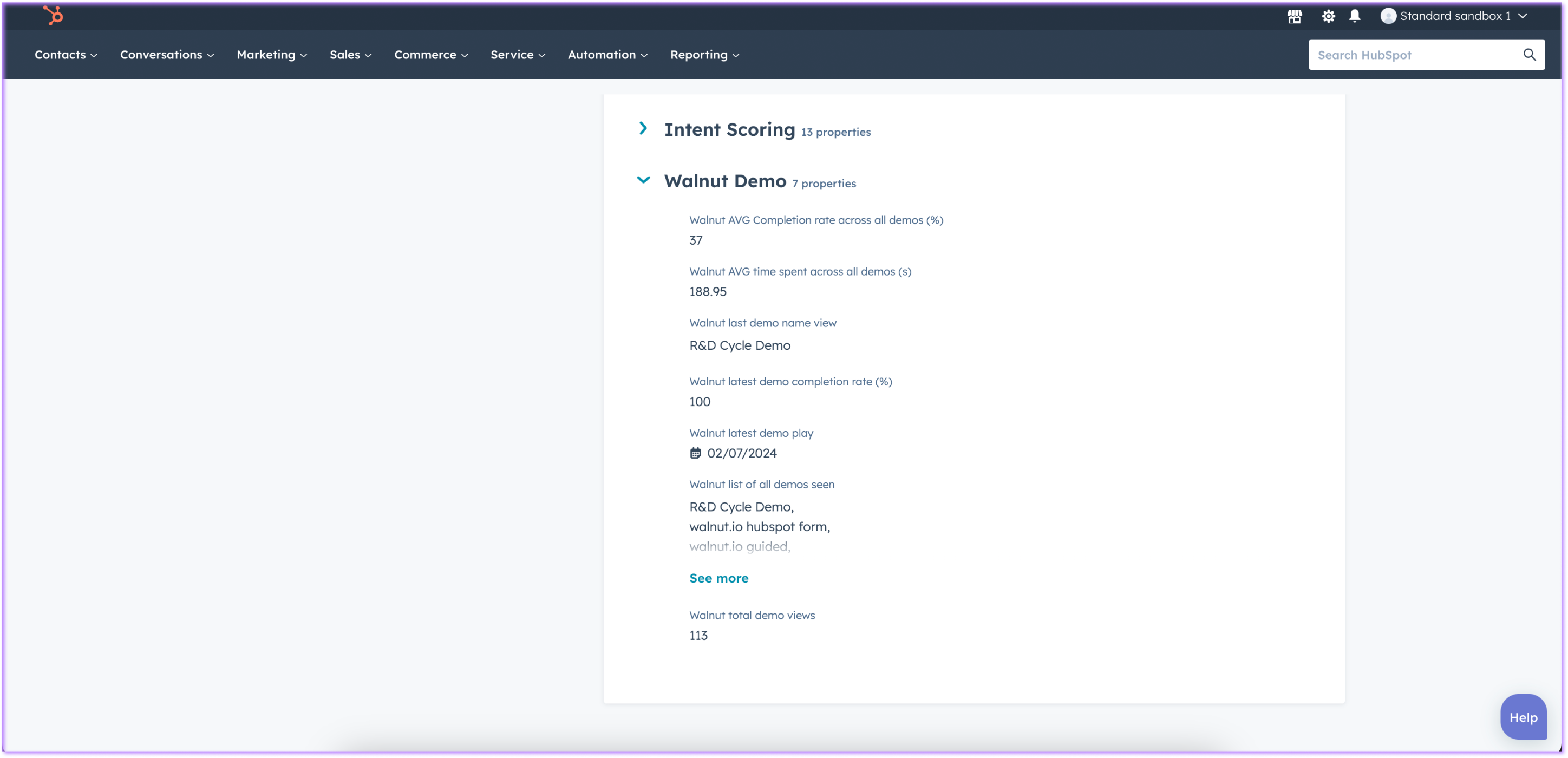
Walnut Properties Added to HubSpot
HubSpot will record a set of Walnut fields so you can quickly understand what a lead viewed and how they engaged.
Find the Contact via Form Submissions
You can also access enriched Walnut data by finding the contact directly from the Submissions tab within your HubSpot forms section.
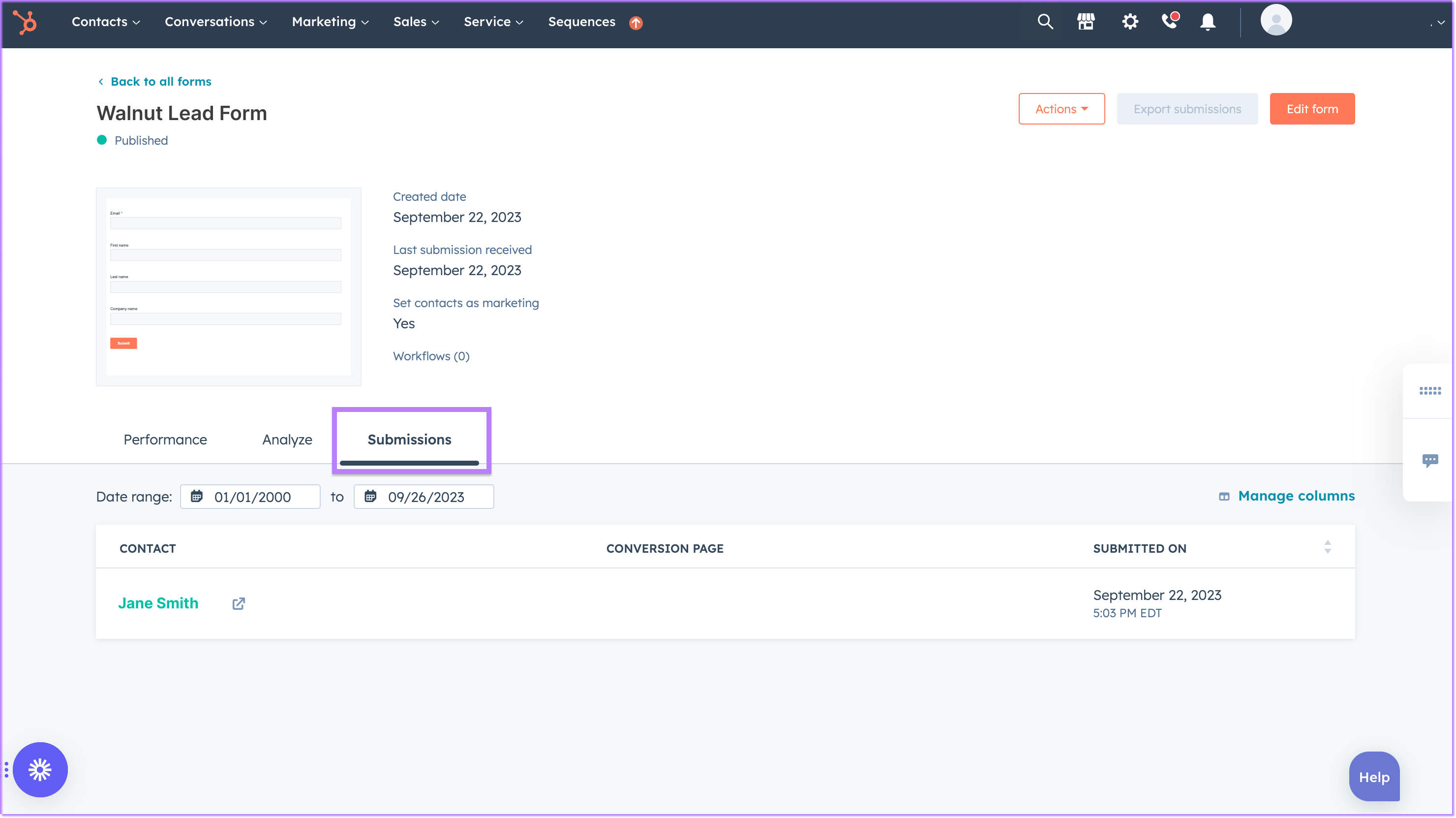
What Data Gets Enriched
The enriched demo data recorded through this integration includes: demo name, demo ID, template name, and template ID.
The enriched engagement data recorded through this integration includes: session length, session started, session ended, completion rate, guide completion rate, viewed screens, viewed sections, viewed guides, and CTA clicked.
Support HubSpot URL Params in Your In-Demo Form
If your HubSpot form relies on URL parameters, add the snippet below to the HubSpot embed code inside your Walnut template so the values are captured in the in-demo form.