Connect to HubSpot
Connect to HubSpot
Overview
Integrating Walnut with HubSpot lets you bring interactive Walnut engagement data into your sales and marketing workflows — so teams can follow up faster, automate smarter, and see exactly what prospects cared about.
The HubSpot integration enriches identified demo and playlist sessions for new and existing contacts, and can also connect engagement to HubSpot deals for a full deal-level view.
Key features include:
- Automatic contact enrichment — Sync demo and playlist engagement to HubSpot contacts so you can see what viewers did (and what they skipped).
- Flexible identification — Capture viewers using embedded HubSpot forms, or use your preferred Walnut identification method (depending on your workspace configuration).
- Deal-level visibility — Connect demos to HubSpot deals to keep engagement tied to pipeline context.
Before You Start
Before proceeding with the Walnut <> HubSpot integration, confirm the following:
-
Admin access in Walnut
This setup is intended for Walnut admins. -
HubSpot permissions
The HubSpot user used for authentication should have:- Read permissions for Companies, Contacts, and Deals
- Write permissions for Contacts
-
Deal visibility
The deals you can select in Walnut depend on the HubSpot user you authenticate with. Any deal visible to that user will be available in Walnut. -
Optional: HubSpot Sandbox
If you have access to a HubSpot sandbox environment, you can authenticate that account too. Walnut does not provide sandbox accounts for testing.
Authenticate Your HubSpot Account
Follow these steps to connect Walnut to HubSpot and enable contact and deal enrichment.
Step 1: Open HubSpot in Integrations
- In Walnut, go to Integrations.
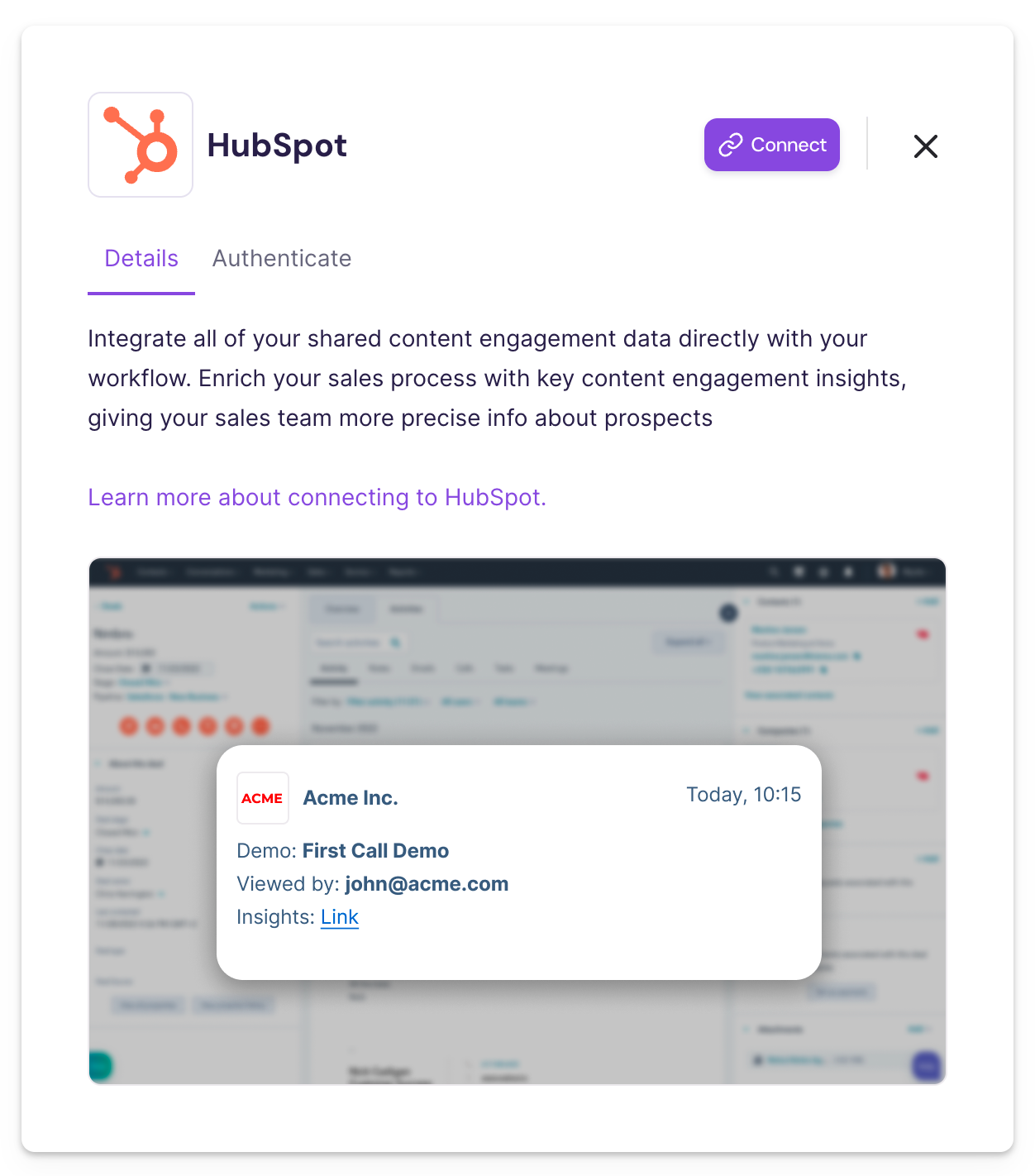
- Find HubSpot and click Learn more.

Step 2: Create a New Authentication
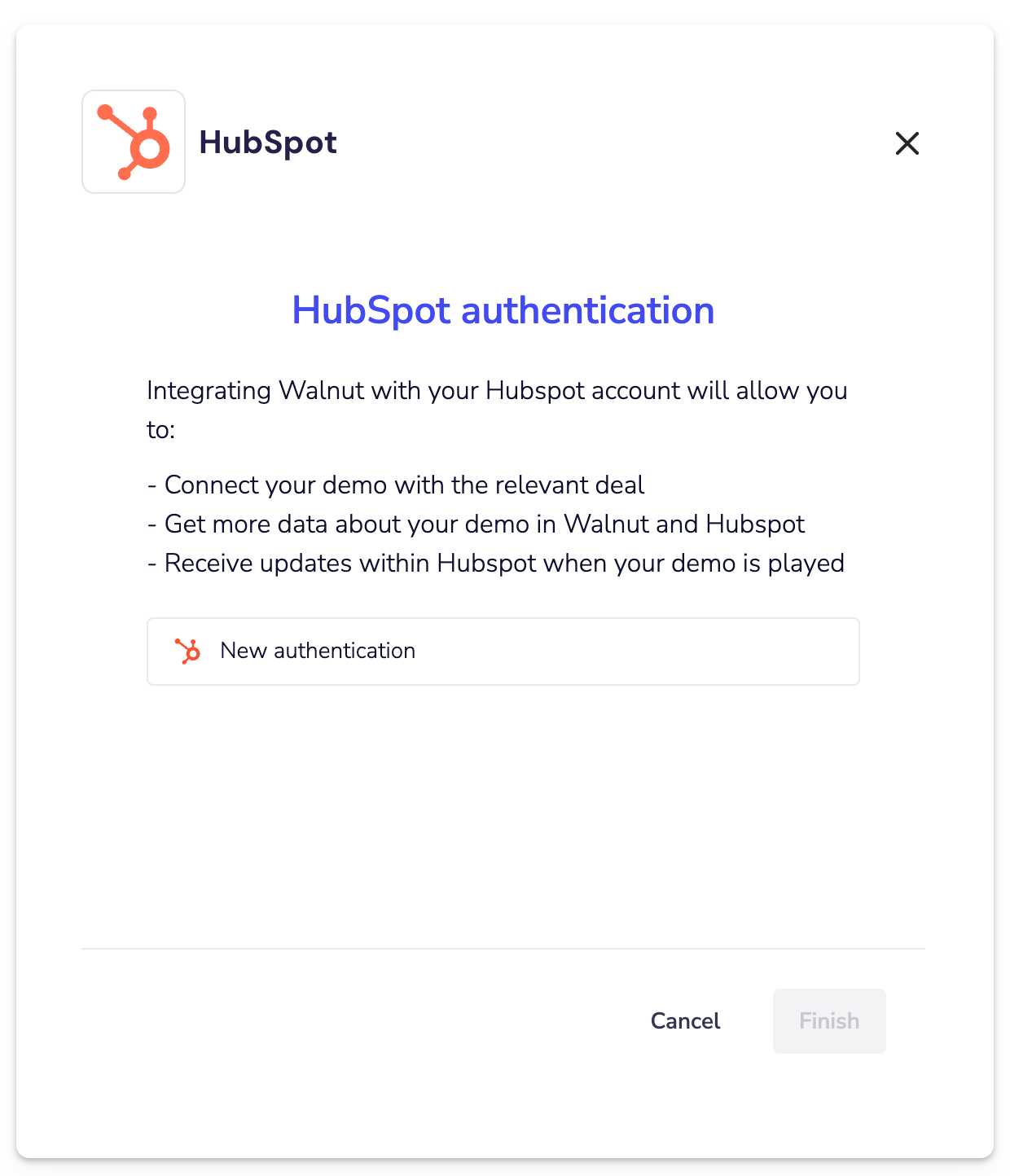
- Open the Authenticate tab.
- Click New Authentication.
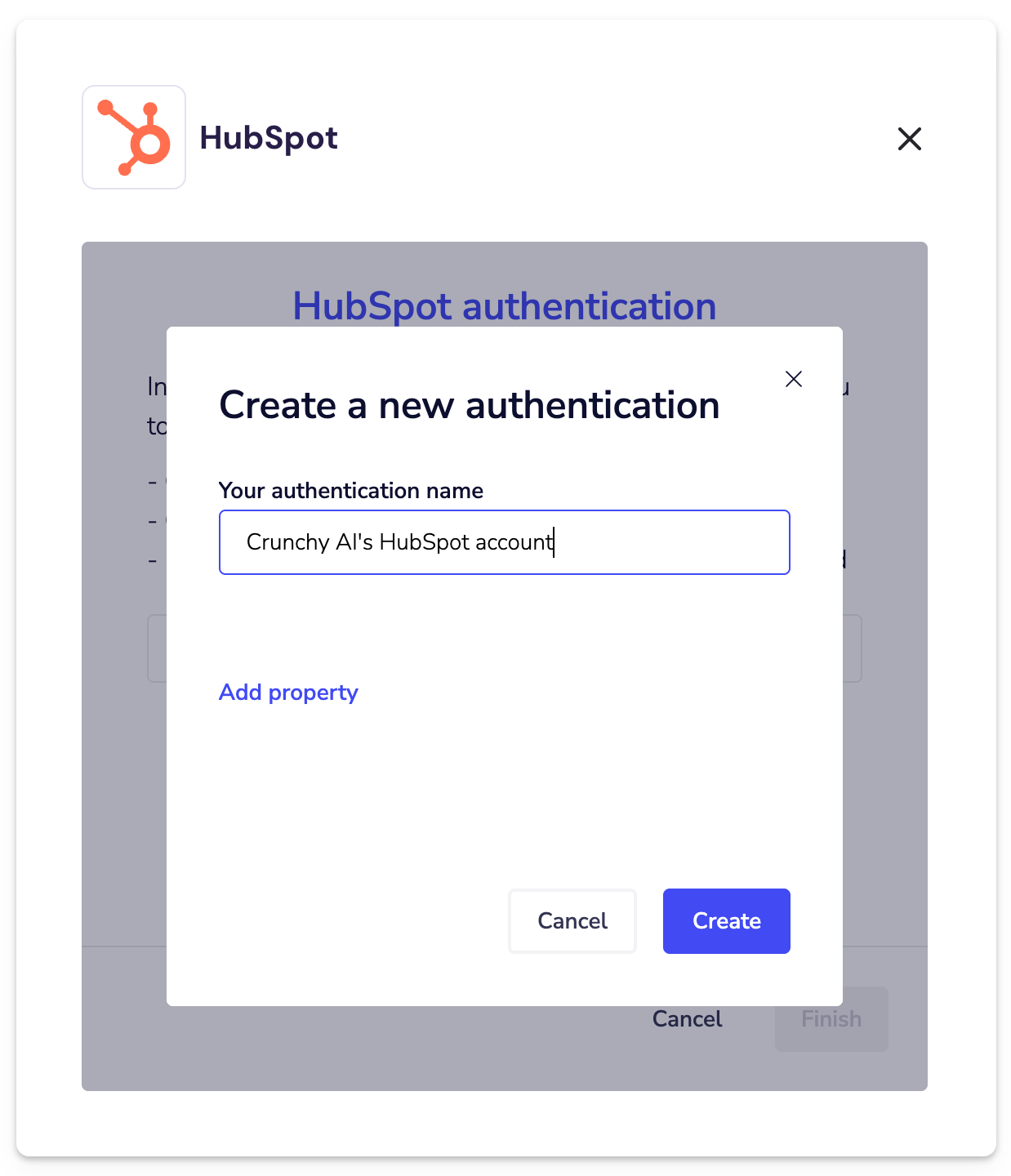
- Give the authentication a name (example: Acme HubSpot), then click Create.
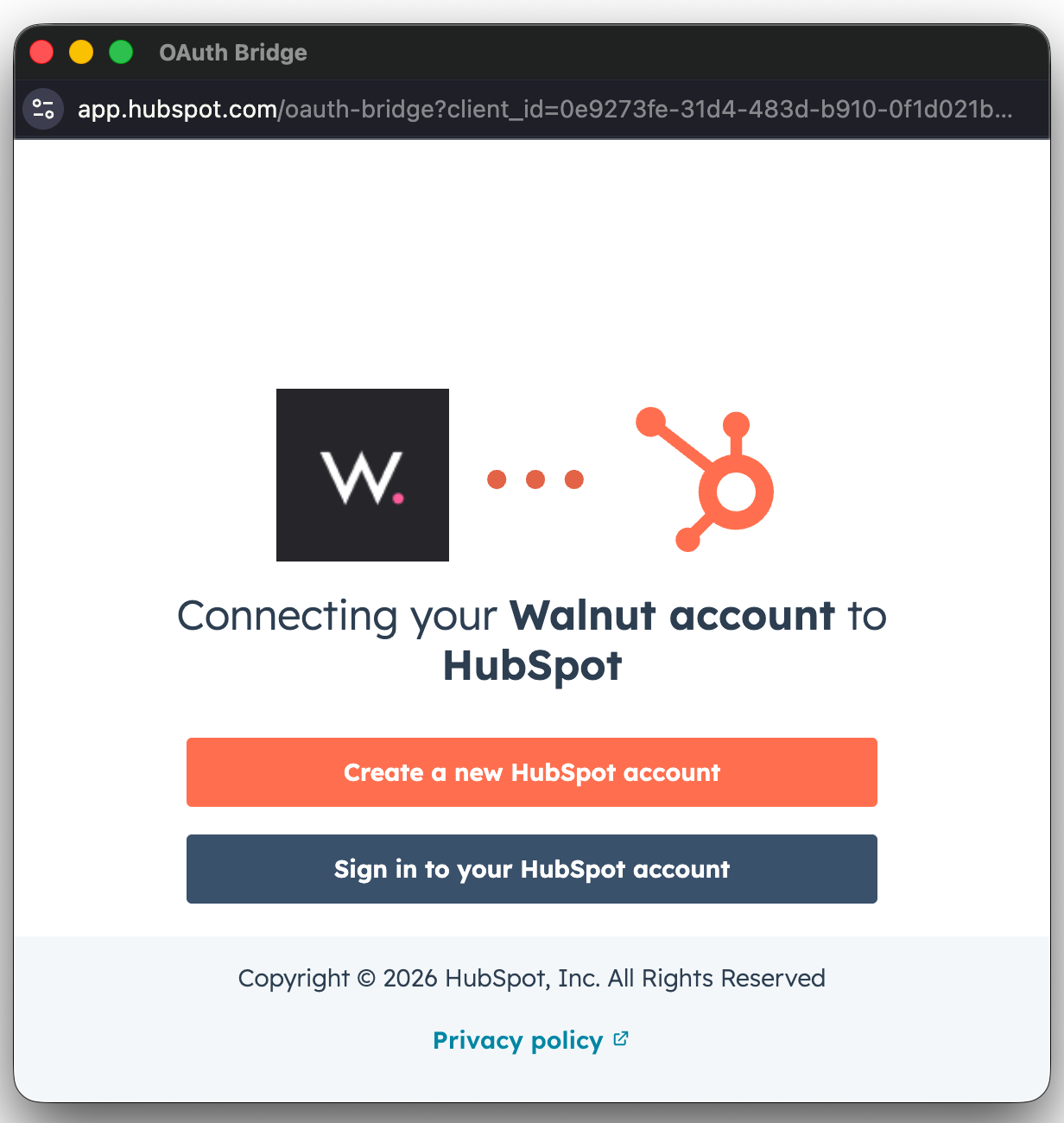
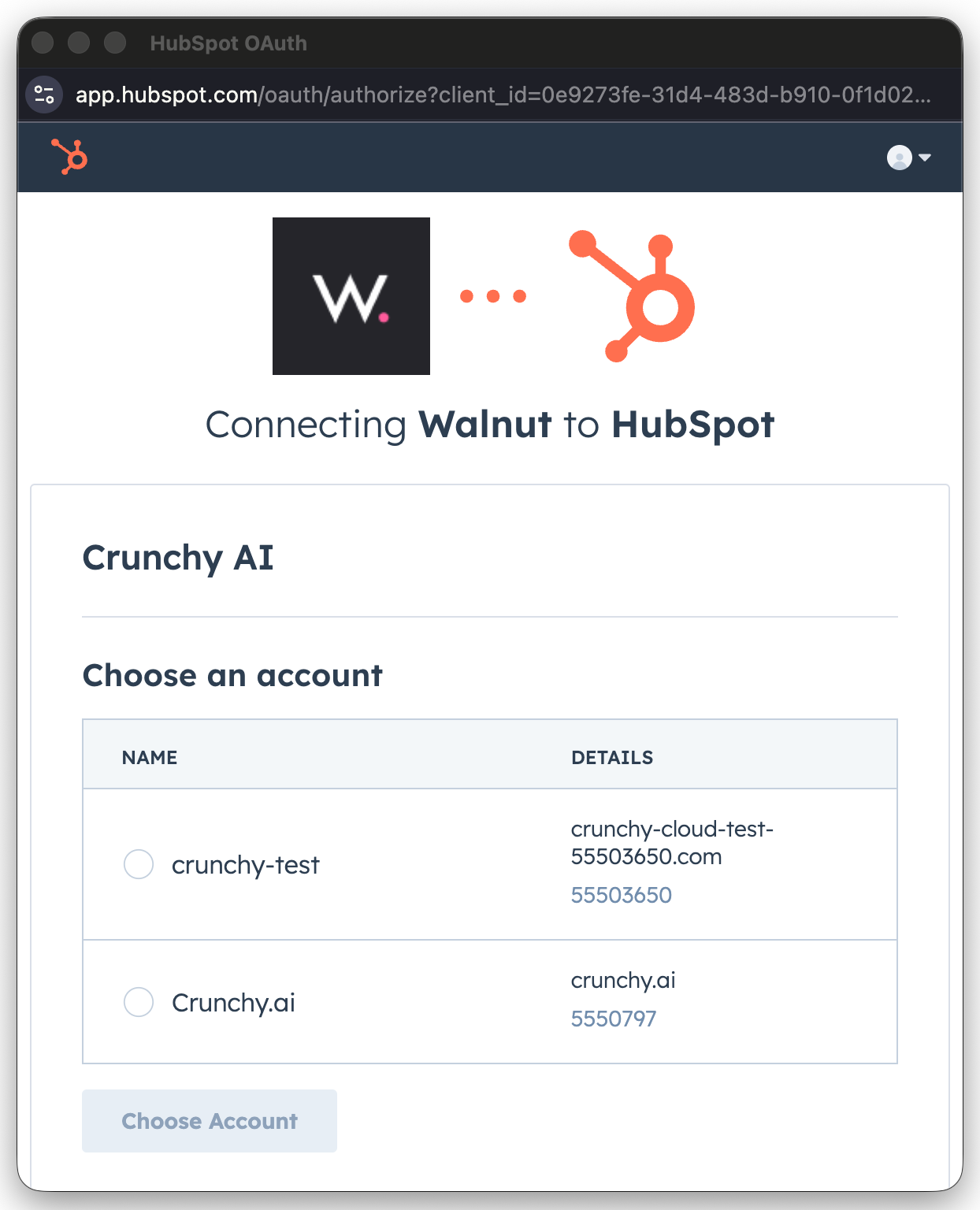
- Select the HubSpot account you want to connect, then click Finish.
Step 3: Confirm the Integration
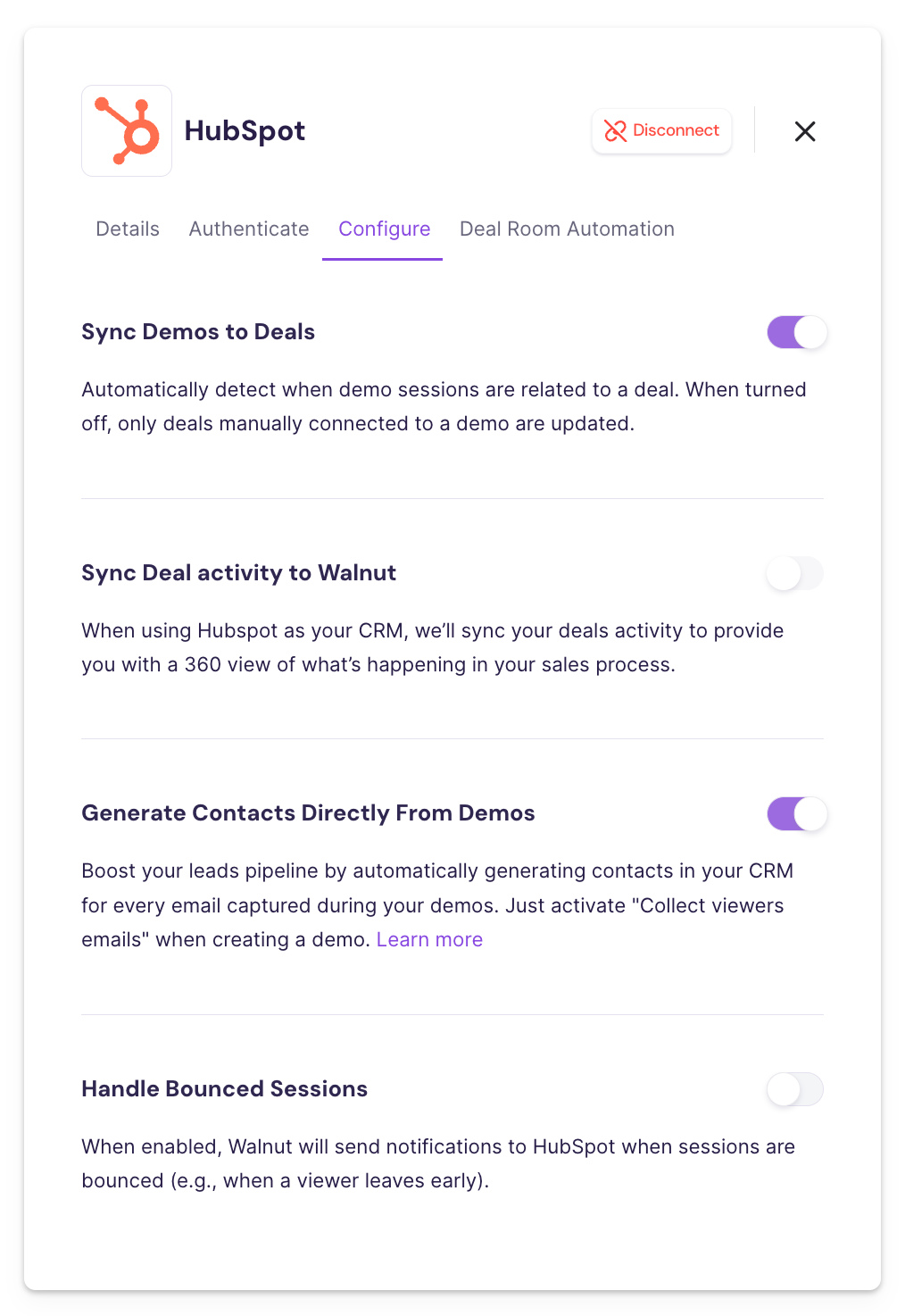
- After authentication, the HubSpot integration will show a Configure button, indicating the integration is active.
- By default, Walnut may enable configuration toggles such as: Sync Demos to Deals and Generate Contacts Directly From Demos.
Enable Walnut Notifications in HubSpot
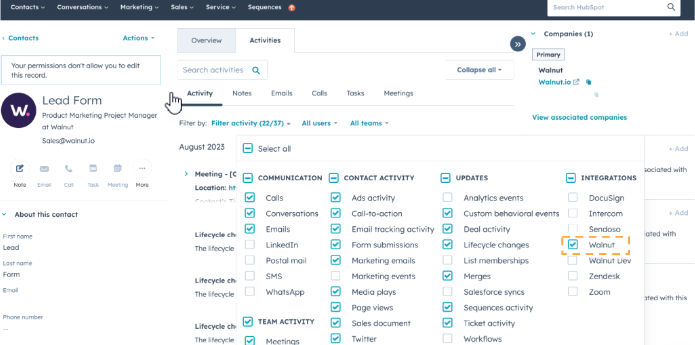
In HubSpot, verify that Walnut notifications are enabled so engagement shows up where your team works.
To enable Walnut notifications in HubSpot:
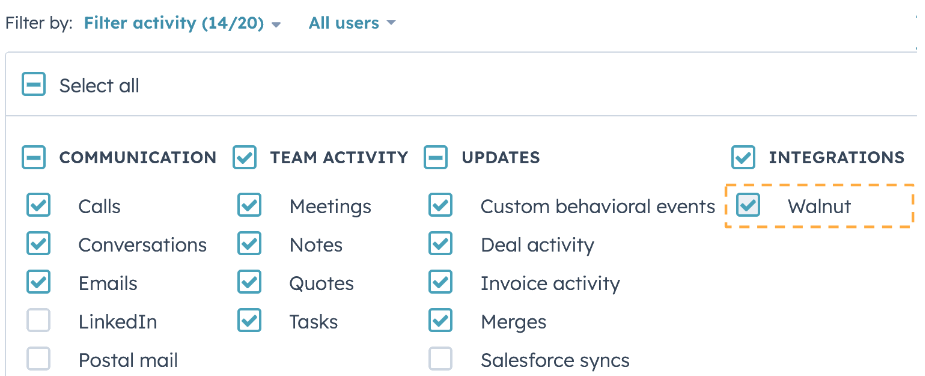
- Navigate to Activities > Integrations.
- Find Walnut and enable the checkbox.
Connect Demos to HubSpot Deals
Walnut’s all about flexibility. You can connect engagement to HubSpot deals in two ways: automatically (Walnut does the matching) or manually (you select the deal during demo creation).
With the integration set up, it’s easy to:
- Track Walnut engagement in HubSpot — View demo activity in the context of a deal so sellers know what happened and what to do next.
- Use the right demo at the right stage — Align demos to lifecycle stages to support repeatable, stage-based selling.
- Organize your demo library — Use CRM context (like deals) to keep your demos easier to find and easier to reuse.
Automated Deal Matching
When Sync Demos to Deals is enabled, Walnut can automatically locate the relevant deal and attach engagement to it.
- Viewer engages with a demo.
- Once identified, Walnut enriches the contact and looks for the relevant deal.
- Walnut attaches demo and engagement insights to that deal.
Manual Deal Selection
To manually connect a demo to a deal:
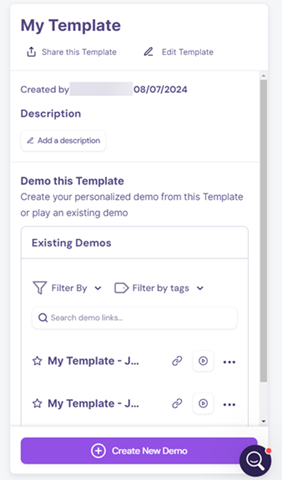
- In Walnut, go to the Library, select the template, and click Create Demos.
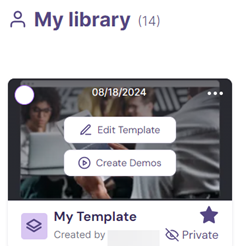
- Click Create New Demo.
- Complete the demo details and select the relevant Deal from the dropdown.
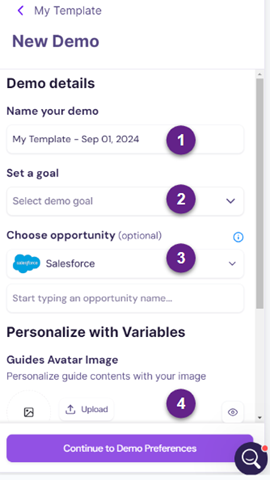
- Click Continue to Demo Preferences, then finish creating the demo.
- Open the HubSpot deal to view the Walnut activity and engagement details.
Generate Contacts Directly From Demos
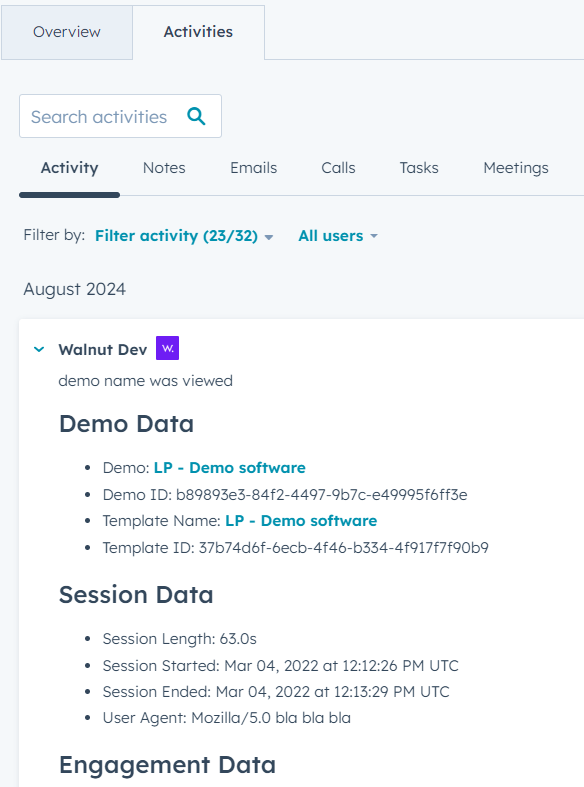
When enabled, Walnut can create or update a HubSpot contact when someone views a demo for the first time — and then attach demo and engagement data to that contact automatically.
Before you start
- Walnut creates a single contact using first name and last name when available. If HubSpot requires additional mandatory fields beyond email, contact creation may not succeed.
- Walnut properties added to HubSpot contacts are managed by Walnut and may not be editable.
- Once Generate Contacts Directly From Demos is ON, it applies to all demo views in the workspace.
To enable contact creation and enrichment:
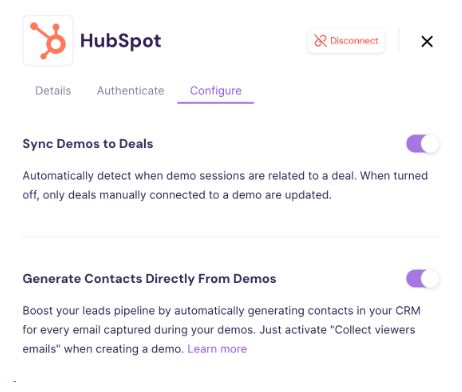
- In Walnut, open Integrations > HubSpot > Configure.
- Toggle Generate Contacts Directly From Demos to ON.
- In HubSpot, open Contacts and confirm Walnut properties populate on contact records.
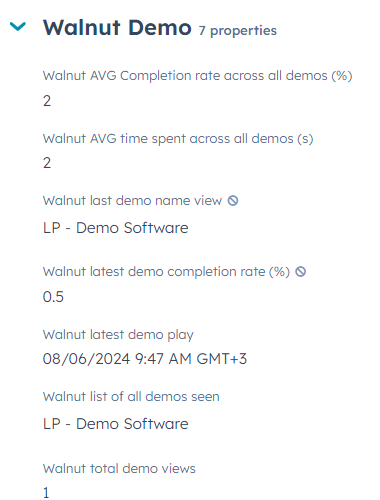
To view Walnut properties on a HubSpot contact:
- In HubSpot, go to Contacts and open a contact.
- Click Actions > View all properties.
- Scroll to the Walnut properties section.
Embed a HubSpot Lead Form in a Demo
Once HubSpot is connected, you can embed HubSpot lead forms directly inside Walnut demos to identify viewers and capture leads. (If you want the step-by-step embed instructions, link out to your dedicated form article so this guide stays focused.)
- Recommended: Use an in-demo form when you want clear conversion tracking and a clean handoff to HubSpot workflows.
- Also works: Use HubSpot forms on your marketing site and pass data into Walnut experiences when needed (may require developer support).
Disable the HubSpot Integration
To disable the HubSpot integration:
In Walnut, go to Integrations > HubSpot > Configure, then toggle the settings to OFF.
Troubleshooting & Data Notes
Walnut-HubSpot API Calls
Walnut makes HubSpot API calls when:
- You search for a deal while creating a demo (deal lookup)
- You select a deal during demo creation (deal + associations metadata)
- A viewer engages with a connected demo (create activity/task and associate to a deal, when enabled)
Walnut may process deal-related metadata such as:
- Deal ID, deal name, deal stage, deal owner
- Created/updated timestamps needed for syncing and attribution
FAQs
Do I need a HubSpot form to use the integration?
- Not necessarily. HubSpot forms are one way to identify viewers, but Walnut can enrich identified sessions through other identification methods, depending on your workspace setup.
How long does it take for engagement to show up in HubSpot?
- Contact updates may appear quickly, but some engagement enrichment can take time depending on session completion and sync timing. If you’re testing, use a real work email and complete a short demo session end-to-end.
Why don’t I see my personal test sessions in HubSpot?
- Internal domains, non-work emails, anonymous sessions, and bounced sessions are not matched. Use a work email and fully engage with the demo.