Publish a demo
Publish a demo
You must be a Presenter, Editor, Admin, or Account Owner to access this feature. 🔑
Learn more about Roles & Permissions.
Overview
Once your template is ready, the next step is to create a demo instance and configure how it will be shared.
This is the stage where you move from building to publishing. You can name the demo, optionally connect it to your CRM, apply personalization settings, and configure viewer-facing preferences before sharing it with prospects, customers, or internal teams.
Publishing in Walnut does not create a disconnected copy of your work. Your demo stays tied to the source template, which means you can continue refining the template and republish updates to the same demo over time.
Create a Demo from a Template
When you are ready to publish, Walnut lets you create a demo directly from the template you built.
There are two main ways to start this process:
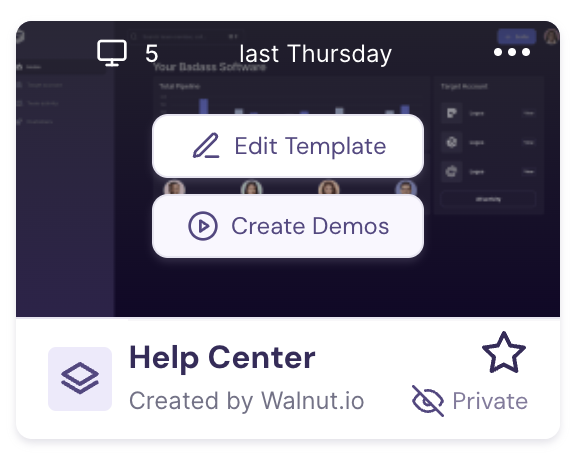
Option 1: From the Templates Homepage
- Go to the Templates homepage.
- Hover over the template you want to use.
- Click Create Demos.
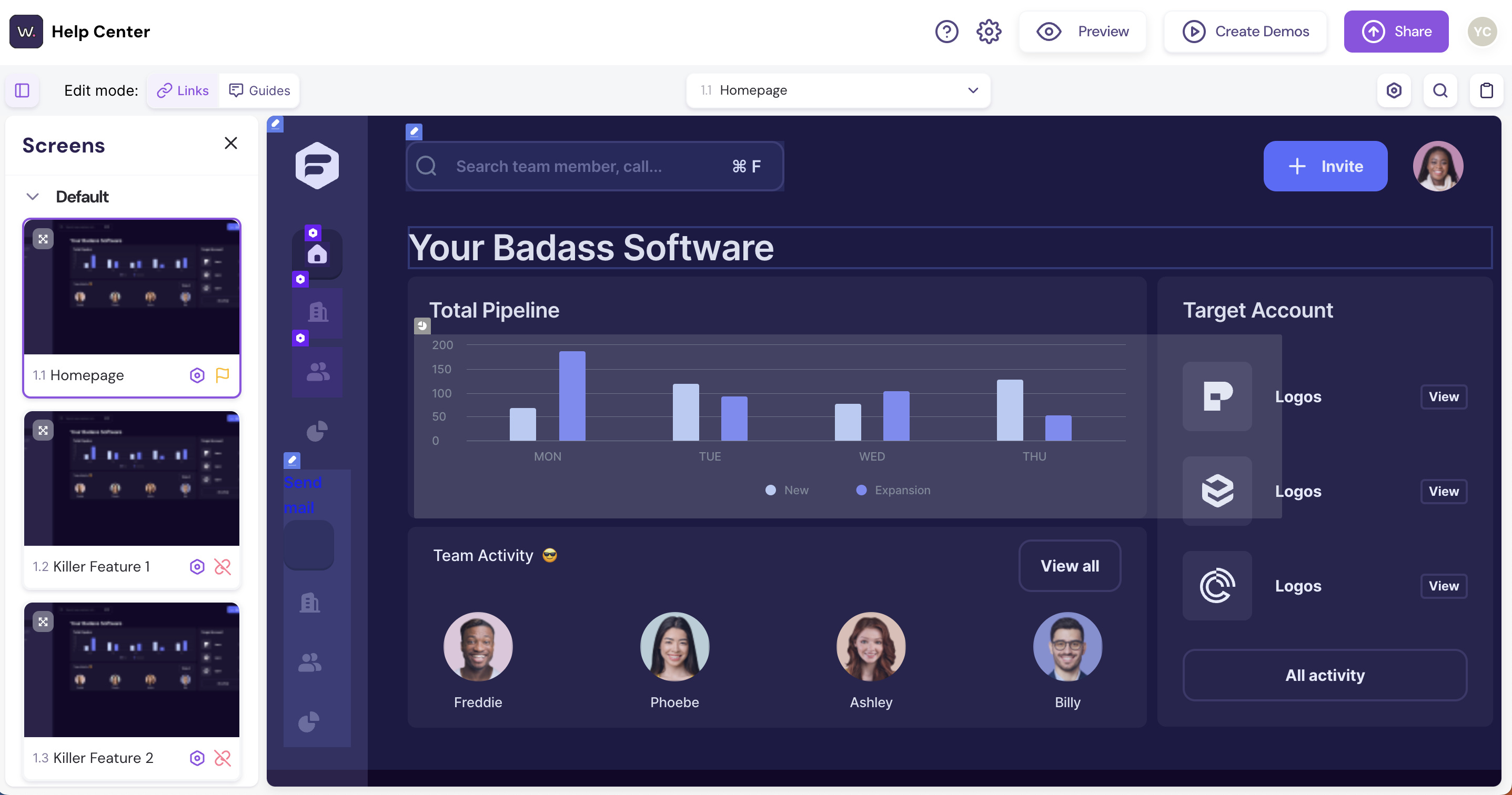
Option 2: From Inside the Template
- Open the template you want to publish.
- Click Create Demos in the top-right corner.
Customize Your Demo Settings
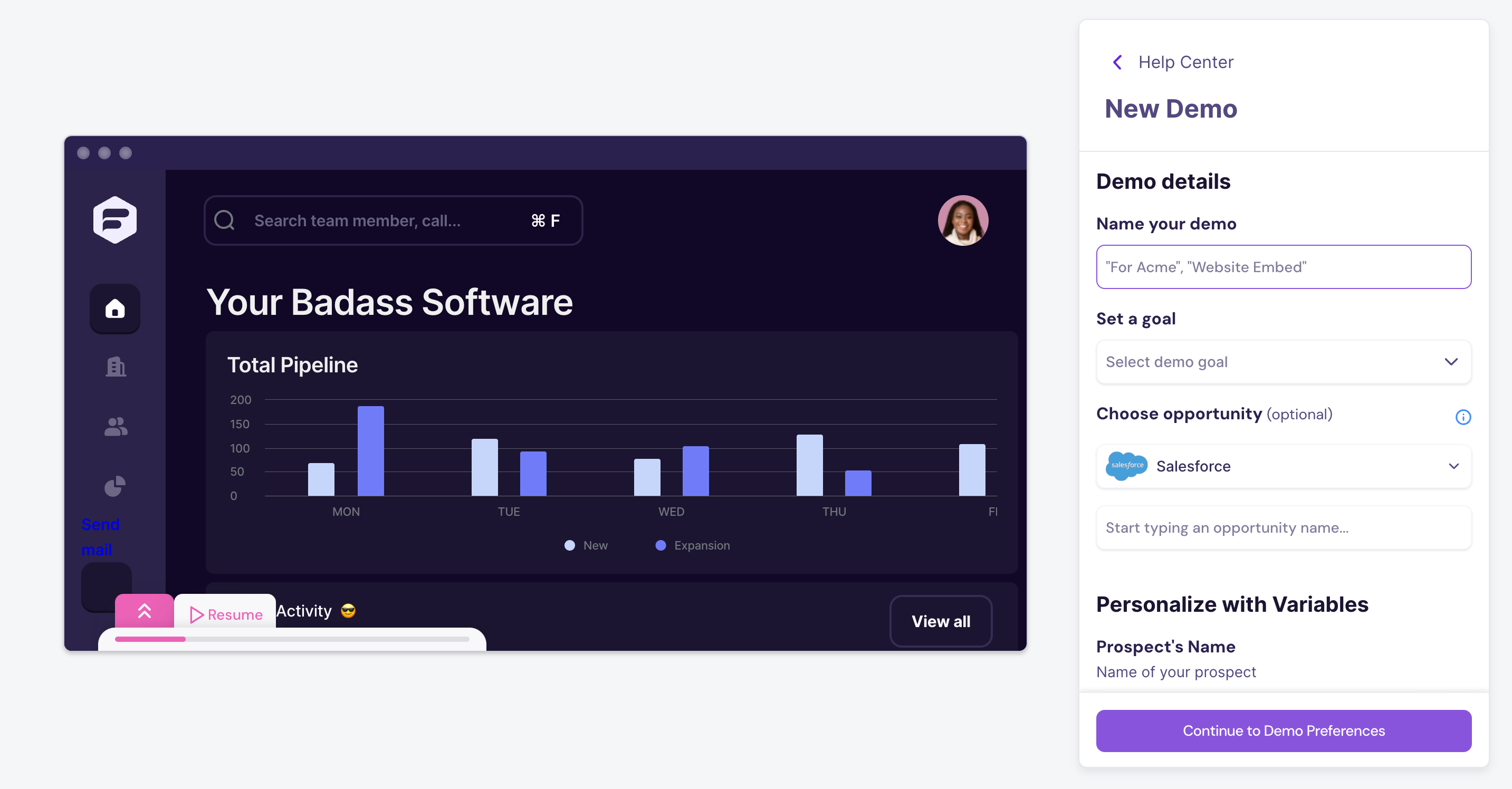
After selecting Create Demos, Walnut opens a publish window where you can configure the demo before saving it.
This is where you define how the demo should appear, how it should connect to your workflows, and how it will be shared.
- Enter a name for the demo.
- Optionally connect the demo to your CRM.
- Apply any variable-based personalization if needed.
- Configure the remaining demo preferences.
Save and Share Your Demo
Once the demo is saved, Walnut generates a shareable link that you can copy and send to viewers.
You can use this link in outbound emails, follow-up messages, landing pages, playlists, Deal Rooms, or embedded experiences depending on your workflow.
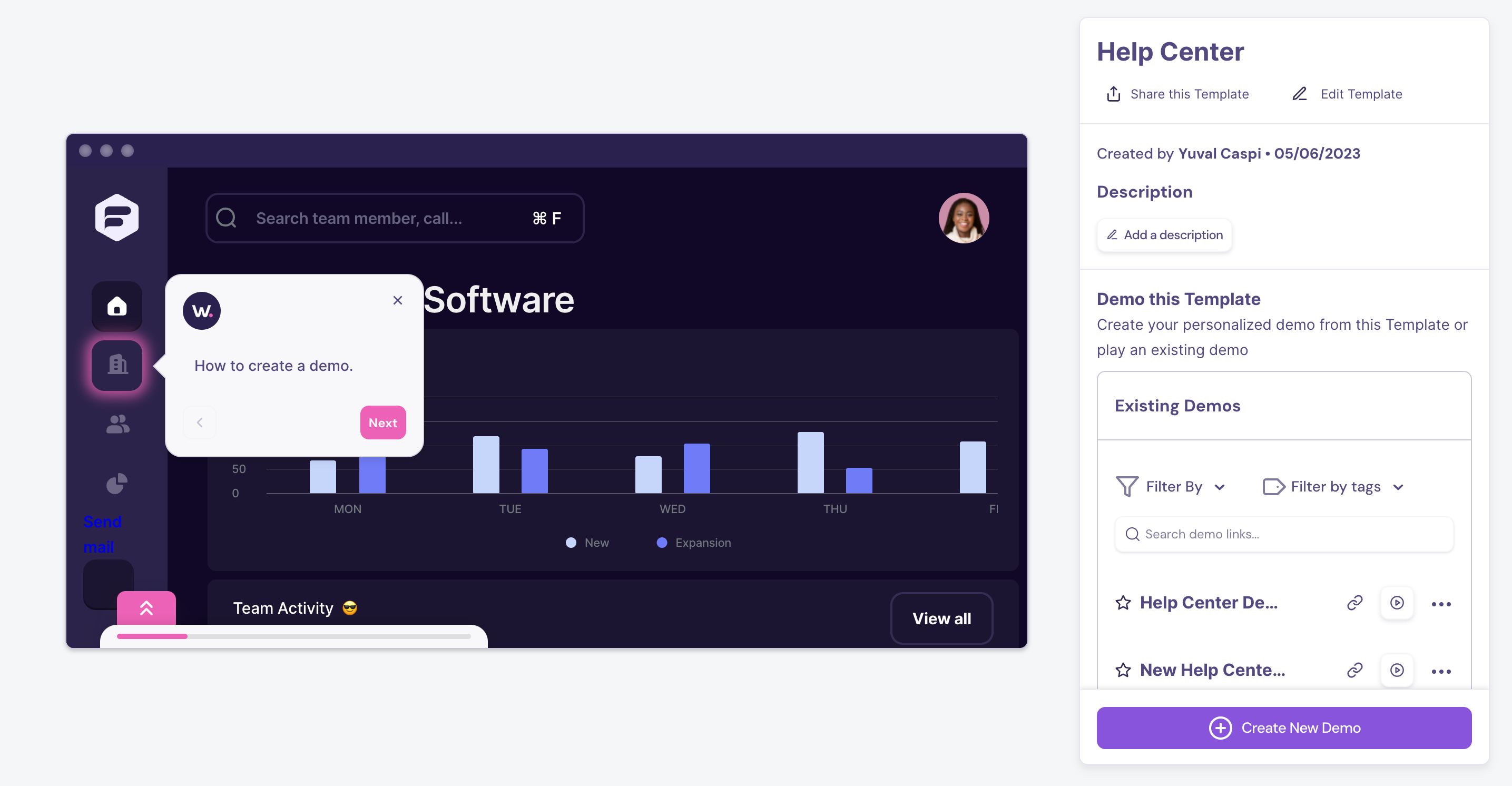
One of the biggest advantages of Walnut’s publish model is that you can continue making updates to the source template and republish the same demo later. In most cases, that means you do not need to create and resend a new link every time you refine the experience.
FAQs
How do I limit or change who can access my demo?
To control who can view your demo, review Walnut’s demo access and permission settings here: Demo Access Settings.
Can I embed my demo on another website?
Yes. Walnut demos can be embedded on external websites and other digital experiences. You can find the setup steps here: How to Embed Your Demo.
How will I know if someone viewed my demo?
Walnut includes viewer identification and tracking options that help you understand who engaged with your demo and when. Learn more here: Demo Viewer Identification and Tracking.