Add presenter notes
Add presenter notes
Overview
Presenter Notes help you deliver demos more confidently by giving you a private space to prepare talking points, value messaging, reminders, and supporting context for each screen.
This is especially helpful for live presentations, repeatable sales motions, onboarding walkthroughs, and any demo flow where consistency matters.
Before You Start
- Presenter Notes cannot be turned off, but they are opened separately from the viewer experience.
- If a template is shared with collaborators, those collaborators may also be able to view or edit the notes.
- Notes autosave as you work, so there is no separate save step.
Add Presenter Notes
- Open the template in Edit mode.
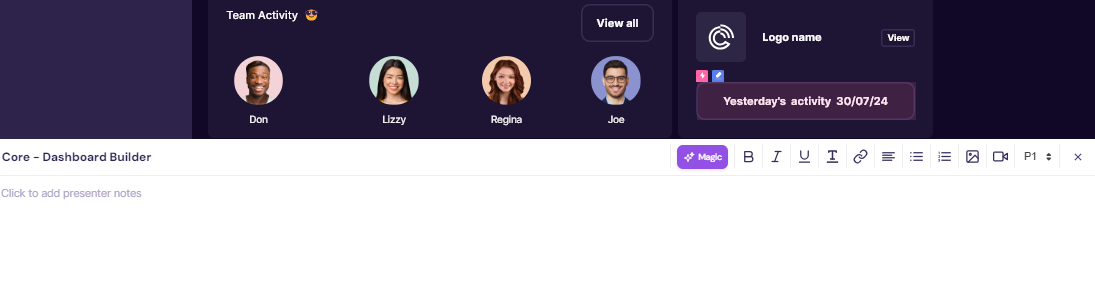
- In the right-hand toolbar, click the Presenter Notes icon to open the Presenter Notes pane.

- Enter your notes and use the toolbar to format text or add supporting content such as images, videos, and links.
- Your notes autosave as you type.
- When you are finished, click the X to close the Presenter Notes pane.
Preview Presenter Notes
To preview your notes, open the template in Edit mode and click Presenter Notes from the header.
Walnut opens the notes in a new browser tab, so you can reference them separately while preparing or presenting.

Use Presenter Notes During a Demo
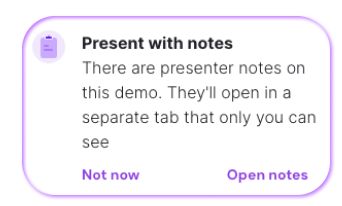
When you launch the demo, Walnut will prompt you with the option to open Presenter Notes.
Once opened, the notes appear in a separate browser tab, making it easier to follow your talking points without exposing them to the viewer experience.
Export Presenter Notes
You can download all of a demo's presenter notes as a single file to review, share, or print before a call.
- Open the template in Edit mode and open the Presenter Notes pane.
- In the panel header, click the download icon.
- Choose a format:
- Export as PDF — opens a print-ready view of the notes in a new browser tab and launches your browser's print dialog, so you can save as PDF or send straight to a printer. If nothing happens, allow pop-ups for Walnut and try again.
- Export as Word (.docx) — downloads a Word document to your machine.
The file is named after the demo (for example, Acme demo - presenter notes.docx).
The download icon only appears once at least one screen in the demo has presenter notes.
Summary
Presenter Notes give you a private, flexible space to prepare and deliver stronger demos with more confidence and consistency.
Because they open in a separate tab, they work especially well for live presentations where you want your notes nearby without affecting the viewer experience.