Troubleshoot an unavailable demo
Fix a Demo is not available message: check Who can open it in Demo preferences for an expired date, a paused link or a blocked viewer, then reopen access.
Troubleshoot an unavailable demo
If your demo was functioning as expected and now you see a Demo is not available message, there are few ways to troubleshoot. Begin by examining the demo preferences, specifically the demo expiration date.
In your library, open the demo's three-dot menu, select Demo preferences, and open Who can open it. The line under Who can open it in the left rail also shows the current state, for example Anyone with the link · ends 12 Dec.
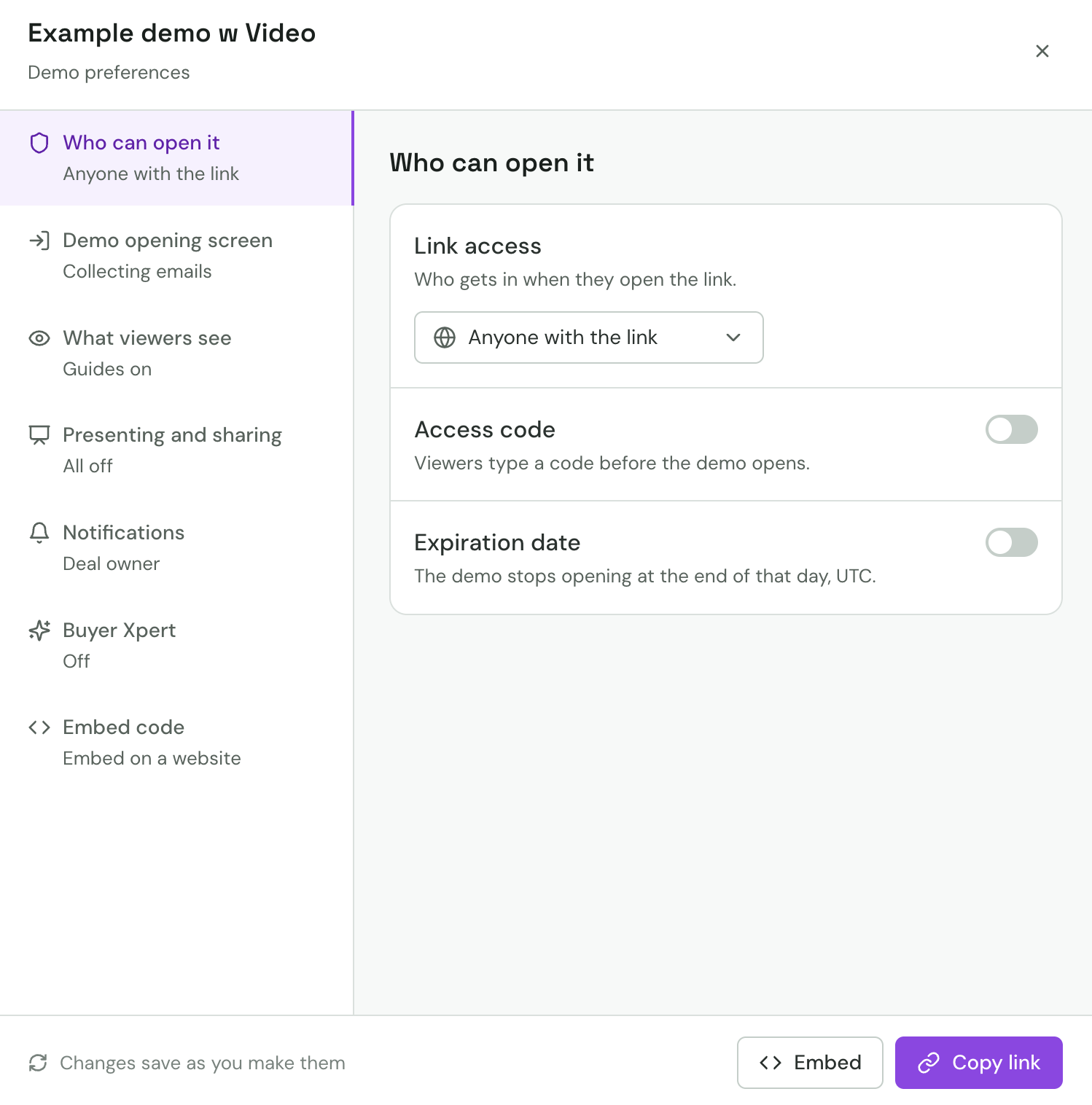
Here's what to do:
- Check the expiration date: If Expiration date is on, verify that the date has not passed. The demo stops opening at the end of that day, UTC.
- Adjust or remove the expiry date: Pick a later date, or turn Expiration date off. The change saves right away.
- Check Link access: If Link access is set to No one, the demo is paused for everyone. Switch it back to Anyone with the link or Specific people.
- Check the list: With Specific people, make sure the viewer's email or domain is allowed and not blocked.
Was this helpful?