Demo preferences
Set who can open a published demo, its opening screen, what viewers see, notifications, Buyer Xpert and embed code in Demo preferences. Every change saves instantly.
Demo preferences
Overview
Demo preferences is the modal where you configure how a published demo behaves — who can open it, what viewers see on the way in, what the player shows, who gets notified, and how the demo is embedded on a webpage. Every setting saves as soon as you change it.
Open it from a demo's three-dot menu in your library and pick Demo preferences. "Get embed code" on the same menu opens the modal straight on the Embed code group.
Layout
The modal shows a rail of groups on the left and one group's settings beside it. The rail and the panel scroll independently, so a long list of viewers or notification recipients never moves the tabs off screen.
The groups:
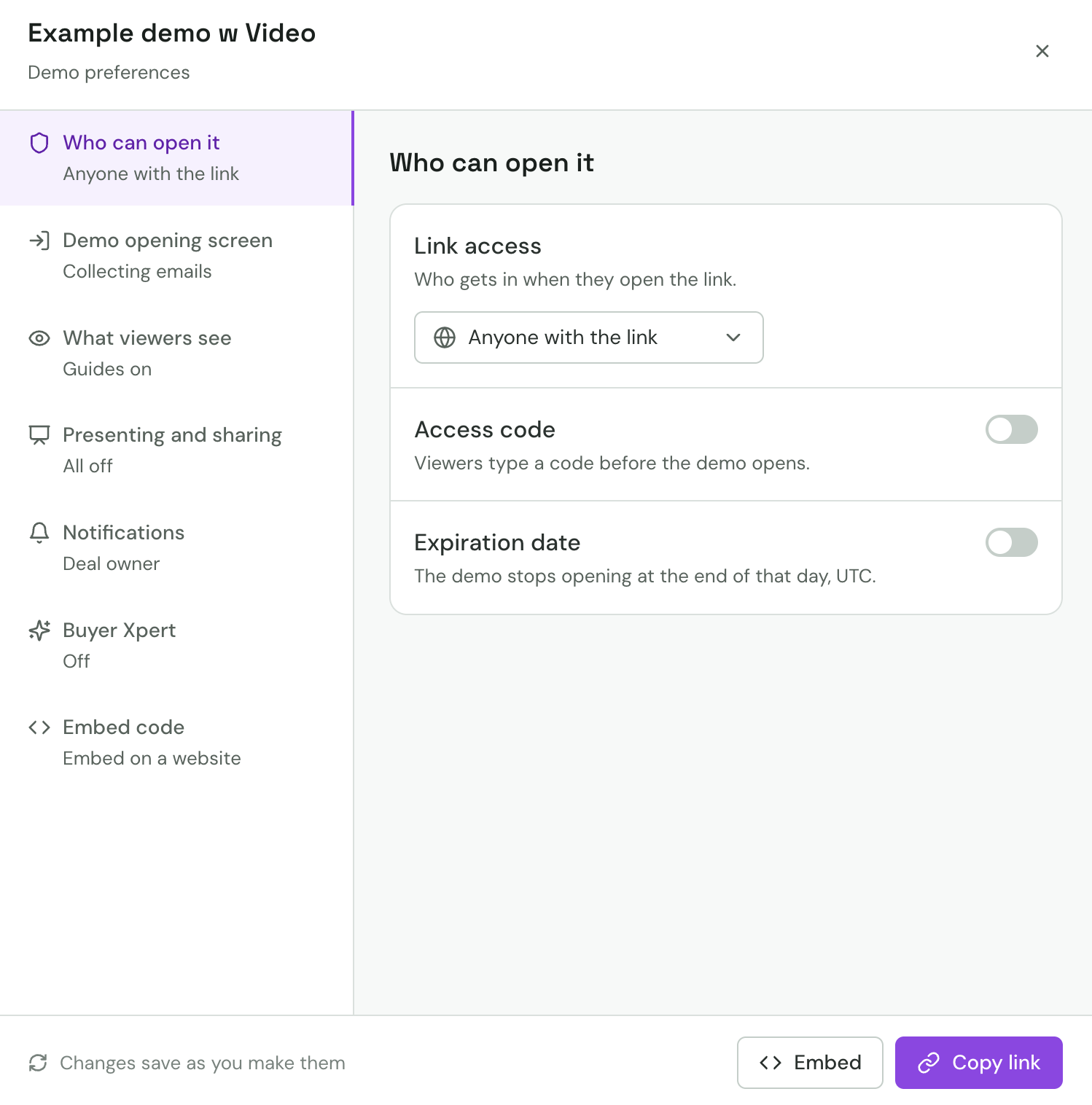
- Who can open it — link access (Anyone with the link, Specific people, or No one), the allow and block lists, an access code and an expiration date.
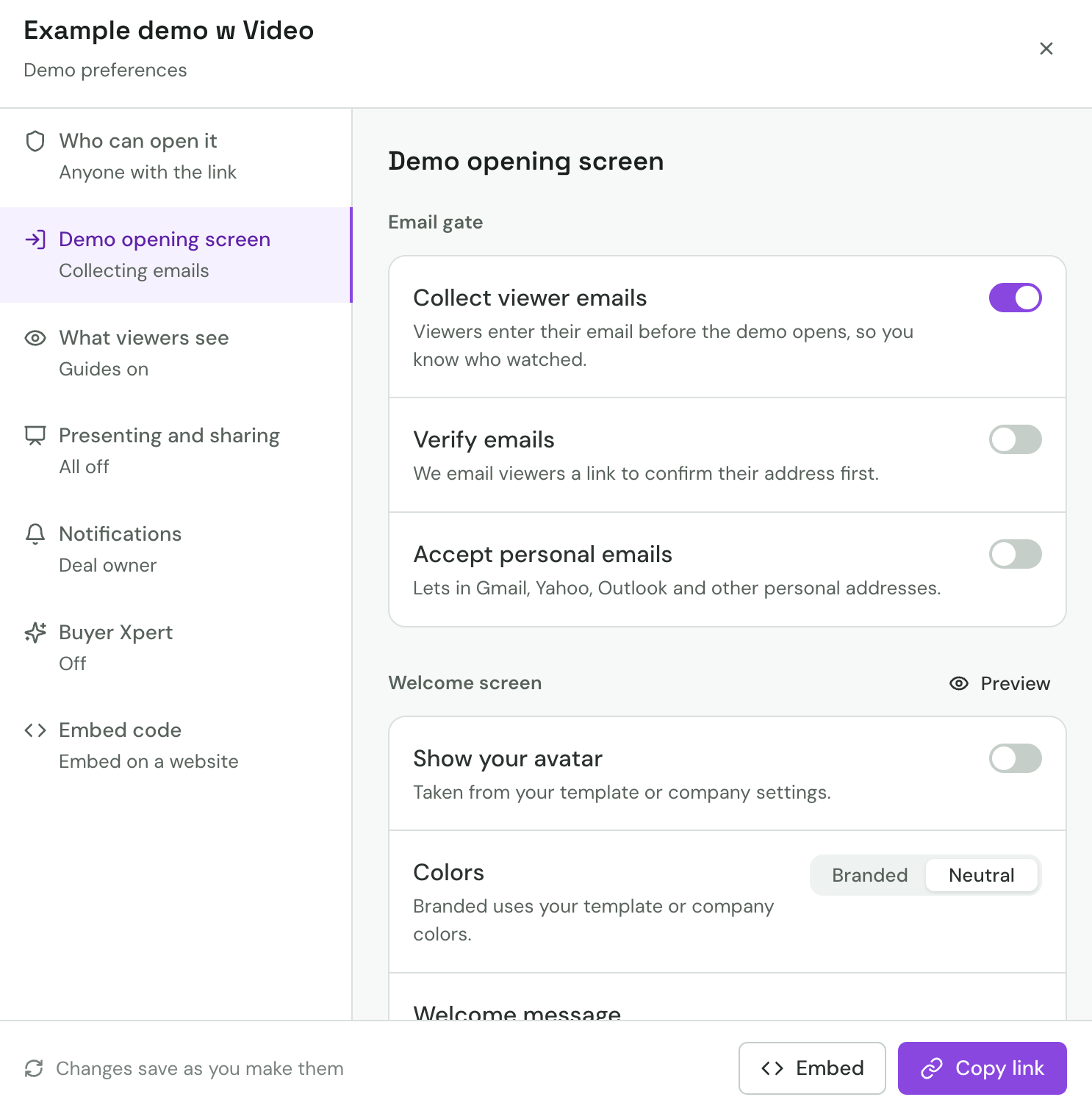
- Demo opening screen — collect viewer emails, email verification, the welcome message, the avatar on the gate and the gate's colours.
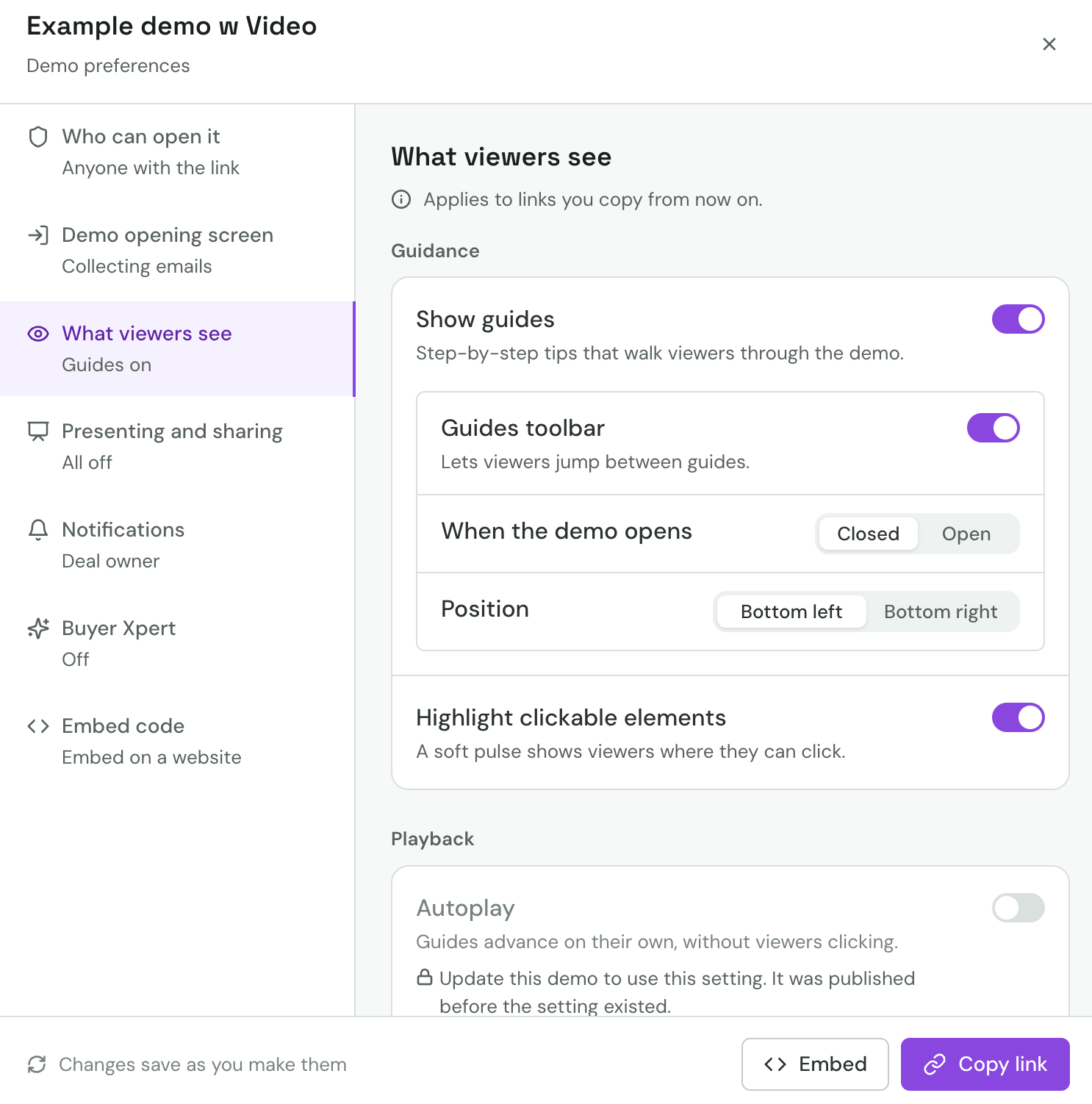
- What viewers see — guides and hotspots, the guides toolbar, playback overrides, the demo language and branding.
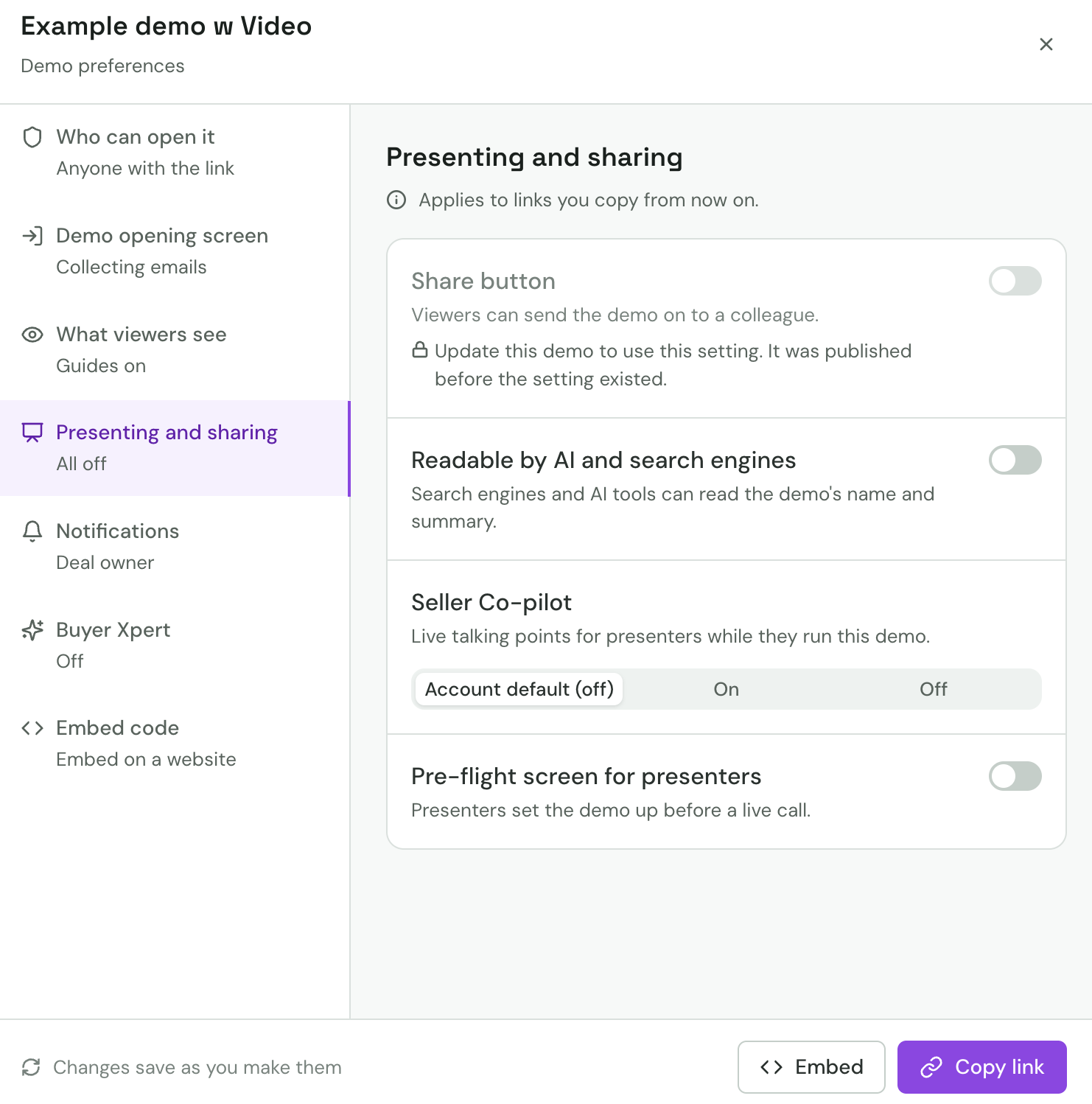
- Presenting and sharing — the viewer Share button, whether the demo is readable by AI and search engines, Seller Co-pilot and the presenters' Pre-flight screen.
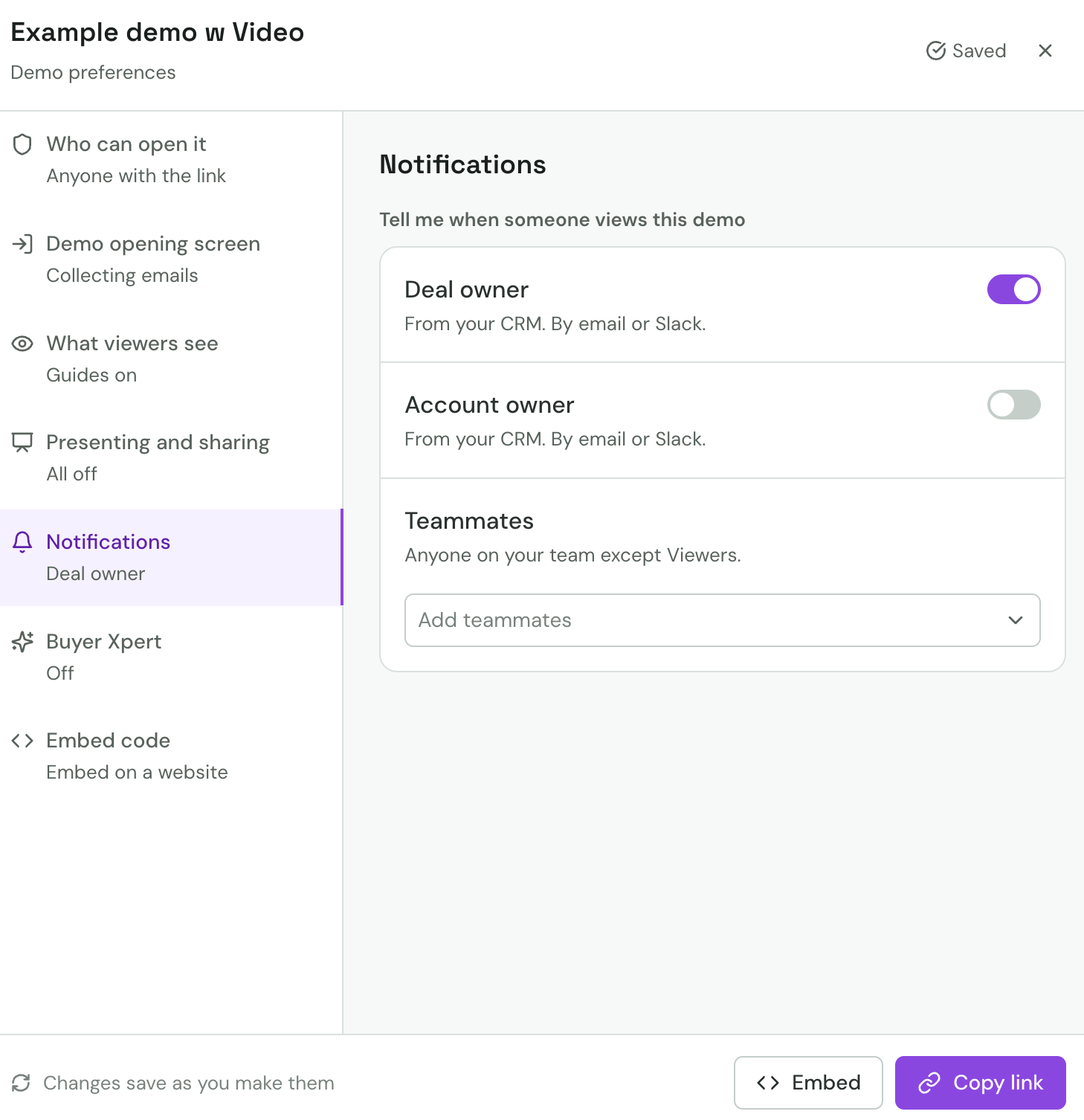
- Notifications — who gets an email when someone views the demo, plus the deal-owner and account-owner alerts.
- Buyer Xpert — the in-demo AI concierge, its handoff and its welcome video.
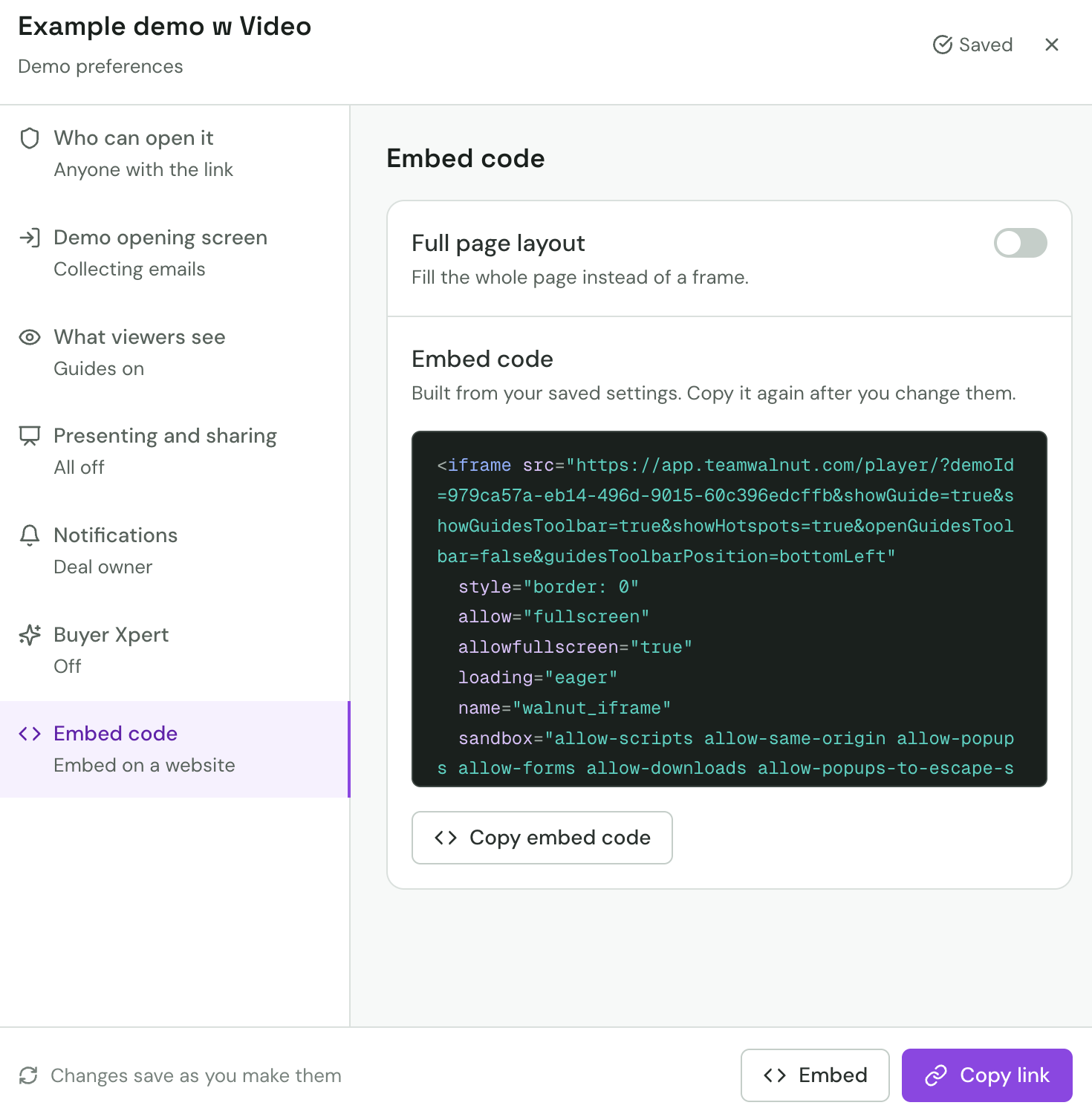
- Embed code — the embed snippet for a webpage, with an optional full-page layout.
The groups at a glance
Who can open it — link access, access code and expiration date.
Demo opening screen — the email gate and the welcome screen viewers see before the demo opens.
What viewers see — guidance, playback, language and branding. Settings here apply to links you copy from now on.
Presenting and sharing — the Share button, AI readability, Seller Co-pilot and the Pre-flight screen.
Notifications — the deal owner, account owner and teammates to alert when someone views the demo.
Embed code — the embed snippet, built from your saved settings, with a Full page layout toggle.
The rail shows each group's current state in one line underneath its name — for example, Anyone with the link · ends 12 Dec under Who can open it — so you can see what's set without opening the group.
Below about 720px of width the rail becomes a full-width list of groups and tapping one drills into its panel. Get embed code opens on that panel directly.
The footer
A footer runs across every group:
- A small
Changes save as you make themstatus with a saving indicator. - An Embed button, which jumps to the Embed code group.
- A primary Copy link button that copies the demo's share link.
Copy link always copies the link built from the saved settings. If you press it while a change is still saving, the button waits for the save to land and then copies, so the link you paste always reflects what you just changed. If the browser refuses the clipboard write, the link appears in an error toast where you can select and copy it by hand.
Instant saving
Every change saves on its own — there is no Save button. The header shows Saving while a request is in flight and Saved once it lands. Text fields like the welcome message and the access code save when you click away or press Enter, so a half-typed value is never sent.
When a save fails
If a save doesn't go through, a toast appears naming what couldn't be saved with a Retry action. Retrying resubmits just that change; other settings you've touched in the meantime are unaffected.
Undo for knock-on changes
Some settings pull others along with them. For example, turning on Collect viewer emails can change Link access so viewers are checked by their email, and turning off email collection can reset the access choice. When that happens, a toast tells you what else changed and offers an Undo that rolls both changes back in one step.
An equivalent toast warns you when a save would lock existing viewers out of the demo — for instance, switching to Specific people, turning the access code on, setting an expiration date, or adding someone to the block list.
Locks and why they're there
A row can be locked because a plan, a company setting, a template, a lead form, the user's role or the demo's own state has already decided it. A locked row is dimmed and shows its reason inline, next to the setting, with a small lock icon — never as a hover-only hint.
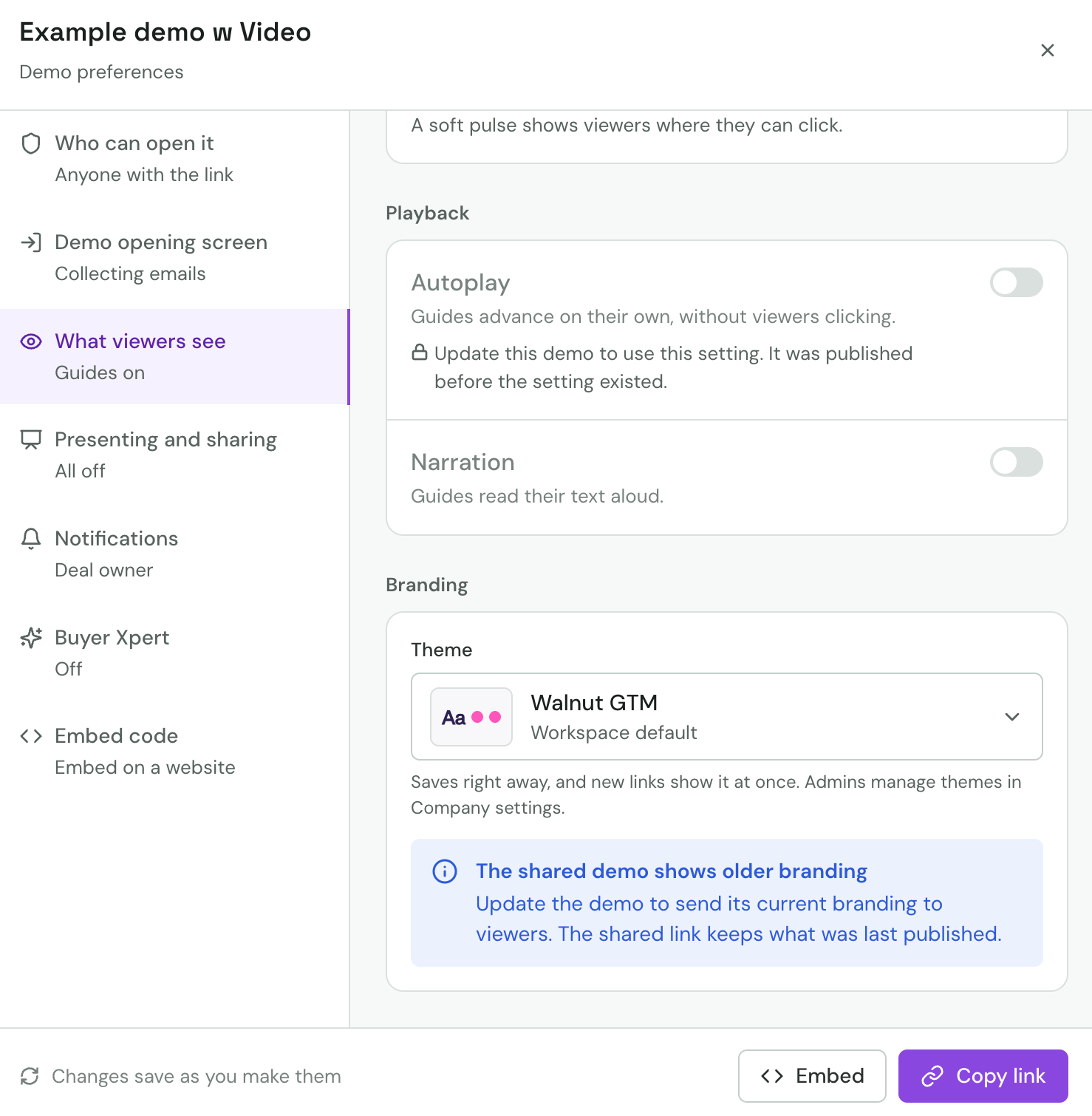 When the reason stops applying (you remove the lead form, switch plan, change role) the row unlocks and takes your input straight away.
A viewer without edit rights sees every row as read-only and gets one notice at the top of the modal explaining why.
The same groups in the Launcher
When you create a demo from the Launcher, the same groups appear there, in the same order. You can set a demo up the way you want it before it exists, and the Demo preferences modal you open from the library later shows the choices you made in the Launcher already applied.
Keyboard and screen-reader support
The modal is fully usable with the keyboard. Tab moves across the rail and into the panel; the arrow keys walk up and down the rail; Enter opens a group. Every lock reason, every save status and every toast is announced by a screen reader, so the modal's state is readable without seeing it. Each setting's control carries a visible label and the row's description and lock reason as its accessible description.
FAQs
Where did "Link & embed" go?
The group that used to be called Link & embed is now Embed code. The demo's share link lives on the Copy link button in the footer, so the group only carries the embed snippet.
Do I need to click Save after changing a setting?
No. Every change saves on its own. The header shows Saving while the save is in flight and Saved once it's done; closing the modal with an unsaved change holds the modal open until the save lands.
What happens if a save fails?
A toast appears with the setting's name and a Retry action. Other changes you've made in the meantime still save on their own; only the failed one waits for a retry.
Why can't I change a particular setting?
A lock reason appears next to any row you can't change — it names the plan, template, lead form, role or parent setting that's deciding it. Fix the condition (for example, remove the lead form) and the row becomes editable again.