Capture screens
Capture screens
Overview
This guide provides an overview of the Walnut Extension’s browser compatibility, supported chart and table libraries, and best practices for accurate HTML captures. It also covers important limitations to keep in mind.
Getting Started
Capturing Best Practices & Pre-Capture Checklist ✅
- Make sure your browser zoom and system zoom (Windows users) are both set to 100%. This applies to any window, device, or external display you’ll be capturing with. Zoom settings can causing sizing and resolution issues.
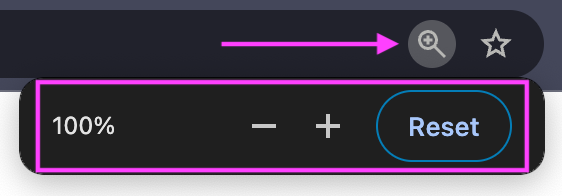
- Exit fullscreen mode before using the built-in resizer. Fullscreen mode disables the resizer function in the Walnut Extension.
- Use a preset size in the extension (e.g., Desktop, Laptop, Mobile) for smooth transitions and easy maintenance.
- Use the same screen size for all captures within a template. Do not change or resize screen size while capturing, as this can affect alignment and consistency across screens.
- Use the latest version of the Walnut Extension to ensure full functionality and compatibility.
- Capture using the latest stable version of Chrome. If you see a “Relaunch” button in the top right corner of your browser, complete the update before capturing.
- Disable other browser extensions before capturing, if possible. Tools like Grammarly, LastPass, QuillBot, 1Password, and others may interfere with the capture or appear in your screenshots.
- The Walnut Extension is built to capture HTML and CSS web-based content. For non-web content (e.g., PDFs, images, or video), see:
Extension Capabilities
Browser Compatibility
For optimal performance, we recommend always using the latest stable version of Google Chrome when capturing with the Walnut Extension. The extension requires Chrome 114 or later to install.
| Browser | Status | Details |
|---|---|---|
| Chrome (v114+) | ✔️ Fully Supported | 99% capture success rate. Chrome 114 is the minimum version required to install the Walnut Extension. |
| --- | --- | --- |
| Microsoft Edge | 🟡 Partial Support | Supported but not recommended. May result in UI or capture issues. |
| --- | --- | --- |
| Firefox, Safari, others | ❌ Not Supported | Not supported. |
| --- | --- | --- |
Chart Library Support
Interactivity & editing is supported for the following chart library and framework combinations:
| Chart Library | Version(s) | Vanilla JS | React | Angular | Vue |
|---|---|---|---|---|---|
| Highcharts | 10+ | ✔️ | ✔️ | ✔️ | |
| --- | --- | --- | --- | --- | --- |
| Highcharts | 6+ | ✔️ | ✔️ | ||
| --- | --- | --- | --- | --- | --- |
| Chart.js | 3.8.0 | ✔️ | ✔️ | ||
| --- | --- | --- | --- | --- | --- |
Supported Table Libraries
The Walnut Extension supports full table data capture for the libraries below:
| Table Library | Vanilla JS | React |
|---|---|---|
| react-virtualized | ✔️ | ✔️ |
| --- | --- | --- |
| ag-grid | ✔️ | ✔️ |
| --- | --- | --- |
If you’re experiencing issues capturing table data, reach out to our Support Team — we’re here to help!
Known Limitations
While the Walnut Extension supports a wide range of web content, the extension does not support:
- JavaScript-powered interactivity such as animations, drop down expand/collapse functionality, sorting, and filtering.
- JavaScript-powered responsive layouts.
- Custom chart interactivity tied to functions outside the core charting library (e.g., custom tooltip renderers, axis formatting).
- PDFs and document-based content (e.g., .docx, .pptx) cannot be captured directly. See Replace Screens, Elements, or Sections With PDFs, Images, or Videos.
- elements. These elements will be captured as static images — interactive behavior is not preserved.
- System-level pages or restricted URLs (e.g., chrome://*, google.com).
- Injected content from other browser extensions (e.g., Grammarly, LastPass).