Install the Chrome extension
Install the Chrome extension
Overview
The updated Walnut Chrome Extension introduces a more streamlined, flexible way to capture, resize, and build demos. It brings core capture actions into a unified experience so teams can move faster from product workflow to polished demo.
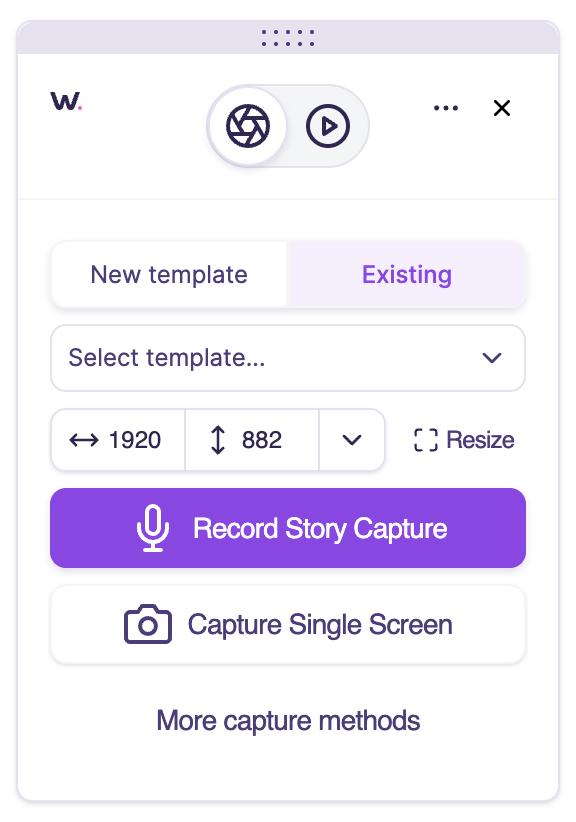
Whether you are creating a new template, adding screens to an existing one, resizing your browser for cleaner captures, or switching between capture and playback modes, the updated extension is designed to make the workflow more intuitive.
The extension also includes expanded capture options through More capture methods, including access to advanced capture workflows and Video Capture for recording motion-based product interactions directly from the browser tab.
Extension Snapshot
Here is a quick overview of where the updated extension fits into the Walnut workflow.
Download the Extension
You can download the latest version of the Walnut Chrome Extension directly from the Chrome Web Store.
👉 Download the Walnut Chrome Extension
What’s New
The updated extension introduces a more unified capture experience with quicker access to core workflows and expanded access to advanced capture options.
Quick Start Guide
Follow these steps to install, launch, and start capturing with the updated Walnut Chrome Extension.
1. Install or update the extension from the Chrome Web Store.
2. Pin the extension to your browser toolbar for easier access.
3. Open the extension to launch the redesigned capture widget.
4. Keep the debugger banner active when your browser refreshes. This banner is expected and should remain visible during your capture session.

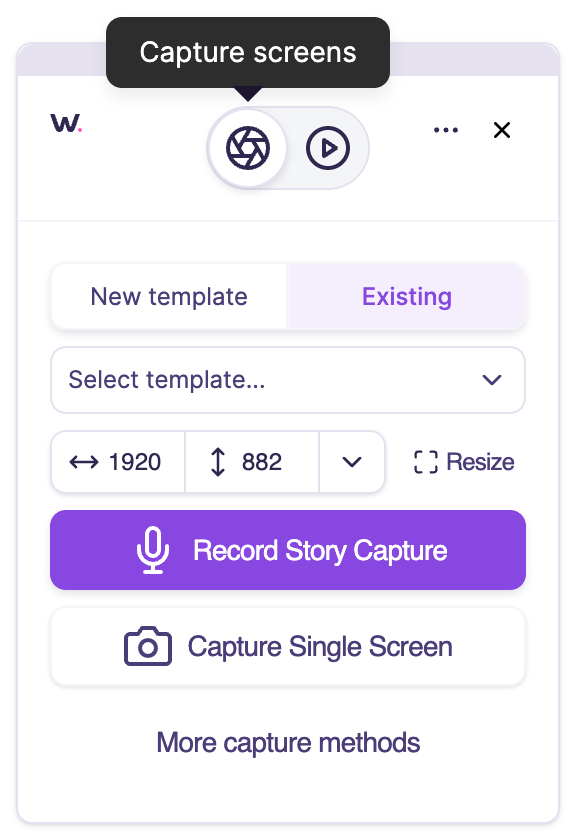
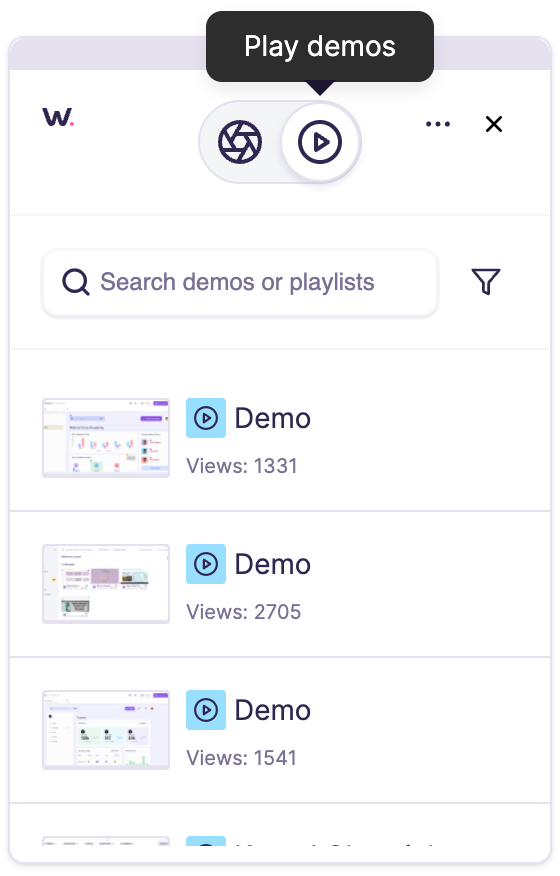
5. Choose your mode using the toggle at the top of the extension: Capture Screens for Admins and Editors, or Play Demos for Presenters.
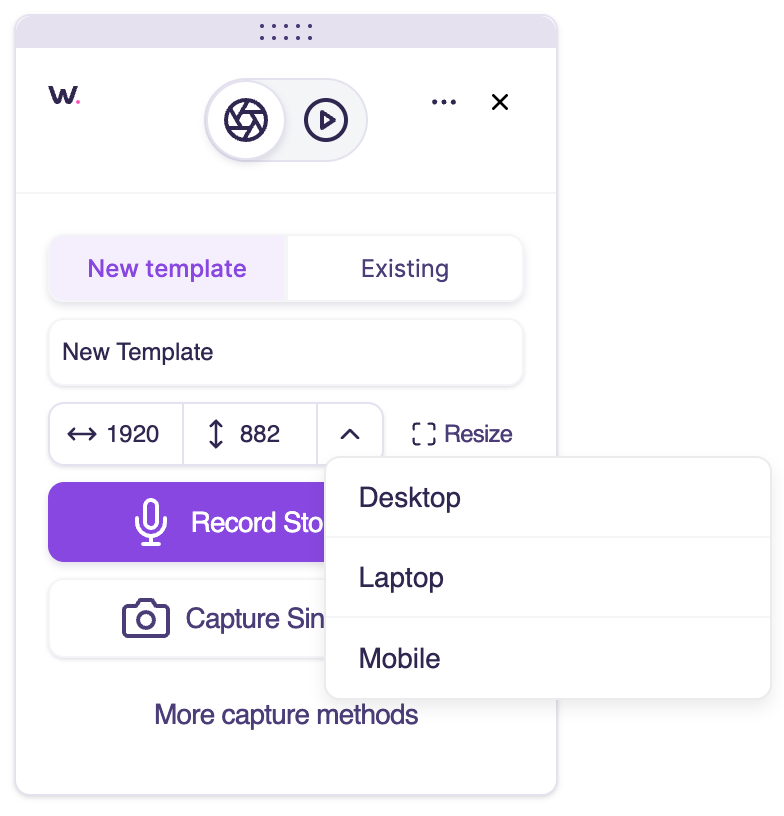
6. Choose a template destination by selecting either New Template or Existing Template.
7. Set your screen size using the integrated screen resizer. You can keep the current browser size or choose a preset such as Desktop, Laptop, or Mobile.
8. Select your capture mode based on how you want to build.
- Record Demo Story via Story Capture or Continuous Capture
- Capture Single Screen
- More capture methods for advanced workflows including Video Capture
Preset Sizes & Best Practices
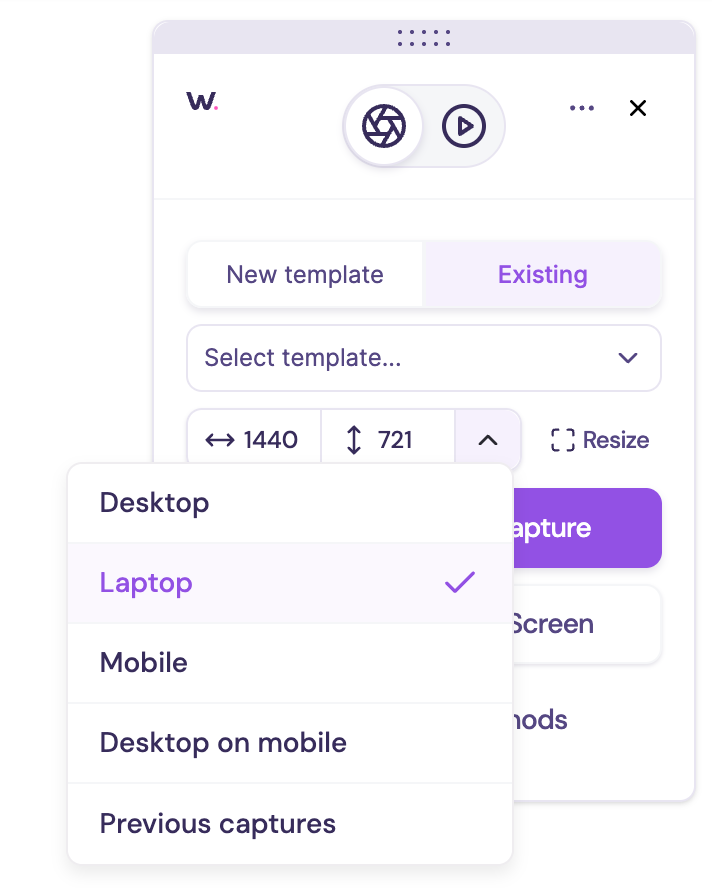
The integrated screen resizer in the Walnut Chrome Extension allows you to quickly standardize your capture environment using preset screen sizes. Choosing the right preset before capturing is one of the most important steps for ensuring a clean, consistent, and scalable demo build.
Available Preset Sizes
You can select from the following preset options directly within the extension:
- Desktop (1920 × 830): Best for full-width product experiences and larger UI layouts where maximum screen real estate matters.
- Laptop (1440 × 721): Recommended default for most demos. Balances quality, editability, and the most common viewer experience.
- Mobile (500 × 787): Ideal for capturing true mobile or responsive experiences designed for smaller screens.
- Desktop on Mobile (1440 × 720): Captures a full desktop viewport while optimizing for smaller or split-screen presentation. This is the best option when you want a desktop experience to scale cleanly on mobile devices, embeds, or side-by-side layouts without breaking responsiveness.
- Previous Captures: Matches the screen size of the last captured screen in your existing template to keep all new captures aligned and consistent.
Best Practices for Capture Sizing
Capture Modes
The updated extension gives you access to multiple capture workflows depending on how you want to build your demo.
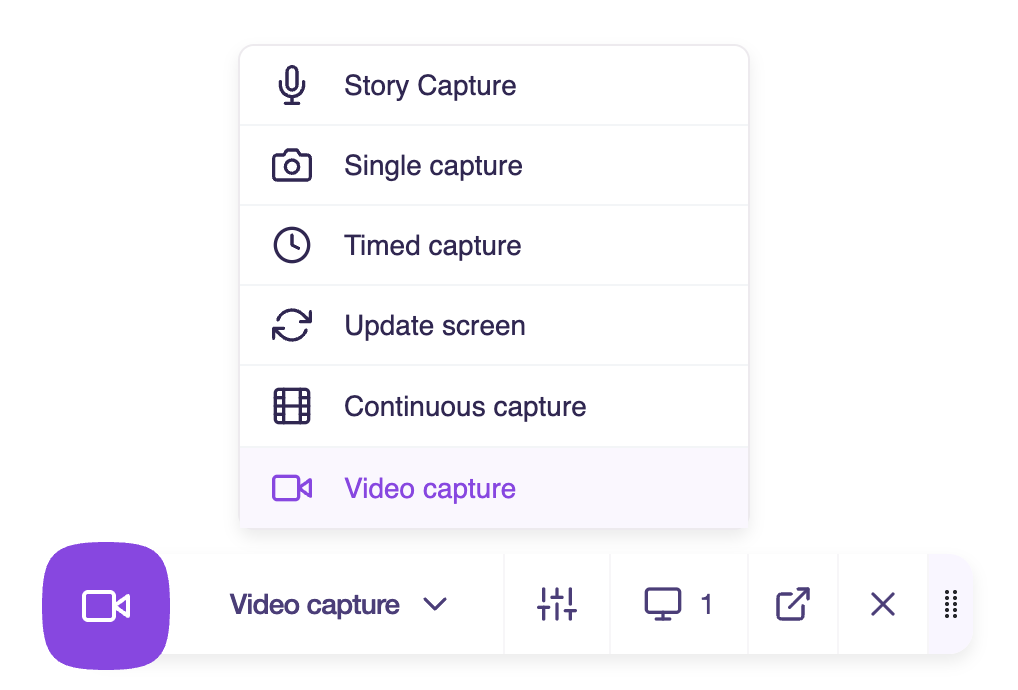
Important: Story Capture requires AI terms to be approved in Company Settings. If AI is not enabled, this option defaults to Continuous Capture.
| Capture Mode | Description |
|---|---|
| Story Capture | Capture a workflow while narrating and let GenAI generate guided demo steps automatically. |
| Continuous Capture | Capture multiple screens in sequence as you click through your workflow. |
| Capture Single Screen | Capture one screen at a time. |
| Video Capture | Record a workflow directly from the browser tab and automatically add it to your template as a video screen. Learn more. |
| More capture methods | Opens the advanced capture widget with additional methods such as Timed Capture, Update Screen, and other specialized capture workflows. |
FAQs
Will my extension update automatically?
Yes. Once the update is live, the Walnut Chrome Extension will refresh automatically.
Can I still access the previous capture interface?
Yes. Click More capture methods in the updated extension widget to open the advanced capture interface and access additional capture methods.
I do not see the new extension experience yet. What should I do?
If your extension has not updated automatically, remove it and reinstall it from the Chrome Web Store.
Does the updated extension support video capture?
Yes. The updated extension supports Video Capture through More capture methods, allowing you to record motion-based product workflows directly from the browser tab and add them to your template as video screens.