Version control for demo templates
Version control for demo templates
Overview
Version Control for demo templates gives teams a safe, reliable way to track changes, review past edits, and restore earlier versions of demo templates and storylines.
With automatic version snapshots, restore options, and full change attribution, teams can iterate confidently, experiment freely, and recover quickly when something goes wrong.
Quick Start Guide
Version Control works automatically in the background. There is no setup required.

Open Version History using the clock/history icon in the top toolbar.
Why Version Control Matters
Demo templates evolve constantly. Teams update messaging, adjust flows, add new screens, and tailor content for different audiences.
Before Version Control, teams relied on browser undo, manual duplication, or naming conventions like “Final v2” and “Final FINAL.”
Version Control introduces a complete version history so every meaningful change is captured, attributed, and recoverable.
- Protect your work
Avoid losing hours of edits. - Encourage iteration
Make bold updates safely. - Reduce template sprawl
No more “backup” duplicates. - Support governance
Maintain a clear audit trail.
How Version History Works in the Editor
Version Control runs automatically in the background. When needed, Version History provides a full timeline inside the editor.
1. Open the Version History Panel
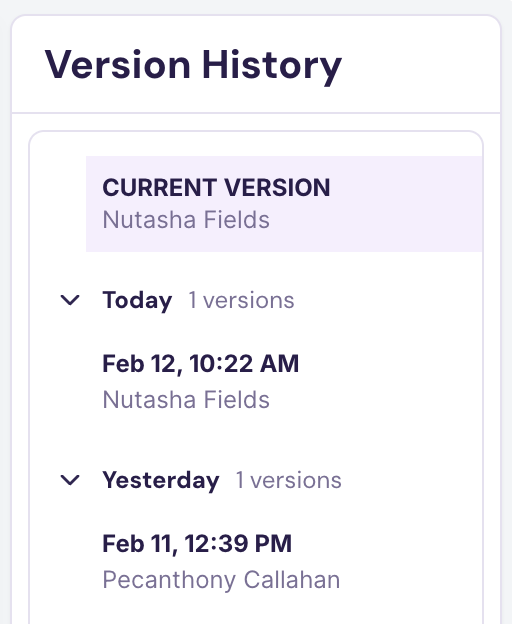
The panel displays:
- Current Version
- Date groupings (Today, Yesterday)
- Editor attribution with timestamps
2. Automatic Version Snapshots
Walnut automatically creates version snapshots during editing. No manual save points are required.
3. Restore or Branch from a Version
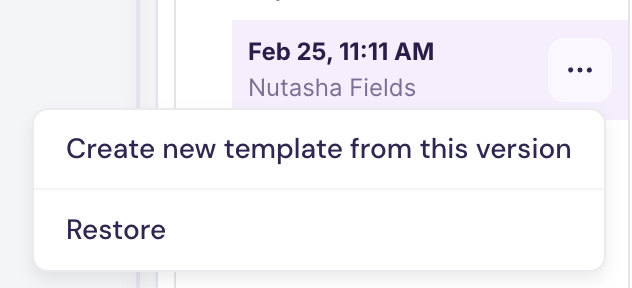
- Restore
Rolls back the current template. A new version entry is created. - Create new template from this version
Creates a separate template without changing the current one.
4. Make a Copy vs. Restore

- Make a copy creates a new template from that version.
- Restore replaces the active template state.
5. Exit Version History
Click Exit Version History to return to the standard editor view.
Important Notes
Version history only records changes made after this feature became available.
Templates edited before release will begin recording versions starting with their first edit after launch.
FAQs
What creates a new version?
Versions are automatically created during active editing. Restoring a version also creates a new version entry.
Can I create a manual checkpoint?
No. Version snapshots are handled automatically.
What is the difference between preview and restore?
Preview lets you view a previous version without changing the template. Restore replaces the current state and records a new version entry.
Who can see version history?
Any team member with access to the template.
Can versions be deleted?
No. Versions cannot be deleted to preserve audit integrity.
Does restoring affect live demos?
Restoring changes the template going forward. Existing demos follow your standard update workflow.
Will I see versions from before release?
No. Version history is not retroactive. Tracking begins from the first edit after feature launch.
Does this replace undo (CMD+Z)?
No. Undo still works for small changes. Version Control is designed for larger, multi-session safety.