Move the guide toolbar
Move the guide toolbar
You can customize where the guide toolbar appears and how large it is—either per demo link or as a company-wide default.
Set the position for a single demo link: When creating your demo link in the launcher, open the View Settings and choose:
- Position – Place the toolbar at the bottom-left, or bottom-right
- Size – Choose the toolbar size that best fits your demo's layout (rolling out gradually; if you don't see this control, it's not enabled for your workspace yet).
Set a company-level default: To apply a default toolbar position and size across your team, go to Account Settings → Guides toolbar and set your preferred placement and size there. Individual demo links can still override the company default in their own View Settings.
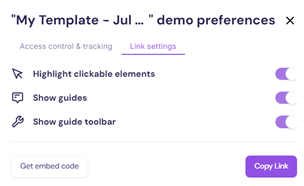
You can also remove the toolbar from the template entirely if needed—toggle Show guide toolbar off in the View Settings when creating your demo link in the launcher.
Toggle the Show guide toolbar off in the View Settings when creating your demo link in the launcher!
For more on how to use the Guide toolbar, head over to the section Get to know the Guide toolbar in the article Create demos part 4: create demo guides.