Edit charts in a demo
Change the data, labels and look of charts in a captured demo, by hand in the chart editor or by asking AI Mode, including SVG, canvas and image charts.
Edit charts in a demo
About This Feature
Product dashboards are full of charts, and the numbers on them rarely tell the story you want for every prospect. Walnut gives you two ways to change a chart in a captured screen:
- Edit it yourself in the chart editor: change data points, labels, tooltips, axes, and plot styling by hand.
- Ask AI Mode: describe the change in plain language ("make Q3 revenue 2.4M and color the bars brand purple") and review it before it's applied. AI Mode also handles charts the chart editor can't touch, such as SVG and canvas charts, and charts that were captured as images.
Snapshot 📸
- Feature Status: Core Feature (chart editor); AI Mode chart editing is part of AI Mode
- Role Access: Admins, Editors
- Location: Walnut Editor
Which option to use
| Your chart is… | Chart editor | AI Mode |
|---|---|---|
| A live Chart.js or Highcharts chart | ✅ | ✅ |
| A live Recharts or Google Charts chart | — | ✅ |
| An SVG or canvas chart, or a chart image | — | ✅ Redraws or rebuilds it (see below) |
| A change you want to make across many charts or screens quickly | — | ✅ |
Edit a Chart With AI Mode
Open AI Mode in the editor and tell it what should change. You can either pin the chart (or the card it sits in) or just describe it ("the revenue chart on the right"). AI Mode finds the chart even when it's inside a card, under an overlay, or deep in the page, and it changes the chart itself, not the labels, legend, or table next to it. If it can't tell which chart you mean, it asks you to select it.
Live charts
For live charts (Highcharts, Chart.js, Recharts, and Google Charts), AI Mode edits the chart directly: data values, series, labels, colors, and look. Anything you didn't mention stays as it was.
Charts that aren't live: SVG, canvas, and images
Some charts are captured as a picture rather than live data. Before changing one, AI Mode asks How should I update this chart? and offers two options:
- Update the image redraws the chart as a new picture with your change. It keeps the original look, but it stays a picture.
- Make it interactive rebuilds the chart as a live chart you can keep editing later, by hand or with AI Mode. It may look a little different from the original. If you gave exact numbers, AI Mode recommends this option.
If AI Mode needs values you didn't give it, it asks for them, with a You pick option to let it choose.
You then see the result in place, marked Preview — not saved:
- Accept keeps the new chart.
- Deny discards the preview and leaves the chart unchanged.
- The regenerate button tries again.
An accepted redrawn image is also saved to your media library as AI Generated chart. A rebuilt chart becomes a live Chart.js chart (bar, line, pie, doughnut, radar, polar area, bubble, or scatter), so later edits work like any live chart.
Good to know
- Undo works. After accepting a change, press Ctrl+Z (Cmd+Z on Mac) to undo it.
- AI credits. Redrawing a chart image and rebuilding a chart as interactive use AI credits. See AI Control Center.
- Very large charts. If a chart is too large to rebuild as interactive, AI Mode offers Update the image instead.
- Google Charts are captured as live charts with recent versions of the Walnut Chrome extension. Recapture the screen if a Google chart was captured before.
Example prompts
- "Change the values on this bar chart to 120, 180, 240 and 310."
- "Rename the series to Pipeline and Closed Won, and make Closed Won our brand purple."
- "Turn this chart image into an interactive chart showing 40% / 35% / 25%."
- "Make the line chart on the dashboard trend upward over the last six months."
Edit a Chart Yourself in the Chart Editor
The chart editor gives you direct control over a live chart's data and settings. It works with charts built on Chart.js and Highcharts.
-
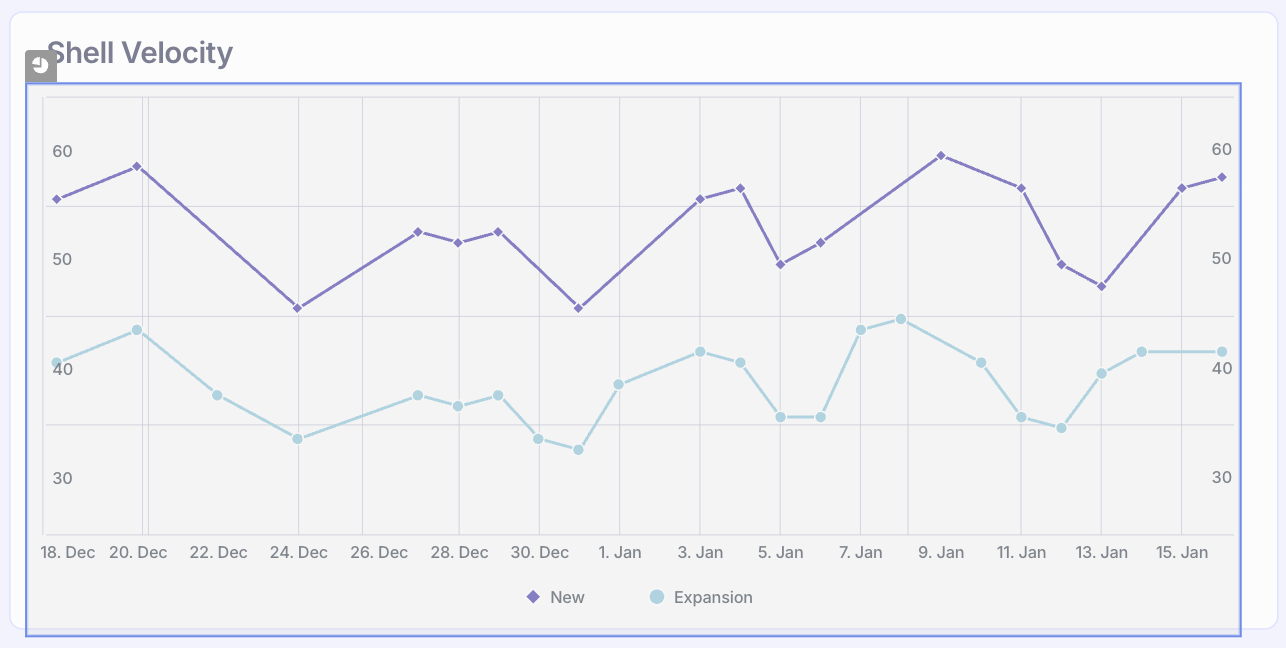
Click on a captured chart element in the Walnut Editor. If interactivity and editing are supported, a grey pie chart icon will appear in the upper left corner of the chart.
-
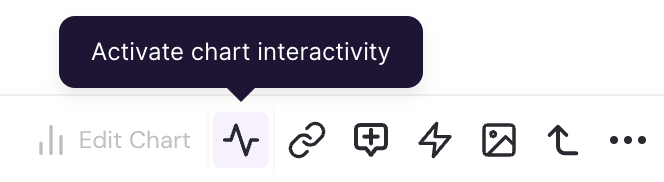
Click the Activate Chart Interactivity icon in the element editor toolbar to enable interactivity and editing features.
-
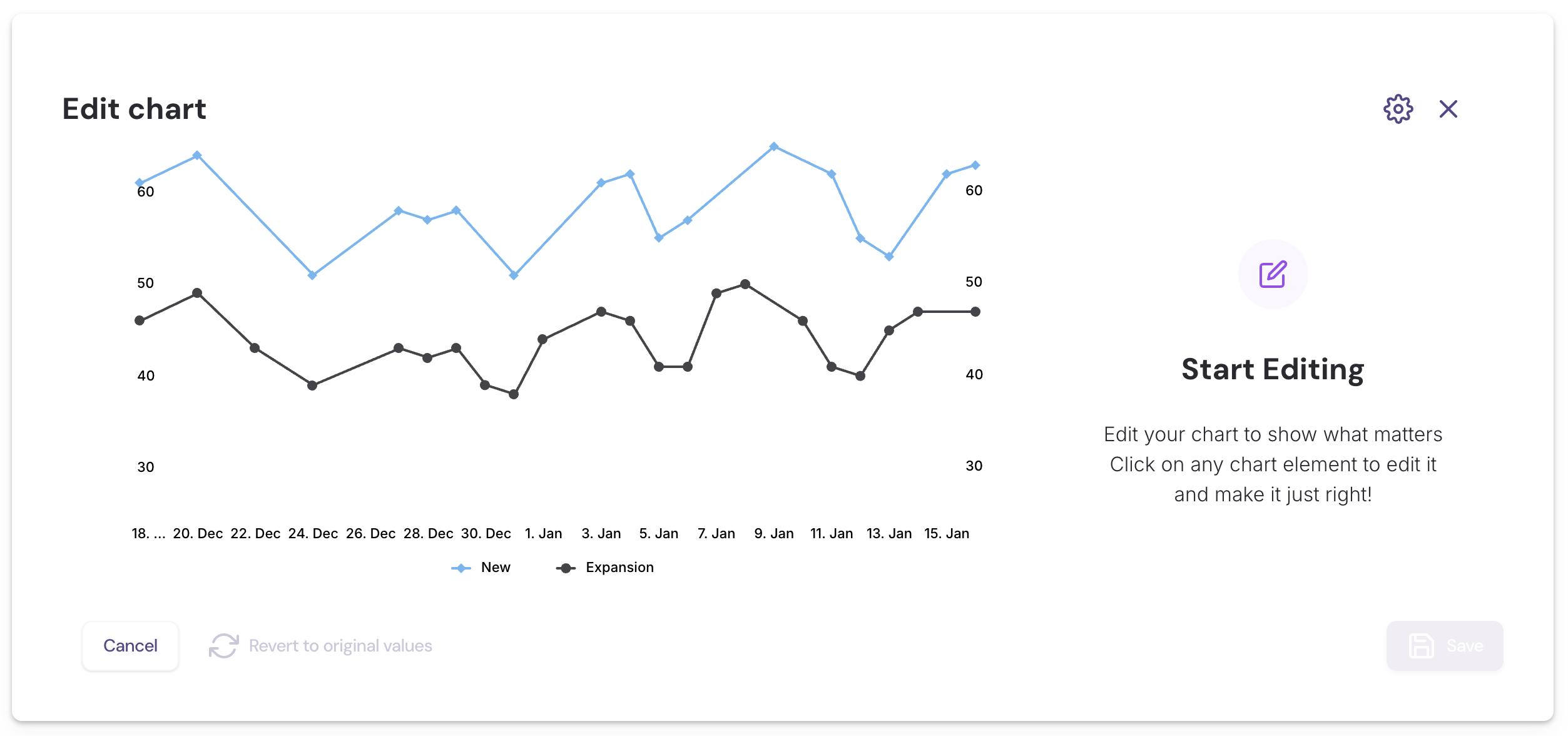
Click Edit Chart to open the chart editor interface.

-
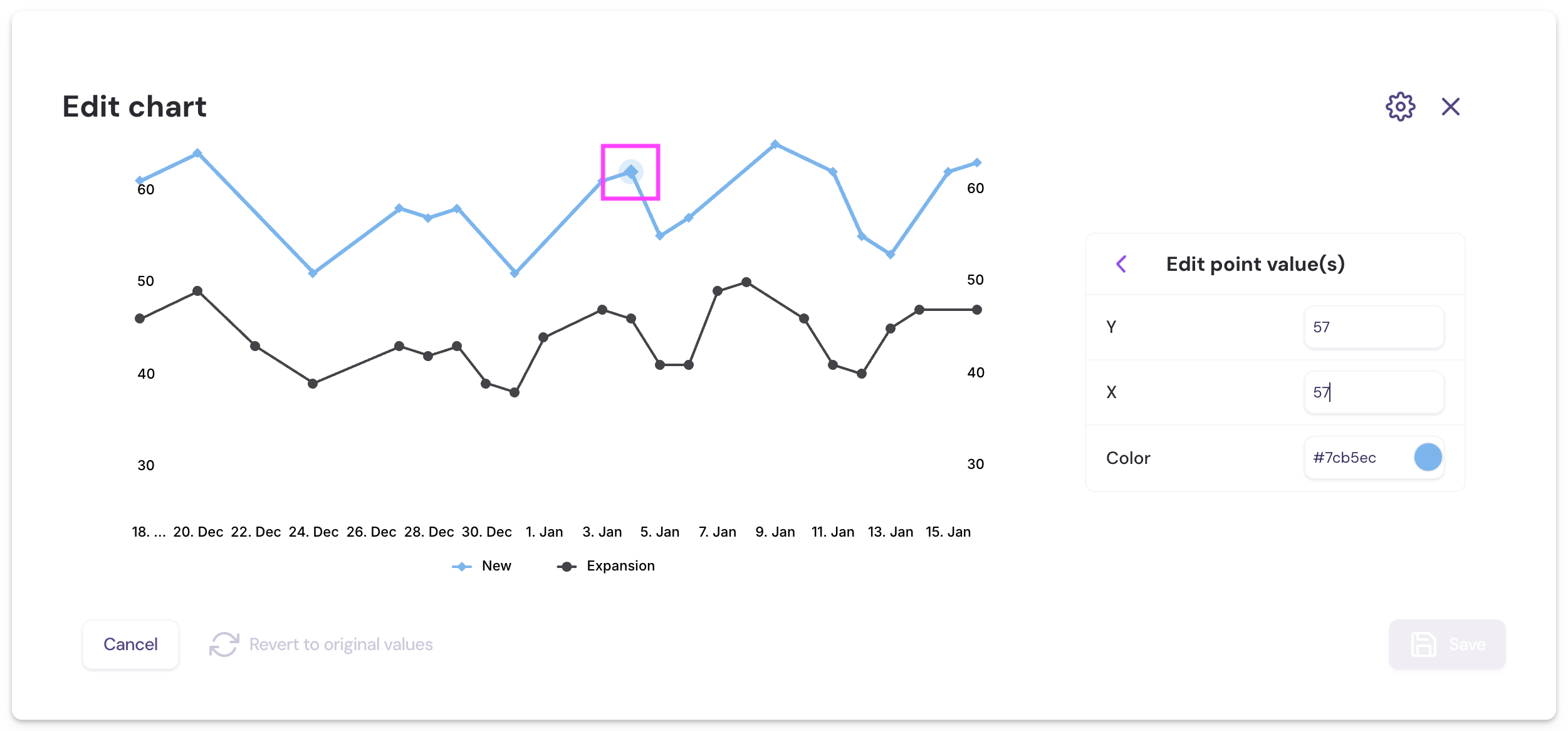
Select a data point value or label in the left panel to begin editing.
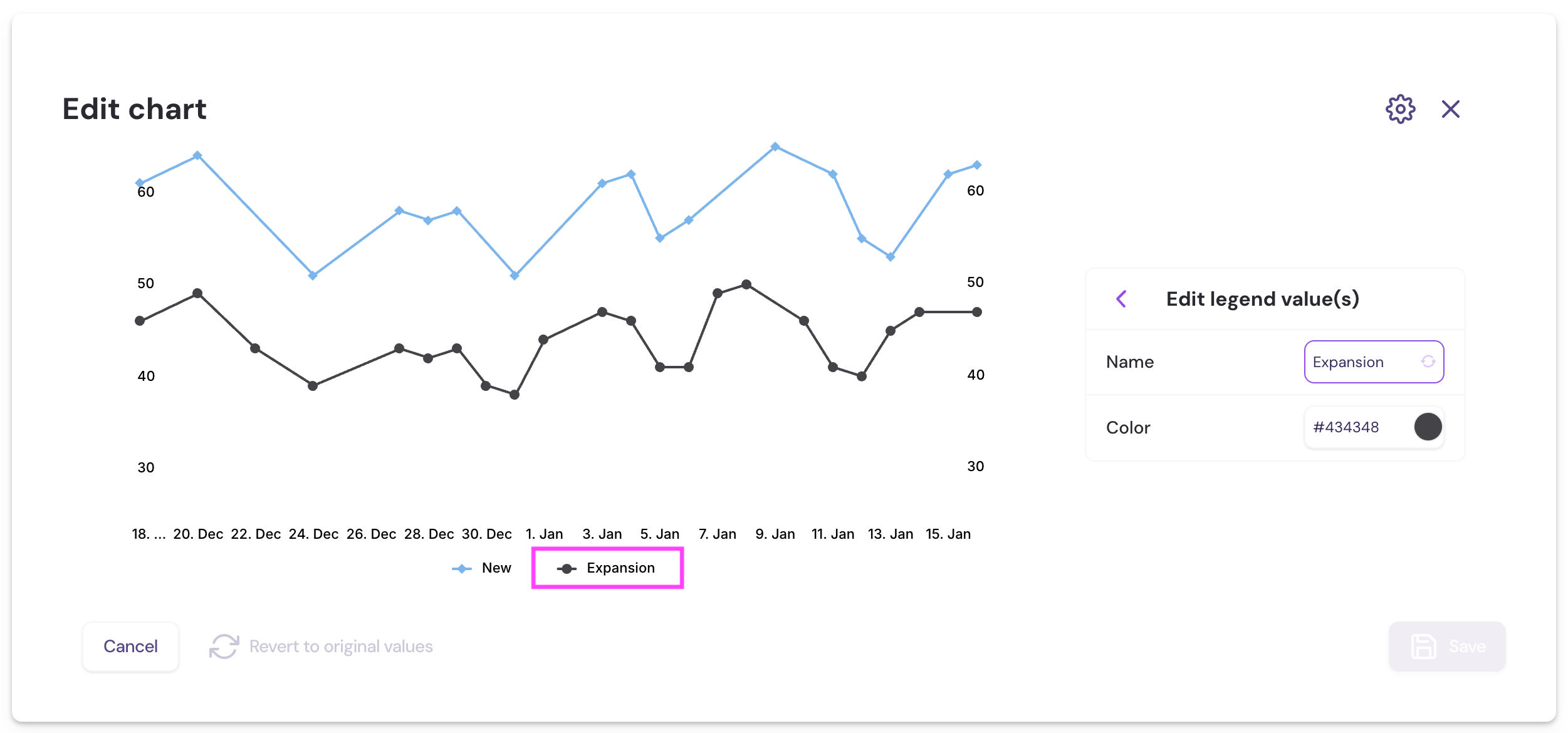
-
Click the gear icon in the top-right of the chart editor to access advanced options for tooltips, axis, and plot style settings.
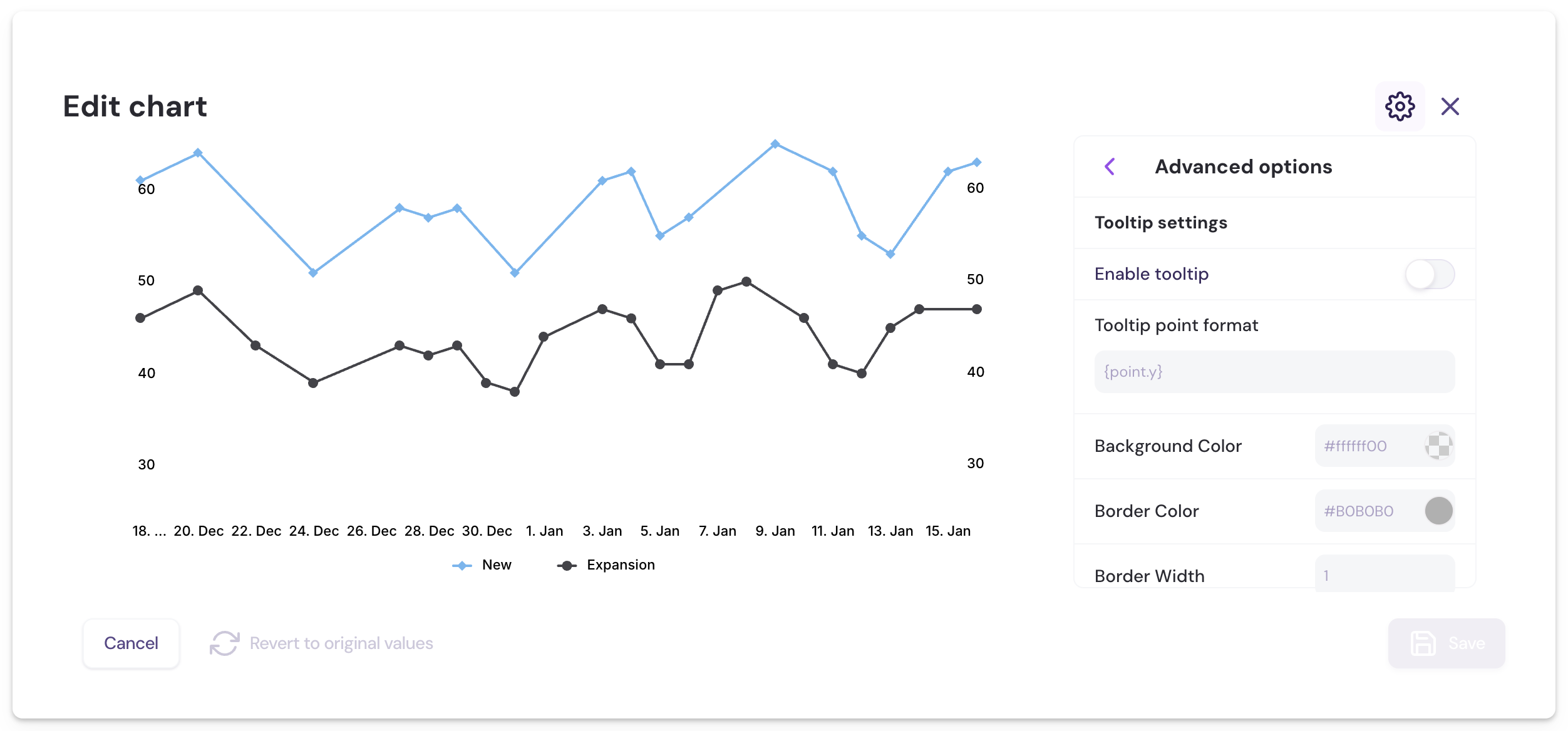
-
Click Save to apply your changes.
-
To reset the chart to its original captured state, select the chart, open the three-dot menu in the toolbar, and click Reset Changes.
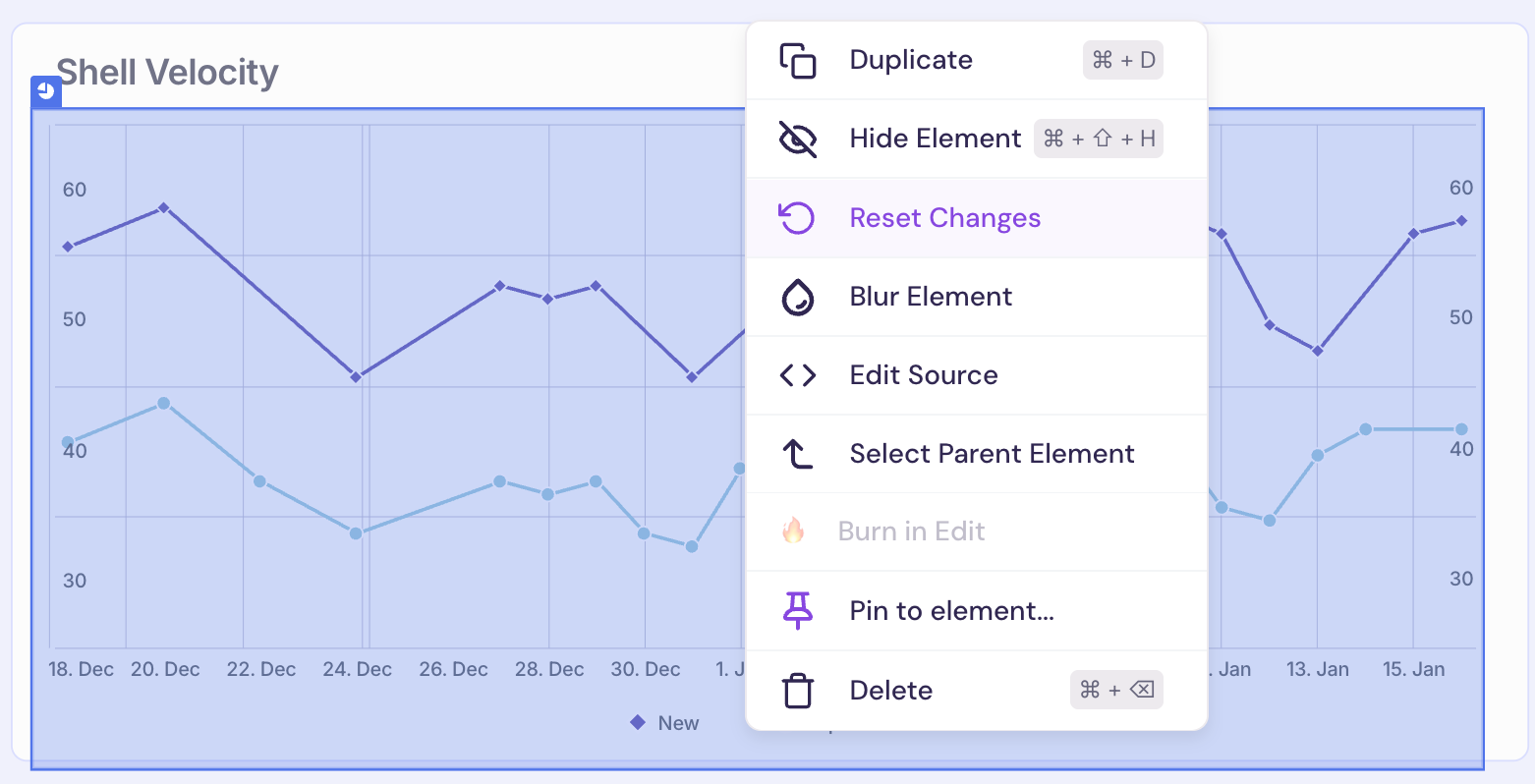
Supported Chart Libraries
The chart editor supports Chart.js and Highcharts. For framework compatibility and capture support, see Extension Capabilities. Charts on other libraries can still be edited with AI Mode.
FAQs
Can I Add Dynamic Date Variables or Other Variables to My Charts?
- No — at this time, charts do not support dynamic variables such as dates, text, or images. All chart content must be static and manually configured.
The Interactivity Option Isn’t Showing, but I’m Using a Supported Library and Framework. What Should I Do?
- If the interactivity icon isn’t appearing—even though your chart uses a supported library and framework—there may be an issue with how the chart was captured or rendered. You can still try changing the chart with AI Mode. Reach out to our Support Team, and we’ll be happy to help troubleshoot.
My Chart Was Captured as an Image or SVG. Can I Still Change It?
- Yes, with AI Mode. Choose Update the image to redraw it with your change, or Make it interactive to rebuild it as a live chart you can keep editing.