Set the default language of a demo
Set the default language of a demo
Overview
If your demo includes translated guide content, Walnut lets you control which language viewers see first when they open the shared demo.
This makes it easier to deliver a cleaner, more intentional experience for regional audiences, multilingual stakeholders, and global teams without asking viewers to switch languages manually after launch.
In practice, this workflow has two parts:
- Add and manage translated languages in Guides translation
- Choose the viewer-facing default in Create & Share demo under View settings
Quick Start
To set the default language of a demo:
- Add at least one additional language in the Guides Translation section of the Guides panel in your template
- Click Create & Share demo
- Go to View settings
- Select the desired default language in the Demo language dropdown
- Click Save & Copy demo link
If None (Default) is selected, Walnut automatically serves the best-matched available language based on the viewer’s browser and system language settings, falling back to the demo’s primary language when no match exists. Learn more in How Default Demo Language Works.
How Default Demo Language Works
The Demo language setting in Create & Share demo pulls from the translated languages that have already been added to the demo.
In other words, the share settings do not create translations on their own. They simply let you choose from the languages that are already available in the demo’s translation setup.
Default Translation Behavior
By default, Walnut can automatically select the best-matched translated language based on the viewer’s browser locale and system language settings.
If a matching guide translation is available and active, Walnut will serve that language. If no matching translation exists, Walnut falls back to the demo’s primary default language.
Before You Start
Before setting a default language for your demo, make sure the translation itself has already been added.
Add Translation Languages in Guides
Start in the Guides panel of the demo editor (template). This is where you define the source language and add the additional languages you want to make available for the demo.
To add a language:
- Open the Guides panel in the demo editor (template)
- Click the globe icon to open Guides Translation
- Confirm the Source language. This is the language you compose your guides in, and it serves as the base for all other translations.
- Under Additional languages, search for the language you want to add
- Select the language from the list to activate it
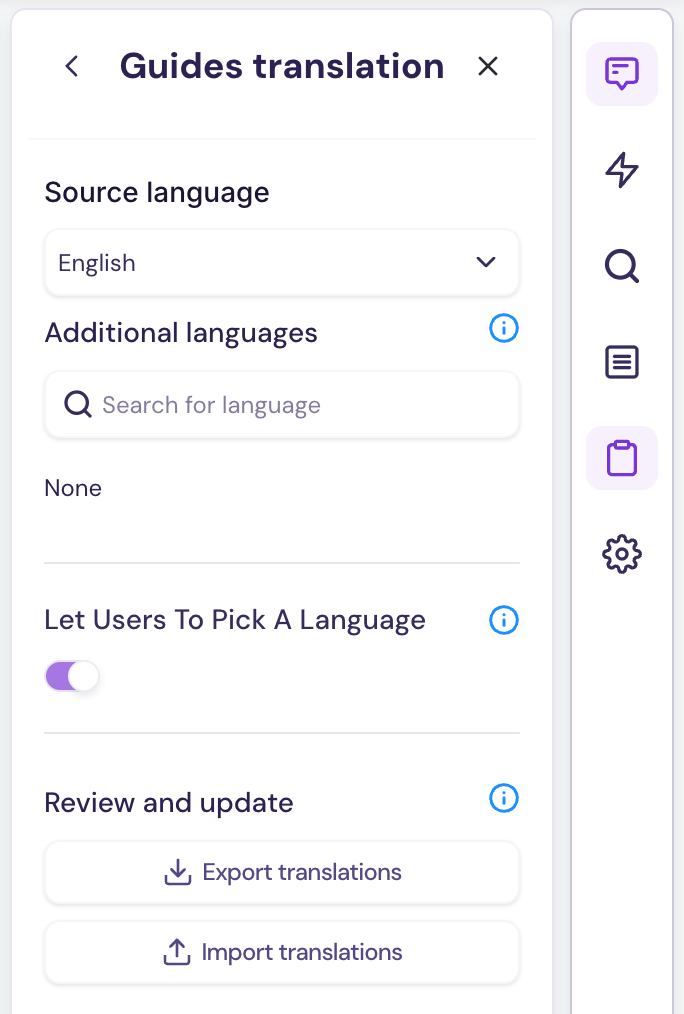
Before any languages are added, the Additional languages section will appear empty.
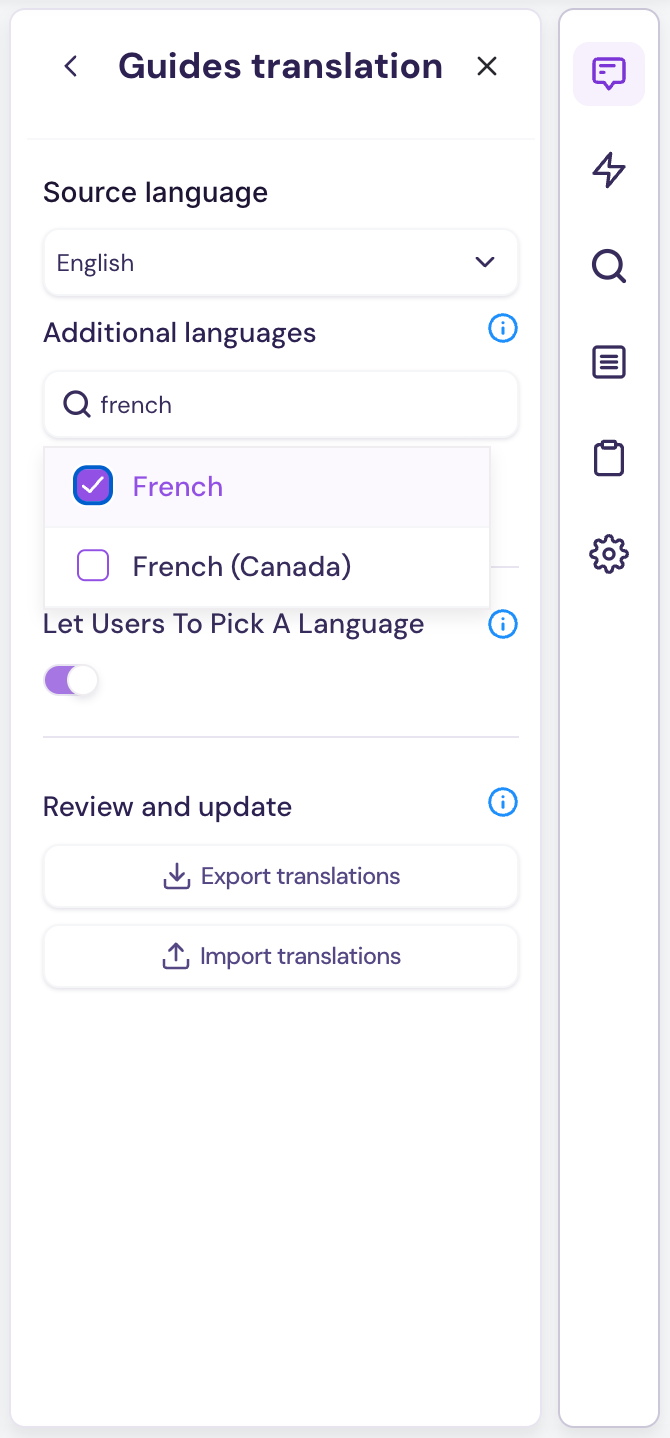
Once you search and select a language, it becomes active for that demo and can then be used in the Demo language menu during sharing.
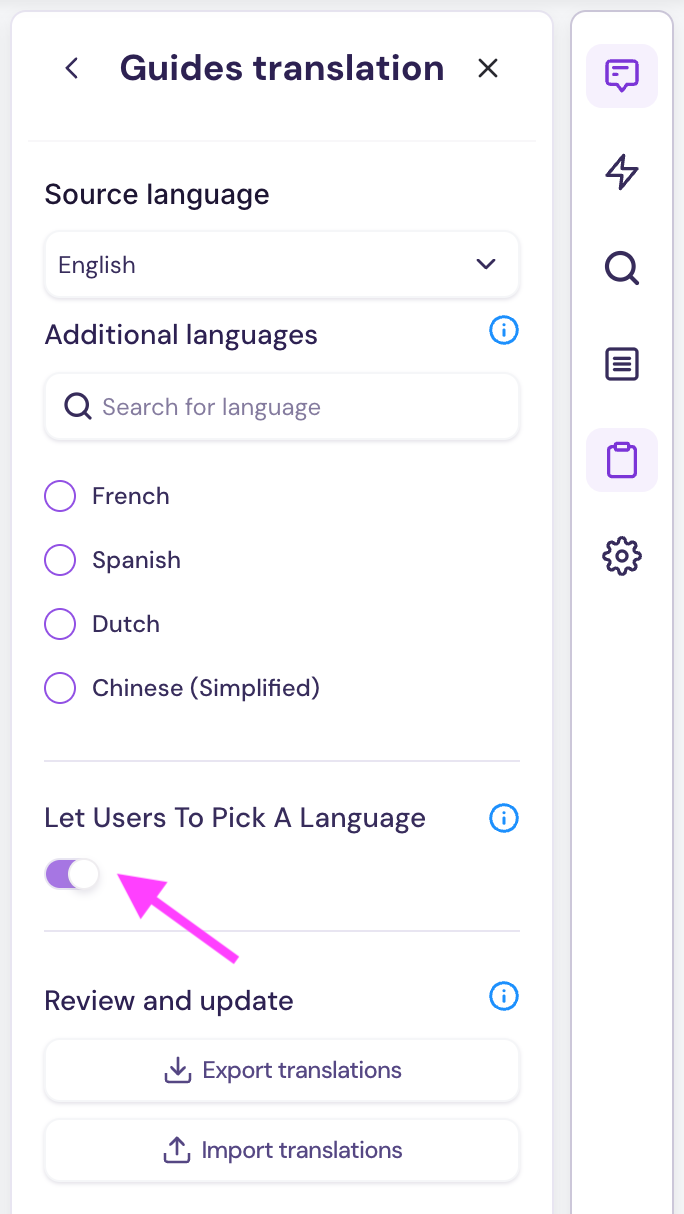
You can also enable Let Users To Pick A Language if you want viewers to be able to switch between available languages on their own.
Set the Default Language in Create & Share Demo
Once you’ve added at least one language in Guides Translation, click Create & Share demo and go to View settings.
This is where you control the viewer-facing experience, including whether guides appear and which language the demo should open in by default.
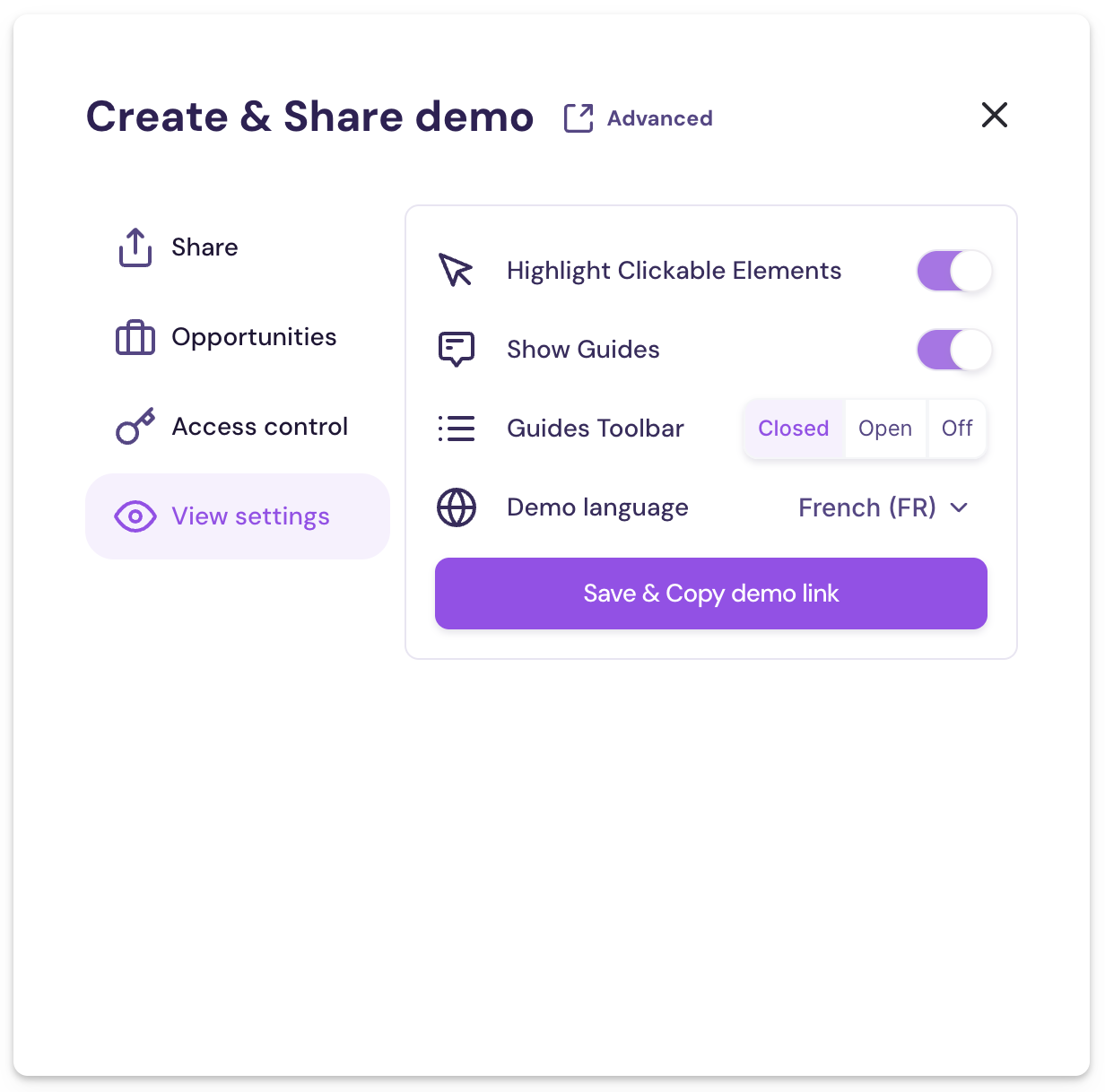
Under Demo language, open the dropdown and select the language you want the demo to open in by default. Languages activated in Guides Translation will appear in this menu.
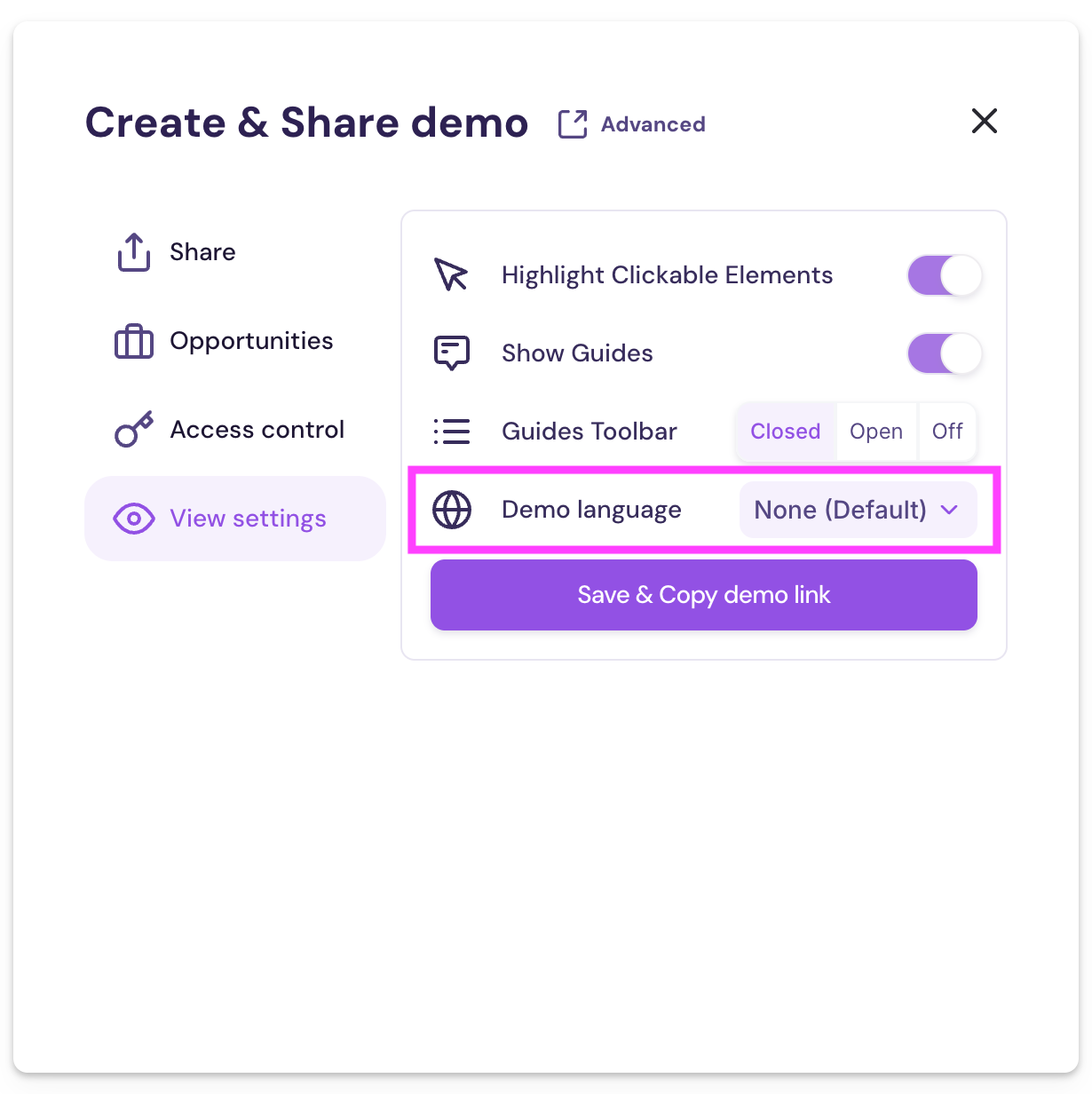
After selecting an option, click Save & Copy demo link to save your demo.
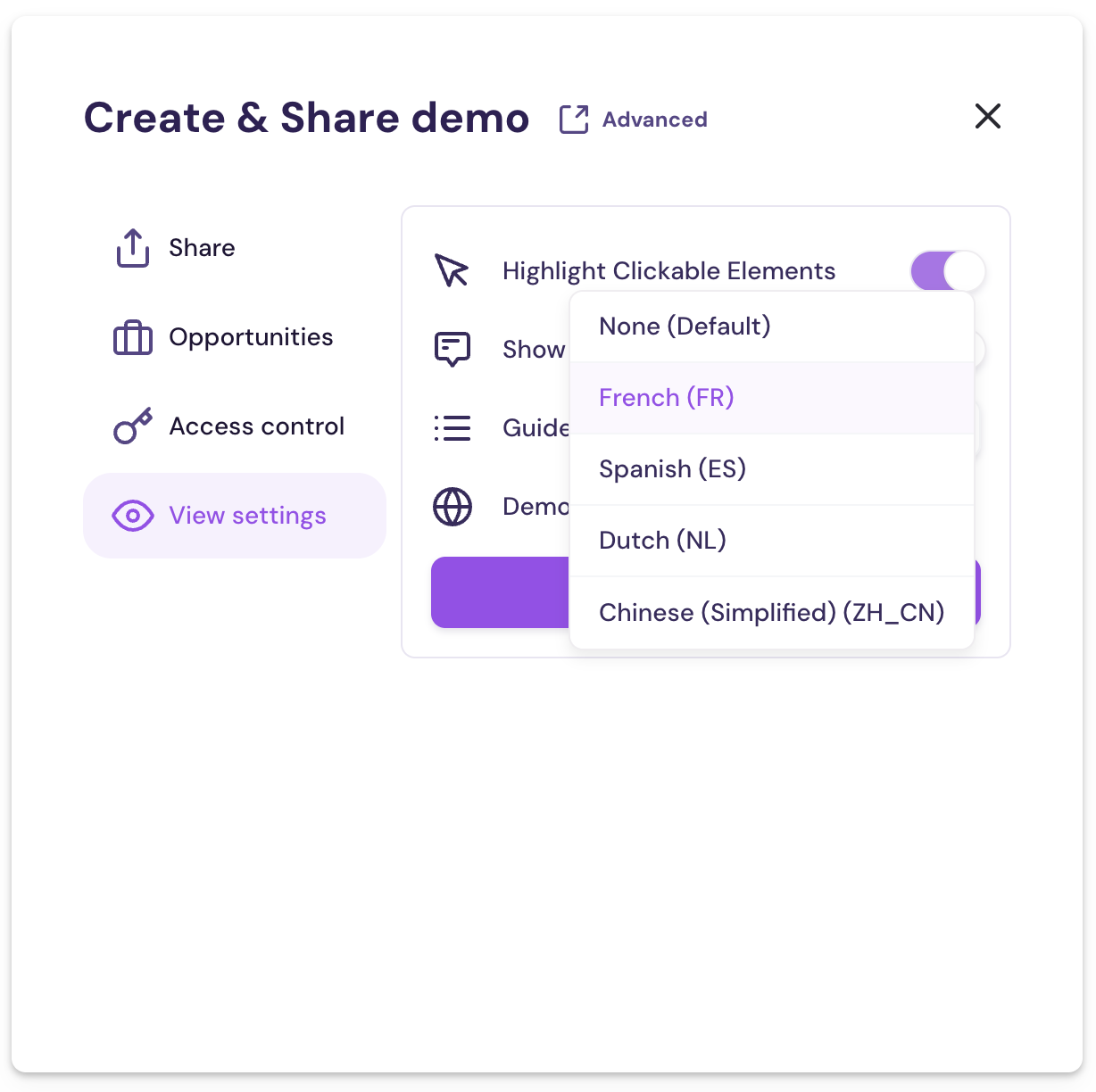
What Happens If No Language Is Selected
If you do not choose a translated language in the share settings, the demo will remain on None (Default).
That means the demo will open using its default setup rather than forcing one of the added translated options at launch.
This can be useful when you want the demo to remain in its original state, or when you prefer viewers to choose from the available translated options themselves.
What Viewers Will See
When a default language is selected, viewers who open that demo link will land directly in that language.
If Let Users To Pick A Language is enabled in the translation settings, viewers can still switch between available languages after the demo loads.
Best Practices
The strongest results usually come from pairing language settings with a broader sharing and localization strategy.
Related Resources
Looking to go deeper on localization, accessibility, and embedded experiences? Explore these guides: