Import screens from the screens library
Import screens from the screens library
You must be an Editor, Admin, or Account Owner to access this feature. 🔑
Learn more about Roles & Permissions.
Overview
Importing screens from an existing template is a fast way to build new demo experiences without starting from scratch.
This is especially useful when your team already has strong screens in use across other templates and wants to reuse them while keeping edits, structure, and storytelling more consistent.
Import Screens
To import screens, start from the template you want to import screens into.
- Open the destination template.
- From the template overview page, click Import Screens in the top-right corner.
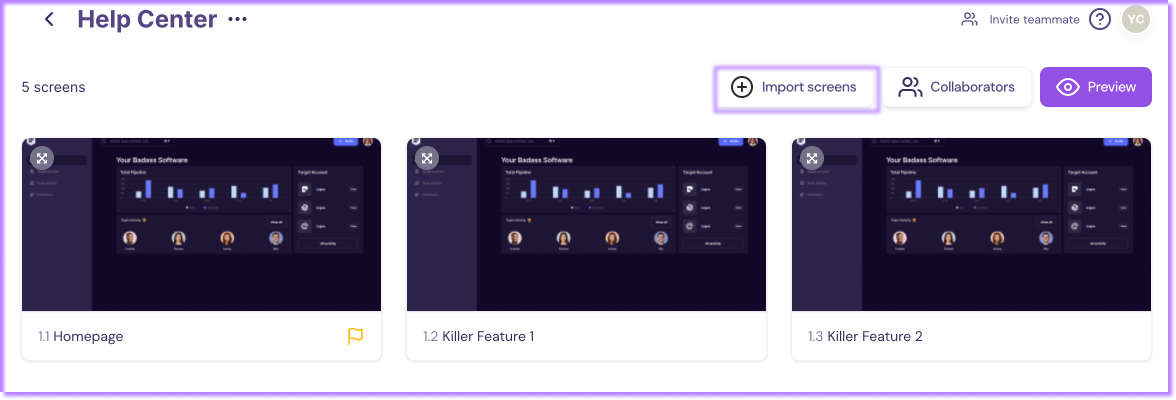
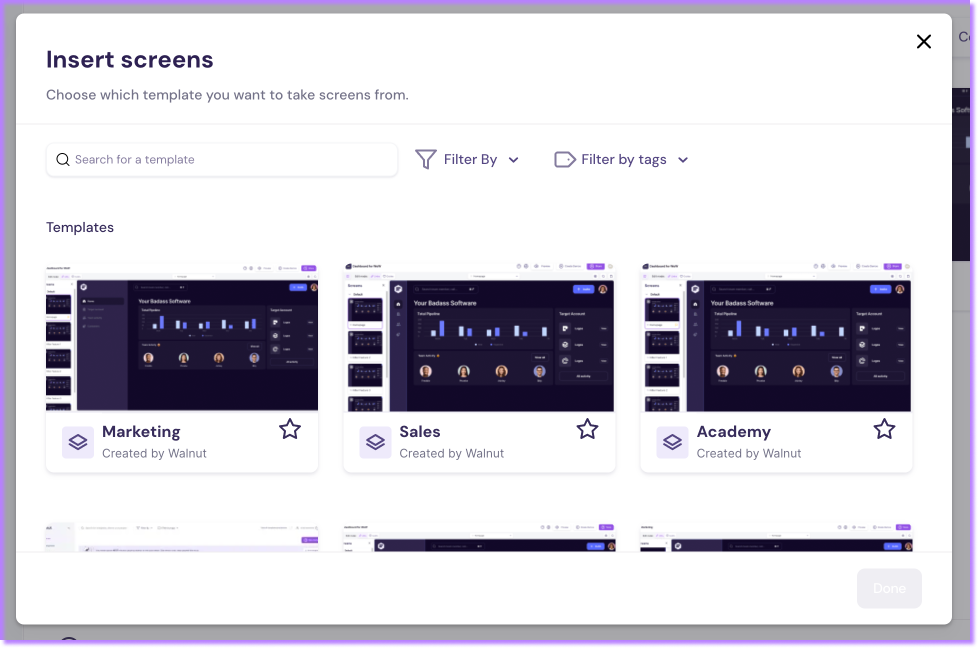
The import window opens. From there:
- Select the template you want to import screens from.
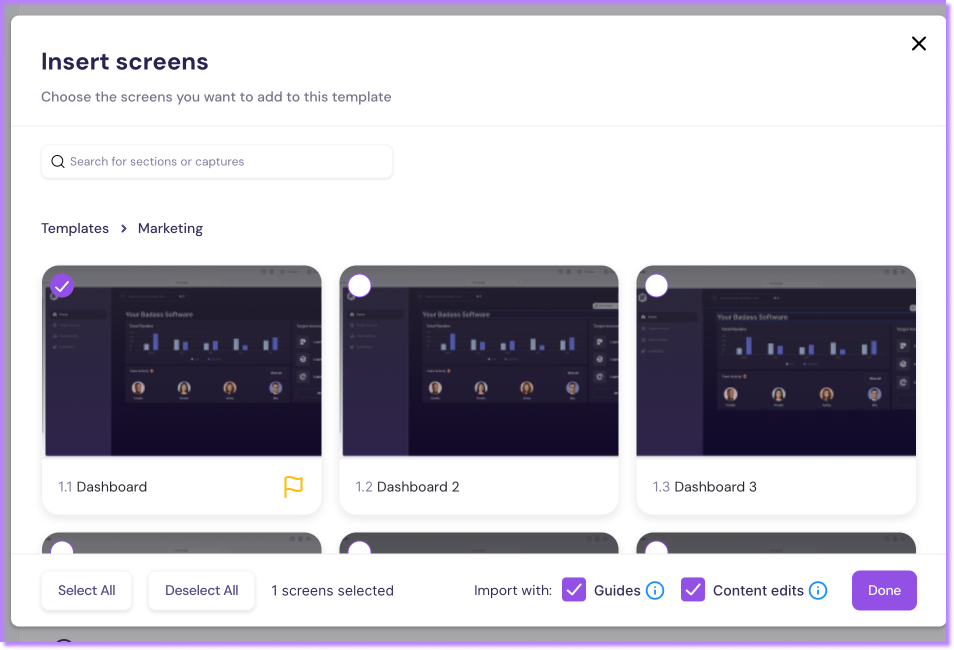
- Choose the specific screens you want to bring into the current template.
- Decide whether to include existing guides and edits with those screens.
Important to Know

Walnut Tip
Was this helpful?