Enable demo notifications
Get an alert when prospects view your demo: in Demo preferences > Notifications, notify the CRM deal owner, account owner, or teammates you pick.
Enable demo notifications
You must be a Presenter, Editor, Admin, or Account Owner to access this feature. 🔑
Learn more about Roles & Permissions.
Overview
Want to be on top of your deals? Want to speed up your deals but you’re not sure how? Consider adding the ability to be notified in real-time about who is viewing your demo. By turning on demo notifications, you can get a better idea of how engaging your demo is, and use it within your sales strategy for follow up conversations and check-ins. Want to start getting notified of your demo views? Follow the steps below to try it out!
Instructions
- In your library, open the three-dot menu on the demo you want to get notified for and select Demo preferences.
- Open Notifications.
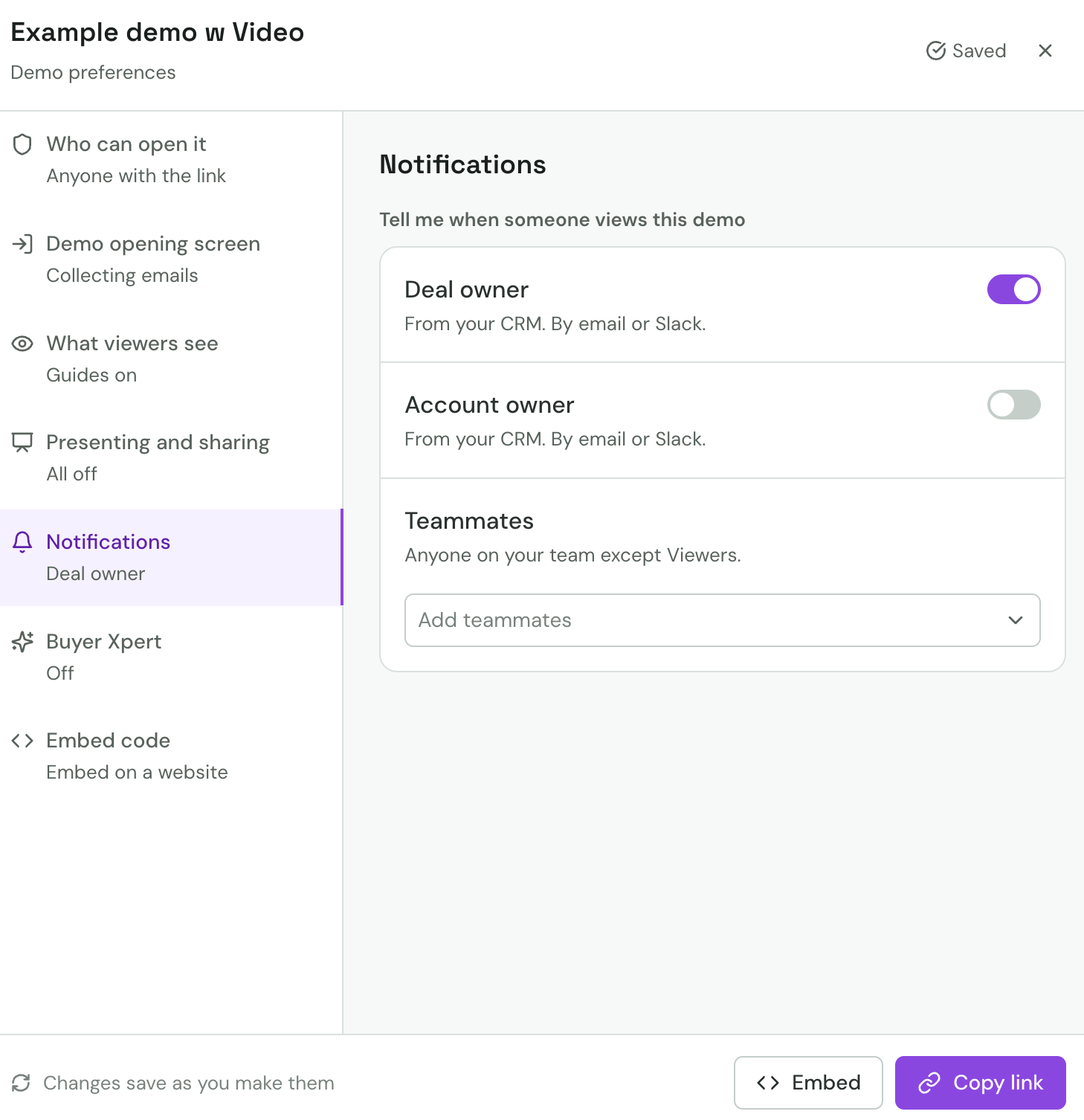
- Under Tell me when someone views this demo, choose who gets the alert:
- Deal owner — the deal's owner in your CRM, by email or Slack.
- Account owner — the account's owner in your CRM, by email or Slack.
- Teammates — open Add teammates and pick anyone on your team except Viewers. Add yourself here to get the alert too.
Each change saves right away. The line under Notifications in the left rail shows who is set to be notified.
To set who is notified by default for every new demo, see Notify deal owners and teammates.
FAQs
Who will be notified?
Everyone you turn on or add under Tell me when someone views this demo: the deal owner and account owner from your CRM, and any teammates you added.
How do I turn off this feature?
Open Demo preferences → Notifications and turn off the recipients you no longer want, or remove the teammates you added.
Does the email include what the viewer said?
Yes — when the demo has viewer feedback turned on and the viewer left a rating or comment, the notification shows a Viewer feedback card with the rating, the comment and the email the viewer left (if any) under the session summary.