Automate deal rooms with the rule engine
Automate deal rooms with the rule engine
Overview
The Rule Engine lets you automate Deal Room creation based on Salesforce Opportunity fields or HubSpot Deal properties, helping your team scale efficiently and consistently. It supports both default fields (such as Stage or Owner) and custom fields on Opportunity (Salesforce) or Deal (HubSpot) records. Fields from other CRM objects, such as Leads, Accounts, Contacts, or Companies, aren't currently supported.
When a new opportunity or deal is created in your CRM, Walnut checks it against your rules from top to bottom. If it matches a rule, Walnut automatically creates a Deal Room using the Deal Room Template you selected for that rule. Rules can include multiple conditions using AND logic, giving you greater flexibility and control over when Deal Rooms are created.
This guide helps you get started quickly and provides sample rules to help you automate workflows and deliver consistent, high-impact product experiences.
Before You Begin
✅ Before setting up your first rule, make sure you've completed the following steps:
- Connect your CRM integration — Salesforce or HubSpot. The Rule Engine depends on syncing opportunity or deal fields from your CRM, so ensure your account is properly connected and integrated with Walnut.
- Create one or more deal room templates — You'll need at least one deal room template that Walnut can automatically clone when a rule triggers.
Quick Start Guide
-
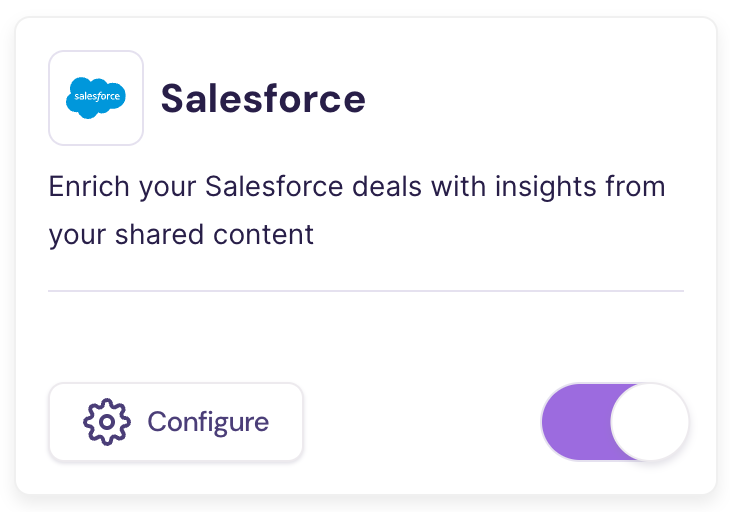
Click Configure on the Salesforce or HubSpot tile in Integrations.
-
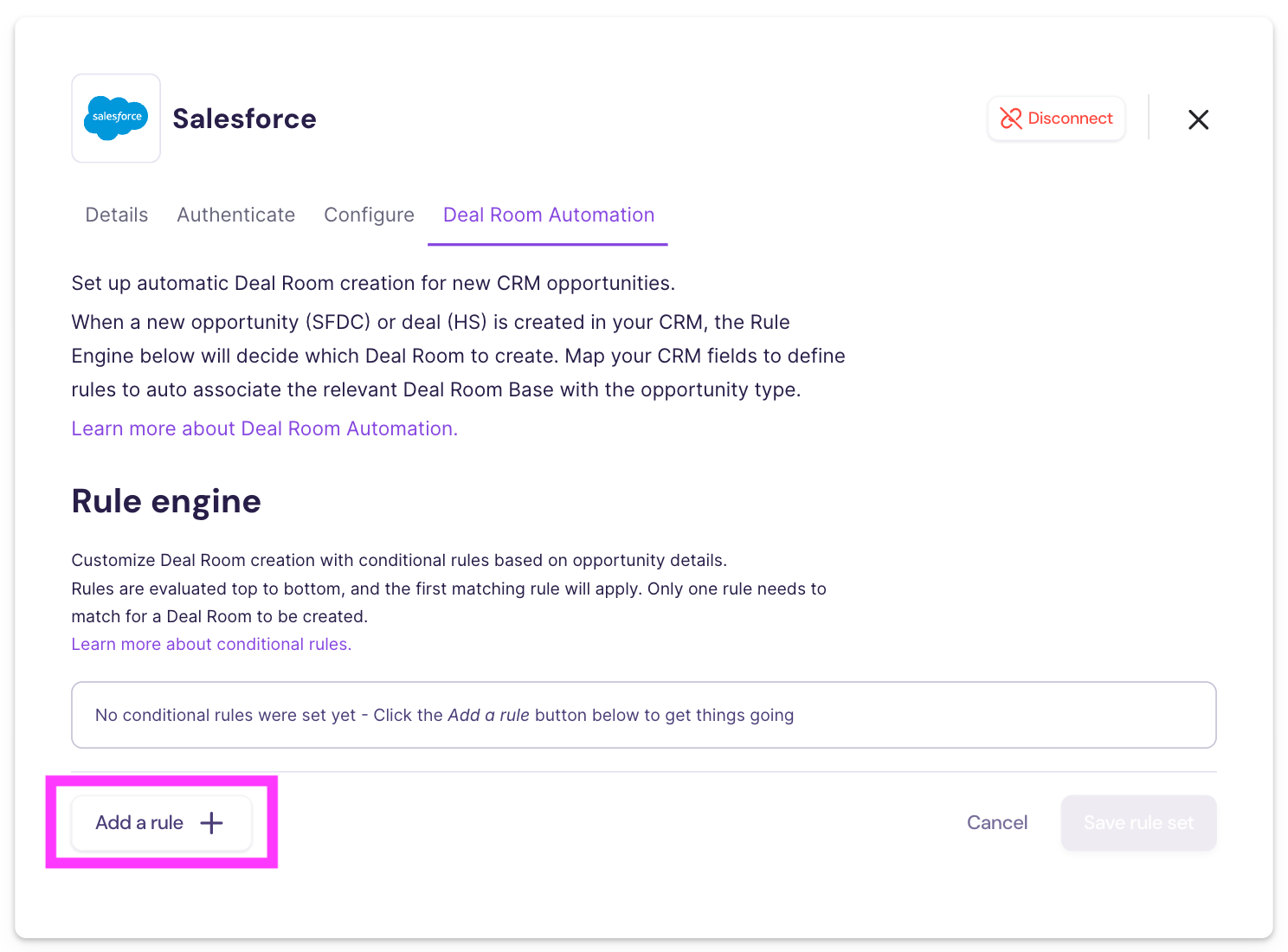
Navigate to the Deal Room Automation tab.
-
Under Rule engine, click Add a rule +.
-
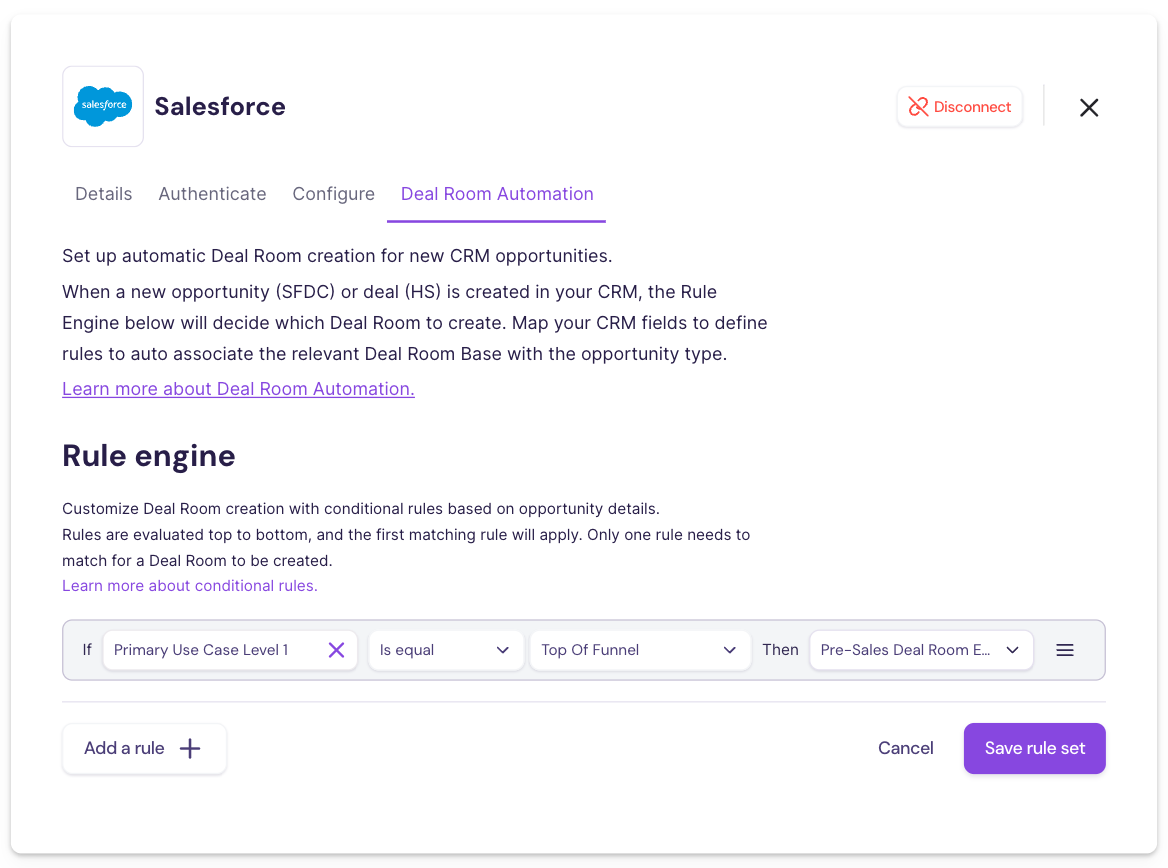
Define your rule conditions:
-
Select an opportunity or deal field (default or custom) from the CRM field dropdown.
-
Choose a condition (e.g., is equal, is not equal, is empty, is not empty) and, if applicable, specify a value to compare.
-
Select a Deal Room template from the Choose Deal Room dropdown — this is the deal room template that will be used to auto-create your new deal room when the rule evaluates to true.
-
-
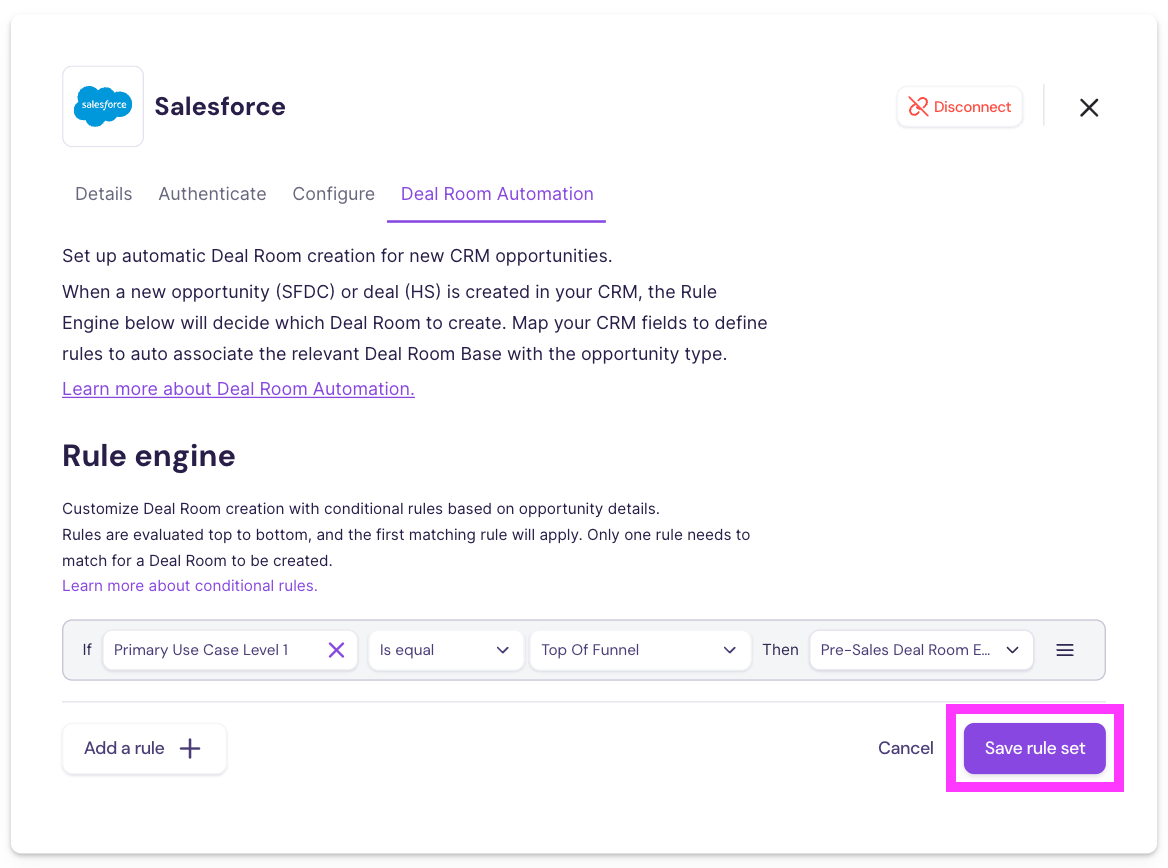
Click Save rule set to save your rule.
How Rules Work
- Rules are evaluated from top to bottom, and the first matching rule applies — only one rule needs to match for a deal room to be created. Use Move up / Move down to change a rule's priority.
- When an opportunity (Salesforce) or deal (HubSpot) is created or updated and matches the conditions of a rule, the Rule Engine automatically creates a deal room using the deal room template you selected for that rule.
- The new deal room and associated insights are automatically connected to the triggering opportunity or deal and can be accessed directly by clicking the deal room link on the associated opportunity or deal in Walnut Deals.

Rule Inspiration✨
You can create rules using single conditions or combine multiple conditions using AND logic to precisely control when Deal Rooms are created.
Default Fields
- Stage-Based Room: Opportunity Stage is equal to Negotiation/Review → create a Deal Room from the Negotiation Deal Room template.
- Owner-Based Room: Opportunity Owner is equal to Jane Smith → create a Deal Room from the Jane's Pipeline Room template.
- Close Date Trigger: Opportunity Close Date is within the next 30 days → create a Deal Room from the Closing Soon Deal Room template.
- High Probability: Opportunity Probability is greater than 75% → create a Deal Room from the Late-Stage Deal Room template.
- High Value: Opportunity Amount is greater than $100,000 → create a Deal Room from the Strategic Deals Room template.
Custom Fields
- High-Value Deals: Deal Amount (custom field) is greater than $50,000 → create a Deal Room from the High-Value Deal Room template.
- New Partner Opportunities: Account Type (custom field) is equal to New Partner → create a Deal Room from the New Customer Deal Room template.
- Specific Industry: Industry (custom field) is equal to Healthcare → create a Deal Room from the Healthcare Vertical Deal Room template.
- Geographic Region: Region (custom field) is equal to EMEA → create a Deal Room from the EMEA Regional Deal Room template.
- Sales Stage Trigger: Custom Stage field is equal to Proposal Sent → create a Deal Room from the Proposal Stage Deal Room template.
- Demo Requested: Demo Requested (custom checkbox field) is true → create a Deal Room from the Demo-Ready Deal Room template.
- Customer Tier: Customer Tier (custom field) is equal to Enterprise → create a Deal Room from the Enterprise Experience Deal Room template.
- Product Line Interest: Product Interest (custom multi-select field) contains Analytics Suite → create a Deal Room from the Analytics Deal Room template.
Multi-Condition (AND Logic) Examples
- Owner + Early Stage: Opportunity Owner is equal to Jane Smith AND Opportunity Stage is equal to Qualification → create a Deal Room from the Jane's Discovery Deal Room template.
- High-Value Late-Stage Deals: Opportunity Amount is greater than $100,000 AND Opportunity Stage is equal to Negotiation/Review → create a Deal Room from the Strategic Late-Stage Deal Room template.
- Enterprise Deals Near Close: Customer Tier is equal to Enterprise AND Close Date is within the next 30 days → create a Deal Room from the Enterprise Closing Deal Room template.
- Industry-Specific Demos: Industry is equal to Healthcare AND Demo Requested is true → create a Deal Room from the Healthcare Demo Deal Room template.
FAQs
Is Any Configuration Required In Salesforce Or HubSpot?
- No. As long as the Salesforce or HubSpot integration is connected with Walnut, no additional configuration is required in your CRM.
How Do I Access Automatically Created Deal Rooms?
- Automatically created deal rooms and associated insights are automatically linked to the triggering opportunity or deal and can be accessed directly from the deal room link on that opportunity or deal in Walnut Deals.
Is Deal Room Automation Available For HubSpot?
- Yes. Click Configure on the HubSpot tile in Integrations and open the Deal Room Automation tab. Rules for HubSpot are built from Deal properties (default or custom) and work the same way as Salesforce rules.
Why Wasn't A Deal Room Created For My Opportunity Or Deal?
- Check that the opportunity or deal was created within the last 7 days, that it doesn't already have a linked deal room, and that it matches at least one of your rules.