Set up SSO and SCIM
Set up SSO and SCIM
About
Single Sign-on (SSO) allows users to login to Walnut using their existing account information from Google, Microsoft, Okta or many others.
- SSO / SCIM is a paid feature, so if you haven’t got SSO / SCIM as part of your current package, reach out to your CSM for details.
- You must be a Walnut admin to set up SSO and SCIM.
Set up SSO and SDIM
Step 1: Select your SSO provider
Walnut supports custom SAML and OpenID connections as well as most providers, including Okta and Azure AD.
Go to this website (https://workos.com/docs/integrations) for a list of SSO providers.
You can only have one SSO provider, but you change providers - see the section in this article Change your SSO provider.
Step 2: Set the SSO toggle to ON
-
Navigate to Company Settings and scroll down to the SSO section.
-
The Configure SSO toggle default is OFF, so set it to ON. In the image above OKTASAML is already connected. But you will click Set up and follow the on-screen workflow / wizard.

Step 3: Verify your domain
Before your connection can go Active, WorkOS needs to confirm you own your company's email domain (e.g. yourcompany.com).
- During the setup wizard, you'll see a domain verification prompt if your domain isn't verified yet. This is a separate step from picking your SSO provider — you can finish entering your IdP details (metadata, certificate) and still see this prompt, since domain ownership and provider configuration are checked independently.
- Enter your domain when prompted. WorkOS will give you a DNS TXT record to add, something like:
Host: yourcompany.com (or @)Type: TXTValue: workos-verification=<token>
- Add that record in your DNS provider (e.g. Cloudflare, GoDaddy, Route 53 — wherever your domain's nameservers are managed). If you're not sure who manages your DNS, check with your IT team.
- Verification is automatic once the record is live — usually within minutes, but can take longer depending on DNS propagation. You don't need to click anything else; WorkOS detects it and marks the domain Verified.
- Until the domain is verified, your connection will stay in "Setup in progress" status even if your IdP configuration looks complete. If it's been a while and status hasn't updated, double check the TXT record was added correctly, or reach out to support.
Step 4: Complete the SCIM on-screen workflow
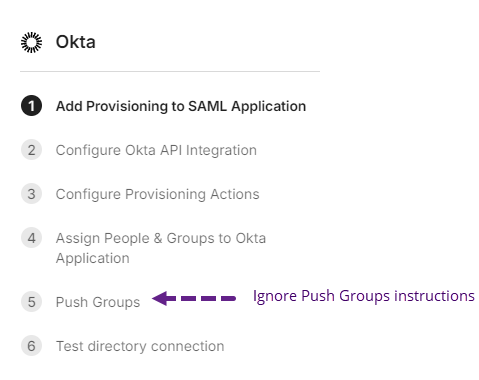
- Each provider has a slightly different on-screen workflow / wizard but the principles are the same. For example, the OKTA workflow includes the steps shown in the screenshot.
- Walnut doesn’t support Push Groups, so ignore steps that relate to Push Groups.
- It’s important to include all Walnut users as part of the SCIM setup otherwise they won’t be able to login using their Walnut username and password.
Step 5: Test the connection
This is the final step in the workflow.
Access your company’s portal to test the connection.
- Once SCIM is enabled, provisioned users will receive an email to join Walnut or they can go directly to https://app.teamwalnut.com/ and log in.
- Users initially receive the Presenter role but you can change that in Company Settings>Users. To hand out roles automatically from your identity provider's groups, use Role mapping below.
Role mapping — assign Walnut roles from identity-provider groups
Role mapping lets admins map the groups your identity provider pushes over SCIM (Okta, Microsoft Entra ID, and any other WorkOS-supported directory) to Walnut roles. Instead of changing roles by hand after each user is provisioned, you decide once that Group X → Admin, Group Y → Editor, and so on; Walnut keeps every SCIM user's role in sync with their group membership.
Open Role mapping
- Go to Company Settings → SSO & SCIM.
- Scroll to the Role mapping block.
If your identity provider hasn't pushed any groups yet, Walnut shows an inline notice ("Your identity provider isn't sending groups yet") and only the Default role picker is active until you push groups from Okta or Entra ID.
Map groups to Walnut roles
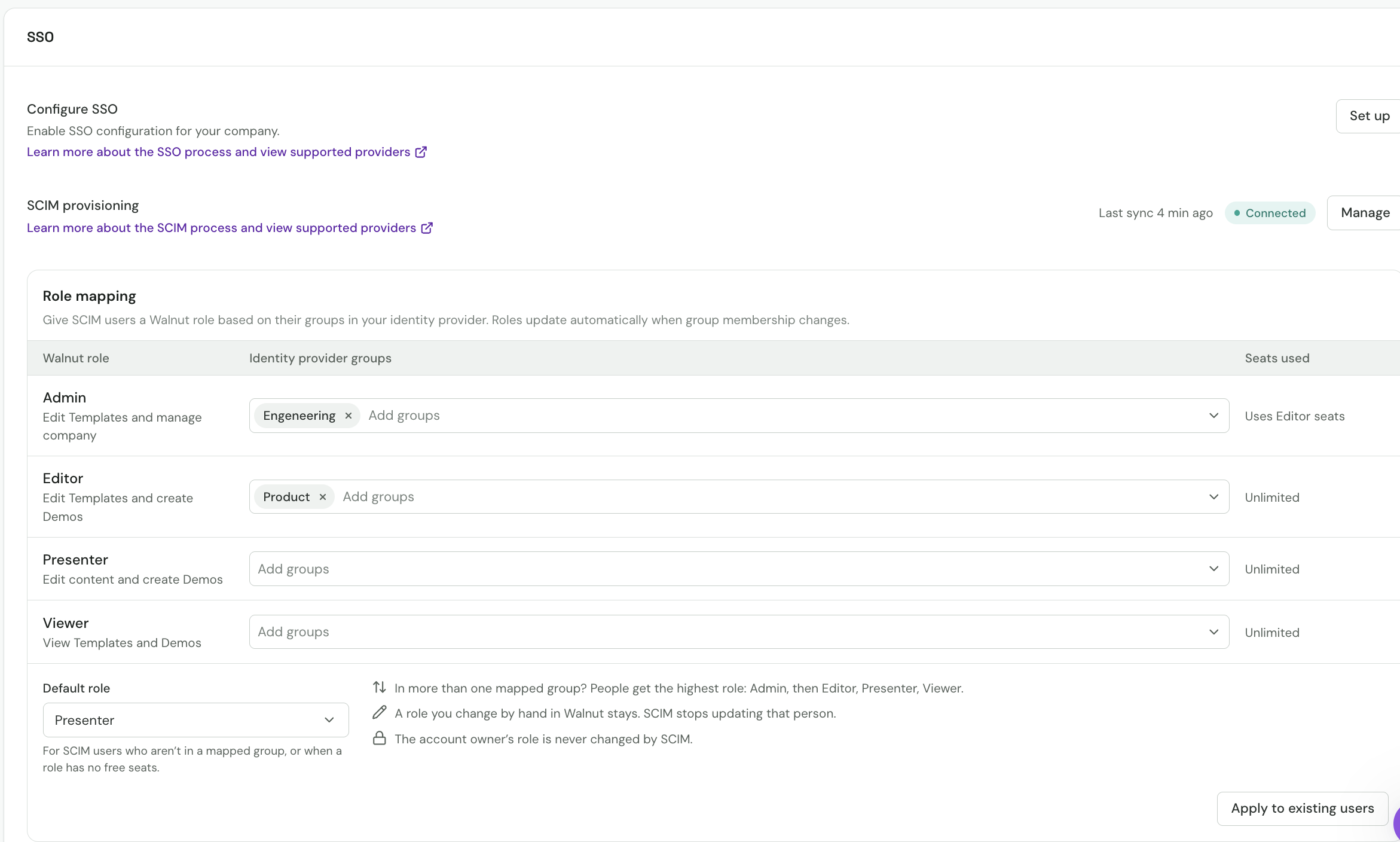
The table has one row per Walnut role — Admin, Editor, Presenter, Viewer — with three columns:
- Walnut role — the role name and its short description.
- Identity provider groups — a multi-select of the groups your IdP is pushing. Pick every group that should get that role. A group can only be mapped to one role at a time; picking it under a second role automatically removes it from the first.
- Seats used — how many seats of that role are consumed vs. your plan's limit. If a role is full, the row shows a Full badge.
Set a Default role below the table for anyone who isn't in a mapped group, or when a mapped role has no free seats. The default is one of Editor, Presenter, or Viewer.
Apply the mapping
Click Save changes and confirm in the apply modal. You choose whether to apply the mapping to:
- Only new SCIM users going forward, or
- All existing SCIM users — their Walnut roles are recalculated from their current group membership within a few minutes.
After the first save, the primary action becomes Apply to existing users, so you can re-run the mapping (for example after buying more seats) without changing the rules.
Rules Walnut follows
- A user in several mapped groups gets the highest role: Admin → Editor → Presenter → Viewer.
- Manual changes stick: if an admin changes a user's role by hand in Walnut, SCIM stops updating that user's role. Role mapping treats them as pinned.
- The account owner is never changed by SCIM, regardless of their group membership.
- Seat-full fallback: if a mapping would push a user into a role that has no free seats, Walnut applies the Default role instead and raises a yellow alert naming the group and how many people fell back. Add seats or move them to another group, then click Apply to existing users to re-run.
Turning off the UI
Turning Role mapping off hides the UI only. The API and SCIM webhooks keep running and the current mappings keep applying, so this is not a kill switch — remove the group selections and re-apply to clear a mapping.
Disable SSO
Set the Configure SSO toggle to OFF. When off, users will not be directed to the SSO login page and they will have to login manually.
To reactivate, set the Configure SSO toggle to ON.
Change your SSO provider
On the Configure SSO line, click Change and follow the workflow / wizard.
Remove your SSO provider
On the SSO row, click the X button.
To add a different provider, repeat steps 1 - 4 in the section Set up SSO and SDIM.