Subscribe to status updates
Subscribe to the Walnut Status Page by email, SMS, or Slack to get real-time alerts about outages, degraded performance, and scheduled maintenance.
Subscribe to status updates
Overview
The Walnut Status Page provides real‑time updates on system performance, outages, and scheduled maintenance. Subscribing ensures you’ll receive notifications whenever there’s an update that may impact your demos, playlists, or deal rooms.
Quick Start Guide
To subscribe to the Walnut Status Page:
-
Visit the Walnut Status Page.
-
Click the Subscribe to Updates button, located in the top‑right corner of the page.
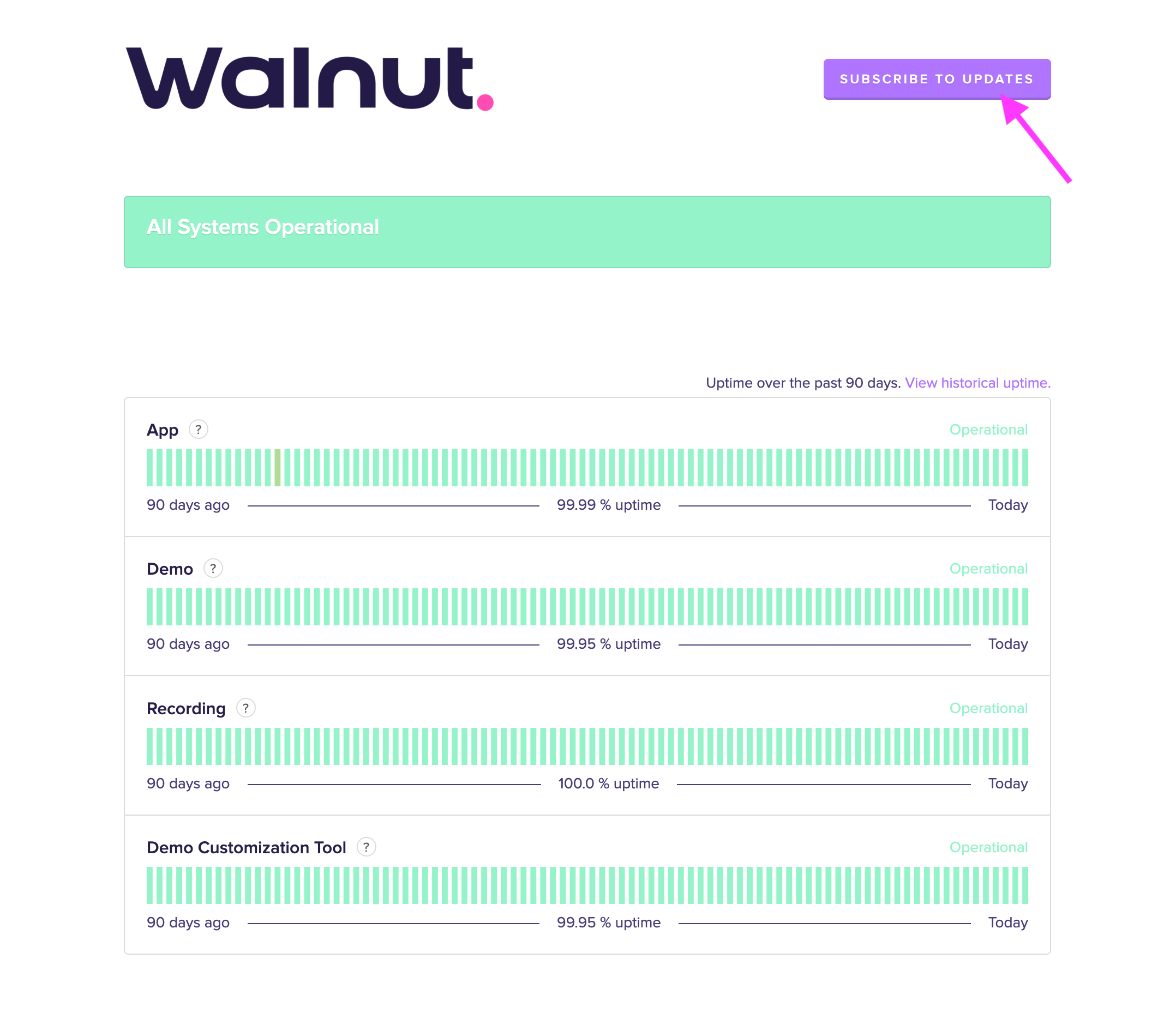
-
Choose your preferred notification method:
- Email: Enter your email address to get updates directly in your inbox.
- SMS: Provide your phone number to receive text alerts.
- Slack: Subscribe to updates via Slack by connecting your workspace.
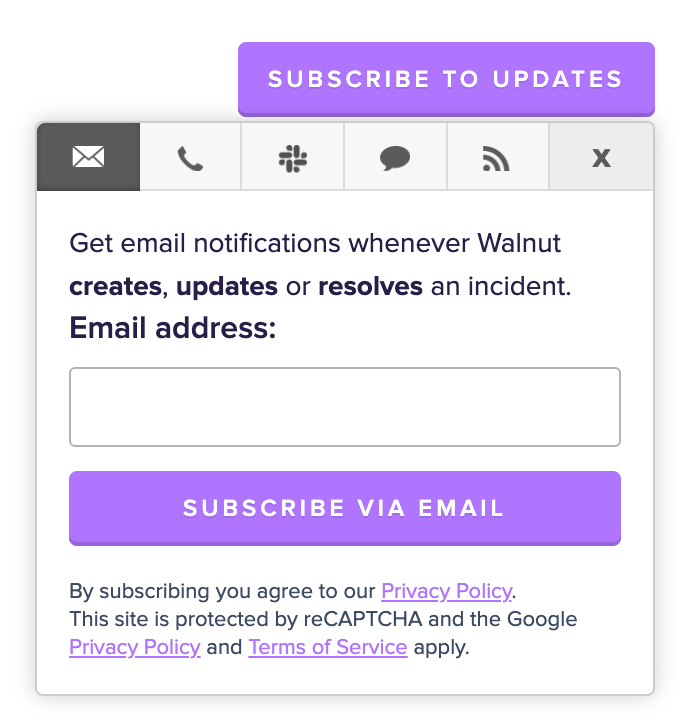
-
Follow the on‑screen prompts to confirm your subscription. (For email, check your inbox and click the confirmation link.)
-
Once confirmed, you’ll start receiving notifications whenever Walnut posts a status update.
FAQs
Do I Need an Account to Subscribe?
- No. You can subscribe using your email, phone, or Slack workspace without creating a separate Walnut account.
What Types of Updates Will I Receive?
- You’ll get notifications about system outages, degraded performance, and planned maintenance events.
Can I Unsubscribe at Any Time?
- Yes. Each notification includes an unsubscribe link. You can also manage or cancel your subscription directly from the Status Page.
Where Can I Track a Support Request?
- The Status Page covers platform-wide incidents. To follow up on a request your company has opened with Walnut support, Account Owners and Company Admins can use the Support tickets tab in the Help Center. See Review your company's support tickets.