The Walnut Homepage — type what you want to do
The Walnut Homepage — type what you want to do
Overview
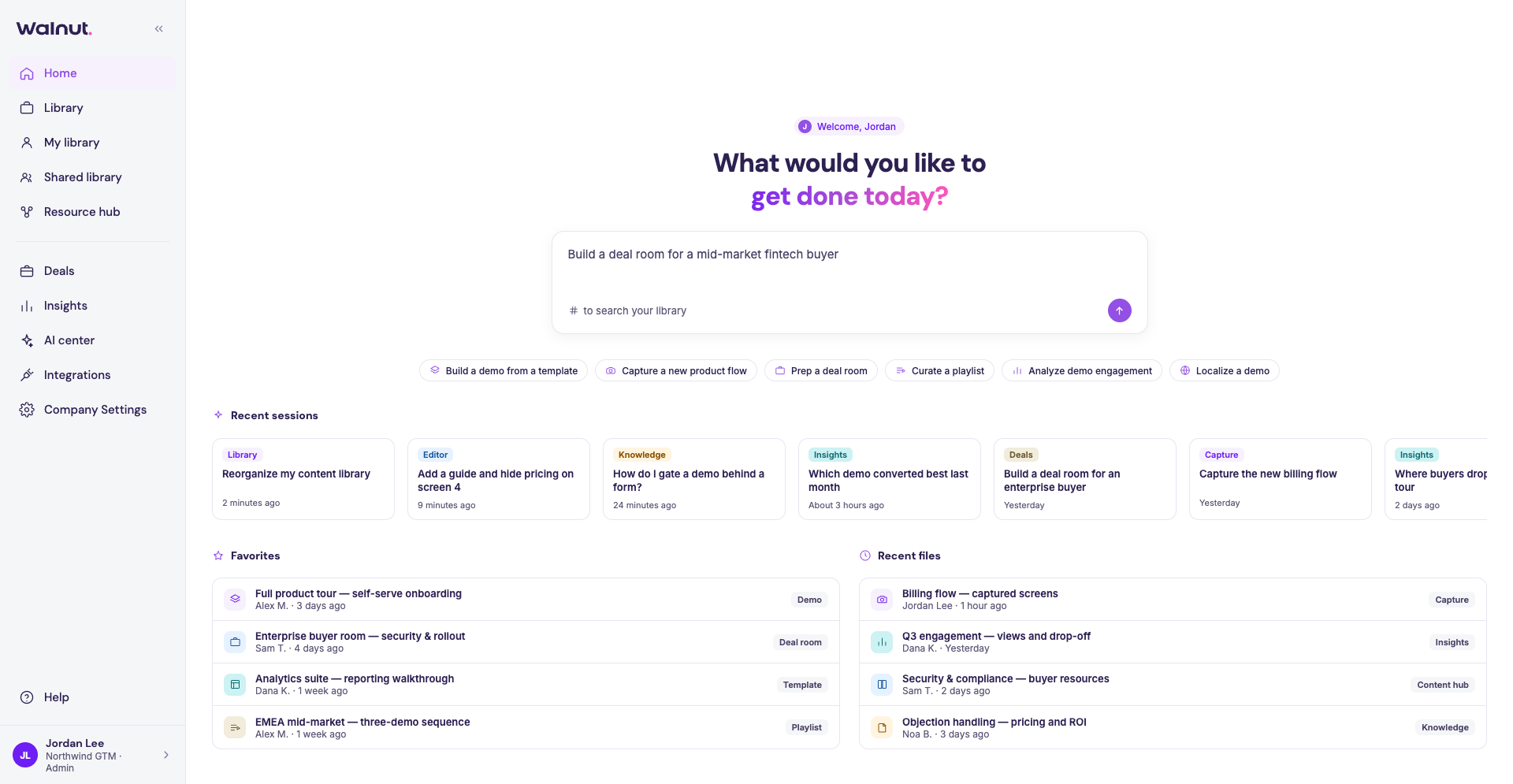
The Walnut Homepage is where every session starts. A single box in the middle of the page asks what you want to do; you type (or pick a starter chip), and Walnut routes you to the right place — the Editor, a Deal Room, Insights, your library, a Help Center answer, Settings, or an on‑page action — carrying your sentence through to the conversation that opens there.
Where to find it: sign in to Walnut and click Home in the left rail, or go to app.teamwalnut.com/home.
The page is laid out top to bottom as: the greeting and problem box, the quick‑action chips, your Recent sessions, and Favorites and Recent files side by side.
The problem box
The box opens on "What would you like to get done today?" under a greeting that follows how recently you were last here — Hello, Welcome back (within 12 hours), Good to see you (within a week) or It's been a while. The field cycles through example prompts so you can see the kinds of request it understands, for example:
- Create an enterprise deal room for Acme
- Build a resource hub for the Q3 campaign
- How do I add a guide to a screen?
- How many views did #Velocity get last week?
Type a sentence that says what you want to do and press Enter (Shift + Enter adds a new line). The box classifies your request and lands you on one of these destinations:
| If you asked about… | You land on… |
|---|---|
| Creating a new demo template | The demo planning assistant, with your sentence as the starting brief |
| Creating a demo from a template, editing a demo or template, or capturing a new product/feature | The Editor, with your sentence seeded into the agent conversation |
| Building or editing a Deal Room, Playlist or resource hub | The Deal Room / Playlist editor with the agent, in the same way |
| Analytics, engagement, or how your demos are performing | An Insights answer on the page, with Open Insights to keep digging |
| Finding a specific demo, template, Deal Room or Playlist you already have | Library search results on the page |
| How something in Walnut works (“how do I…”, “can I…”, “does Walnut…”) | A Help Center answer card with ranked articles |
| Changing settings, connecting an integration, or AI usage and credits | A link to the right Settings / Integrations / AI Control Center page |
| Inviting a teammate to the account | A sentence that names who to ask (or opens the invite dialog for admins) |
| Tidying up the library — “reorg”, “group by…”, “create a folder for…” | An organisation plan for you to review |
| Instructions to change something in the library — tag, archive, rename, re‑share | A conversation that walks you through making the change |
Requests to create a template, Deal Room or Playlist take you straight there. For everything else Walnut proposes the next step in a card — a short rationale and up to three action buttons — and nothing moves until you click one. When a request needs a longer conversation, the box expands into a chat and the rest of the page fades out; Back to home returns you to the page without ending the session.
Classification is based on the shape of your sentence, not just the nouns in it: “how do I archive a demo” is read as a how‑to question (Help Center), while “archive last quarter’s demos” is read as an instruction to act. If the request is ambiguous, the box doesn’t navigate — it asks a follow‑up question or shows two to four candidate destinations as chips so you can pick one.
Mention a template, Deal Room, or demo with #
Typing # opens a picker of your library items under the box. Start typing a name to narrow it, use ↑ ↓ to move and Enter to add the item to your request as a chip. You can mention one item per request — picking another replaces it. Picking one pins the request to that item:
- A bare mention of a template or Deal Room opens it directly.
- A bare mention of a demo searches for that demo in your library.
- A mention inside a longer sentence keeps your intent and uses the item as context — for example, pinning an Insights question to one specific demo (“How many views did #Velocity get last week?”).
When Walnut needs to pick a template
If your request would start from an existing template and Walnut isn't sure which one, it shows a Which template should this start from? card with your templates ranked against your sentence, each with its screen count. Use the search field to narrow the list by name, then click Create the demo from "…" on a row — Walnut copies the template and opens the Editor on the new demo, in the same conversation.
Input limits
Blank submissions and extremely long pastes are rejected, and the box is rate‑limited per member so an open page can’t run away with model calls.
Answers that stay on the Homepage
Three kinds of request are answered right in the conversation, under their own card, instead of moving you to another page:
- Help Center questions — a card banded From the Help Center with an answer written over your Help Center and the top three articles cited beneath it. Release‑note pages are ranked below real documentation, and the articles list is empty when there’s genuinely no match rather than padded out. Browse the Help Center is always there when none of the articles fits.
- Insights questions — a card banded From your Insights, answered from your demo data, with Open Insights beside it.
- Library searches — matching rows inline (each with owner and last edit), and See all in Library to open the full library filtered by the same term.
Each card stays in place as you ask follow‑ups, so you can scroll back through the conversation. The same Help Center ranking is reachable without a classification:
/askin the box searches the Help Center directly.- Picking the Help chip after an ambiguous request lists the same articles.
Create a new template — the demo planning assistant
When you ask Home to create a new template, Walnut hands your sentence to the demo planning assistant, which turns your idea into a reviewed, step‑by‑step plan before anything is captured. (You can also open it from the Library with New template, or by opening any empty template.) Back to home — or Esc — returns you to the Homepage.
Pick a starting point
The assistant asks where to learn the demo from:
- Upload a recording or written plan — a screen recording (MP4, MOV or WebM, up to 70 MB) or a PDF of your plan (up to 50 MB; export a PowerPoint as PDF first). The recording is only read for its route — no frame of it becomes a screen.
- Share a demo link — a public
https://link to a video, another interactive demo (any tool), or a page describing the flow. - Give me your product URL — Walnut's Chrome extension scans a few pages of your product in a background tab so the assistant can offer your real product areas as choices. It needs the extension installed and signed in; you can skip the scan at any point.
- Just describe it — keep going from your sentence alone.
Answer three questions
- Who's this demo for? — for example, prospects in a first call, existing customers, internal enablement or partners.
- Which parts of the product should it cover? — pick as many as you like.
- How long should it run? — Short (3–5 screens), Medium (6–8) or Full tour (10+).
Review the plan and create the template
The assistant drafts the walkthrough in a Your plan card. Each step has a title and a short note; steps the scan saw in your product are marked Seen in product, steps drawn from context Inferred, and steps pulled from the Screens Library From your library. Rename the template, edit, reorder, delete or add steps, or type a change (“add a step for billing”, “make it shorter”) to get a new revision.
Click Create template and Walnut's extension walks the plan against your live product in a new tab, capturing each screen. If the plan has a known starting URL you're asked to Start here or use a different one. Progress is reported back in the conversation, and you get an Open template chip when it's done. If the capture needs a decision, click Go to capture tab and answer in the capture tab's side panel.
Or build it yourself skips the planning chat: Capture new screens, Import from Library, or Import from Figma (requires the Figma integration).
Quick‑action chips
Below the box is a row of chips that prefill a sentence stem and drop your cursor where the specifics go. The row scales to your role:
Editors and admins see:
- Create a demo from existing template —
Create a demo from an existing template for … - Capture new feature/product —
Capture my product or new feature at (Enter URL) - Prep a deal room —
Prep a deal room for … - Curate a playlist —
Curate a playlist about … - Create new demo template —
Create a new demo template for …
Presenters see the three they can act on: Create a demo from existing template, Prep a deal room, Curate a playlist. “Create a demo from existing template” opens the personalised demo dialog for presenters rather than the template editor.
Viewers see two chips — Search my library (Find …) and Ask the Help Center (How do I …) — the two things a viewer can do on the Homepage.
Chips never submit on their own. They write the stem into the box; you finish the sentence and send it, and the same classifier decides where it lands — so you can rewrite a starter into a different request without picking a different chip.
What's offered depends on your role
The box is available to everyone, but what Walnut will do for you follows your role:
- Account owners and company admins — everything, including Settings, Integrations, AI Control Center, inviting teammates and library reorganisation plans.
- Editors — every creation task (demos, templates, Deal Rooms, Playlists, folders, captures, Figma imports), plus Insights and the Help Center.
- Presenters — demos from templates, Deal Rooms, Playlists and folders, library search, Insights and the Help Center.
- Viewers — library search and the Help Center.
When your role can't do something you asked for, Walnut says who can — for inviting teammates, it names the account owners and admins on your workspace.
Recent sessions
The row below the box is Recent sessions — the last conversations the Homepage box routed, newest first, capped at ten. The shelf scrolls sideways and snaps to each card, so a partly visible card at the edge means there's more to scroll to.
Each card carries:
- A colour‑coded badge naming where that session went — Template, Deal room, Insights, Search, KB (Help Center), Library (an organisation plan), Invite, Change, or Settings. The badge is recorded at the moment you submitted and is never guessed from the title. A general conversation has no badge.
- The session title, which the agent names from your first message.
- A relative timestamp (Yesterday, 2 hours ago, …) of when the session was last active.
- A Resume label and a delete control that both reveal on hover or keyboard focus.
Reopen a session — click the card (or press Enter while it has focus). The conversation reopens in place with its full history, the answer card the box drew the first time (Help Center answer, Insights result, search matches), and any handoff the agent had proposed, so you can carry on in the composer. Back to home closes the conversation without ending it — it stays on the shelf.
Delete a session — click the delete control and confirm in the Delete this session? dialog. The session is removed from your Recent sessions (this can't be undone) and the next one takes its place; a session reopened by a direct link is unaffected.
Sessions you’ve never had don’t show the shelf at all. The feed refreshes automatically when a conversation ends and whenever you come back to Home from another page.
Favorites and Recent files
Beneath Recent sessions, two side‑by‑side columns list the library items you touched most:
- Favorites — the items you’ve starred, up to four.
- Recent files — your most recently opened or edited items, up to four.
Each row shows the item’s name, its owner and last‑edit time, and a type chip (Template, Demo, Playlist, Deal Room). Clicking a row opens the item: a template opens in the Editor, a demo opens in the player in a new tab, a Deal Room or Playlist opens its own editor.
If a shelf fails to load it fails on its own — it shows a short message such as “Couldn't load your favorites.”, while the box, the chips and the other shelves stay exactly where they are.
Examples (first visits)
While you have no recent sessions and no favorites yet, the Homepage shows a small set of example demos under the chips so you can click into a real Walnut experience before building anything. The examples disappear the moment you start a session or favourite something, and the × on the panel dismisses them permanently.
When the Homepage looks different
The problem box Homepage needs Walnut's AI features to be available on your workspace. Workspaces without them keep the classic homepage — a greeting, your library and recent items — and none of the sections above appear.
FAQs
Why does my colleague see different chips? The chip row — and what the box will do — follows your role. A Presenter can't capture new screens, so they don't see Capture new feature/product; a Viewer only sees Search my library and Ask the Help Center.
Does deleting a session delete what I made in it? No. Deleting only removes the session from your Recent sessions. Any demo, template, Deal Room or Playlist you created in it stays in your library.
How many sessions are kept? The shelf shows your ten most recent sessions. Older ones roll off the shelf, but a direct link to a session still opens it.