Company Settings
Company Settings
About
If you’re an admin, Company Settings is one of the first spaces you’ll explore. But if you’re a creative user, you might not even know that Walnut has many settings that control who can do what as well as settings to automate a number of features, helping you get a superb and consistent result.
Company Settings has five tabs:
- Account settings
- Brand style
- Users
- Groups
- Webhooks
Account settings
Demo access control
These are global settings and they affect all content.
| Setting | Description |
| Collect Viewers Email | Toggle: Default: ON Gate your demo so that you can track viewers and analyze their interactions |
| Non-Work Domain Access | Toggle: Default: OFF Allow non-work domains (@gmail, @yahoo and @outlook) to access the demo. |
| Show Avatar | Toggle: Default: OFF The avatar will match the one defined in the brand style settings. |
| Show Colors | Branded; Non branded The color palette will match the one defined in the brand style settings. |
| Welcome Message | Text box Default: Blank Enter a welcome message (max 700 characters). |
| Require Compliance | Toggle: Default: ON When the demo collects a viewer’s email, they will also be required to accept your company's terms and conditions and privacy policy. |
Terms & Conditions
| URL Default: https://walnut.io |
| Privacy Policy | Default: https://walnut.io/test |
| Demo Access | Specific viewers; anyone with this link; specific viewers; no access. |
Allow and block lists
Beyond the toggles above, admins can maintain workspace-wide allow and block lists that control who is able to watch your demos. Set them once here and they apply to every demo automatically — there's no need to configure access on each demo individually.
| List | Description |
| Allow list | Only the listed viewers can open your demos; everyone else is denied. Use it to restrict demos to specific customers or internal teams. |
| Block list | The listed viewers are denied access; everyone else can view. Use it to keep out competitors or specific domains. |
You can add either individual email addresses (e.g. jane@acme.com) or whole domains (e.g. @acme.com) to either list. To set up a long list quickly, upload a CSV of addresses or domains instead of entering them one by one. Only Admins and Account Owners can edit these lists.
Playlists
Defaults that apply to ״Choose Your Own Adventure״ type playlists across your workspace.
| Setting | Description |
| Default playlist selection | All selected; None selected Choose whether playlist items are selected by default when a viewer opens a Choose Your Own Adventure playlist. |
Demo Floating Button
Global settings for the Demo Floating Button.
| Setting | Description |
| Enabled | Toggle: Default: OFF Should a call to action button be shown or not. |
| Button Text | Text box: The text for the call to action button. |
| Link To | URL The target url the call to action button should open. |
| Position On Screen | Dropdown Bottom left / right and Top left / right The position of the call to action button on the screen. |
Capturing
The feature is currently in beta.
| Setting | Description |
| Capturing interactions | Dropdown Admins & editors; Disabled; Admins only; Admins & editors’. |
SSO
The settings affect all users.
| Setting | Description |
| Configure SSO | Toggle: Default: OFF Available for supported providers. |
| SCIM Provisioning | Setup button Enable SCIM configuration for your company. If SCIM provisioning is not included in your contract it will be grayed out. Contact your CSM or support@walnut.io for more details. |
AI
The settings affect all content.
| Setting | Description |
| Enable AI Feature Access | Toggle: Default: ON Allow AI access to utilize Walnut features powered by AI. By enabling this option, you agree to the AI Terms of Service and Responsible Use Policy. |
Manage Tags
The settings affect all content.
| Setting | Description |
| Tags | Per tag. Set the color; activate or deactivate; add new. |
Brand style
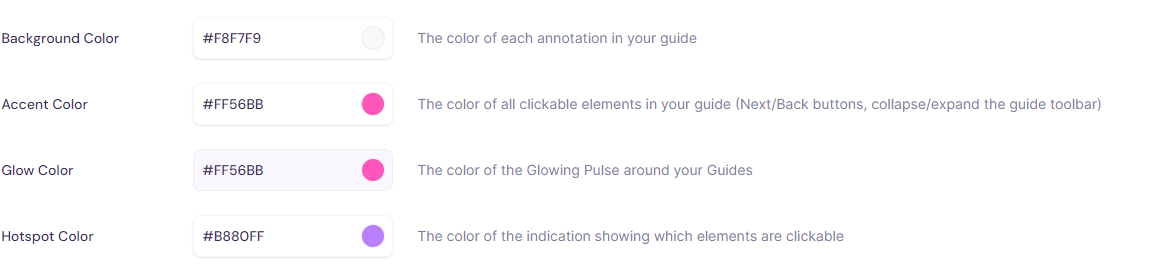
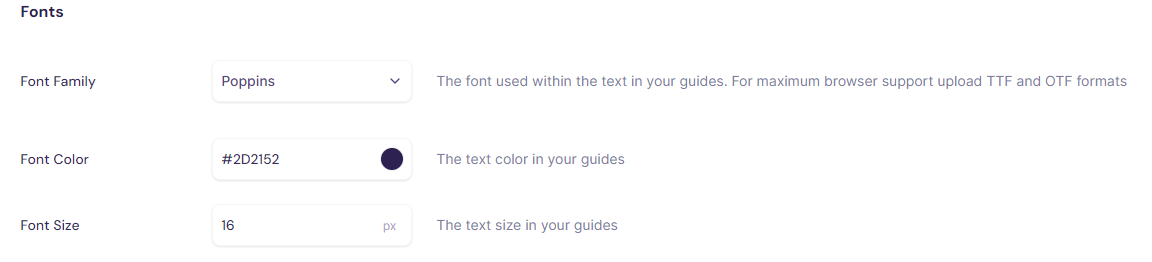
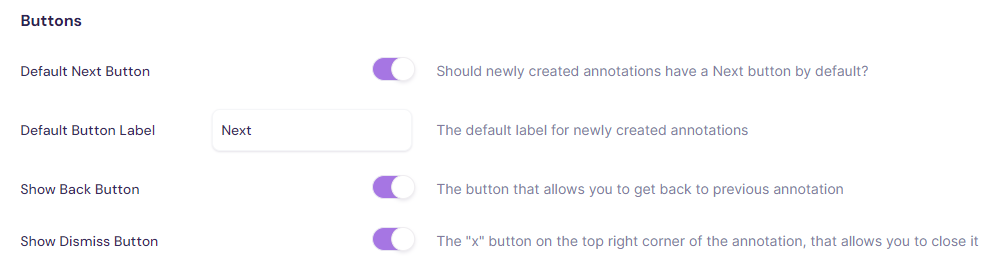
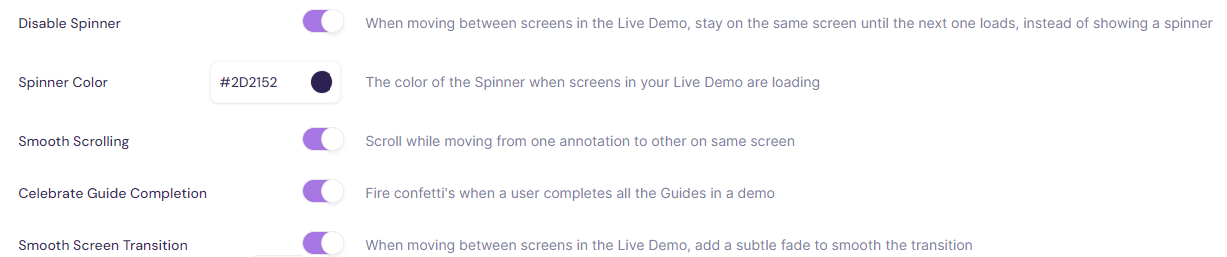
A theme is a named set of brand values — colors, fonts, buttons, avatar, dim intensity and interactions — that templates and demos can pick from. Your workspace keeps one workspace default theme and any number of others, so you can hold several looks (for example, a core brand and a partner co-brand) and point each template or demo at the right one. The fields below are what a theme carries; workspace-wide switches (such as smooth screen transitions or the X and Back buttons) are not part of a theme and stay set once per workspace.
You can customize colors, fonts, buttons, your main avatar, dim intensity, and interactions.
To enable edits, activate the toggle.

Colors
Fonts
Buttons
Avatar

Dim

Interactions
Themes
For when to use several themes and how they pair with demo presets, see Brand themes: one workspace, multiple brands.
The Themes card lists every theme in the workspace, with the current default marked Workspace default. Use New theme to add one (seeded from another theme, or from the default if none is chosen) and the row's actions to manage it:
| Action | What it does |
| Edit | Opens the theme in the same form shown above (Colors, Fonts, Buttons, Avatar, Dim, Interactions) and lets you rename it. Theme names can be up to 80 characters. |
| Duplicate | Creates a copy named after the original — a convenient starting point for a new theme. |
| Make workspace default | Swaps the default. Templates and demos that follow the default start showing the new one at once; already-published shared links keep what they were published with. |
| Delete | Removes a non-default theme. Before you confirm, the dialog lists up to 50 templates and 50 demos that point at it, with what each will fall back to — a demo falls back to its template's theme, a template falls back to the workspace default. The default theme cannot be deleted; make another theme the default first. |
How templates and demos pick a theme
Brand values resolve field by field, in this order: a template's own override wins, then the demo's theme, then the template's theme, then the workspace default. So nothing has to be set everywhere — a theme supplies whatever a template or demo does not override.
- On a template — the editor's sidebar settings let you set the template's theme and, below it, override individual fields the template needs to look different from the theme. Resetting the template's overrides drops every theme field it sets itself in one go, so the template follows its theme again; fields that are not part of a theme are left alone.
- On a demo being created — the Create demo wizard (and the launcher's Create & share dialog) shows a Branding field, pre-filled to what the template resolves to. Pick another theme to change the new demo's look before it is created.
- On an existing demo — Demo preferences and the Share demo modal include a Theme picker. A pick saves right away and new share links show it at once; links shared earlier keep the theme the demo was last published with until you republish. When there is drift between the live demo and its shared link, these surfaces flag that the shared demo shows older branding so you know a republish is needed to propagate it.
When a theme is deleted, the templates and demos that pointed at it fall back automatically through the order above — nothing stops rendering, and already-published shared links keep what they were published with.
Users
Lists users and related usage data.
You can:
- Add / invite members or colleagues (click Invite members)
- Get user analytics (click User Analytics)
- Assign / change roles (use the Role dropdown)
- Remove / archive users
Invite teammates from the homepage
Admins and Account Owners can open the invite dialog without leaving the homepage. Ask the Walnut assistant to bring colleagues in — for example, "invite new teammates", "get my team in here", or "someone needs access" — and it offers an Invite teammates button on the conversation. Pressing it opens the same bulk invite dialog as the Invite members button in this tab, over the homepage.
The assistant doesn't collect email addresses, roles or send the invitations itself — you type the addresses and pick each person's role in the dialog, exactly as you would from Company Settings. The offer only appears for members who are allowed to open the dialog; everyone else never sees it.
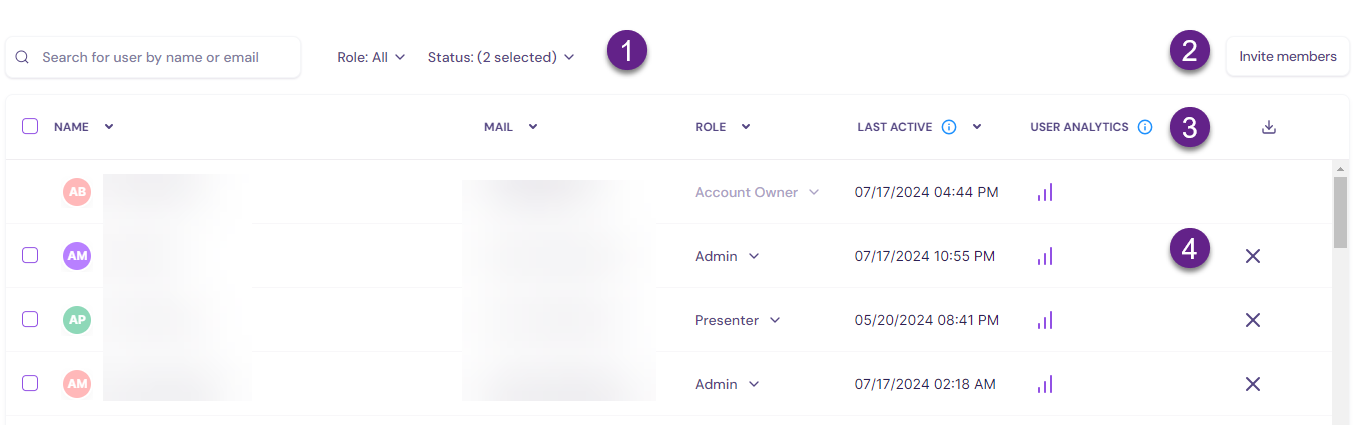
Screen contents
Header (#1)
- Search box
- Filter by role
- Filter by status: approved, invited, expired, requested
Invite members button (#2)
User analytics (#3) - opens usage details per user
Archive / deactivate user (#4)
Groups
The Groups tab includes summary and detailed information about groups.
You can:
- View groups (click Manage group)
- Edit groups (click Manage group)
- Add members to a group (click Manage group)
- Create new groups (click + New group)
Get group / individual group member analytics (click Manage group>User Analytics icon)
Group summary data
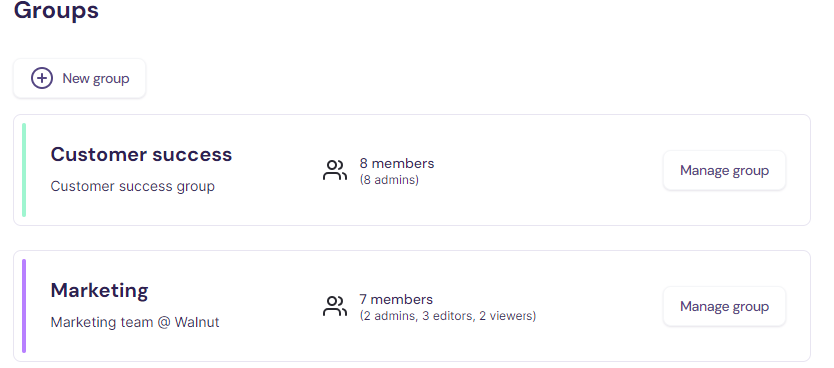
Group detail (per group)
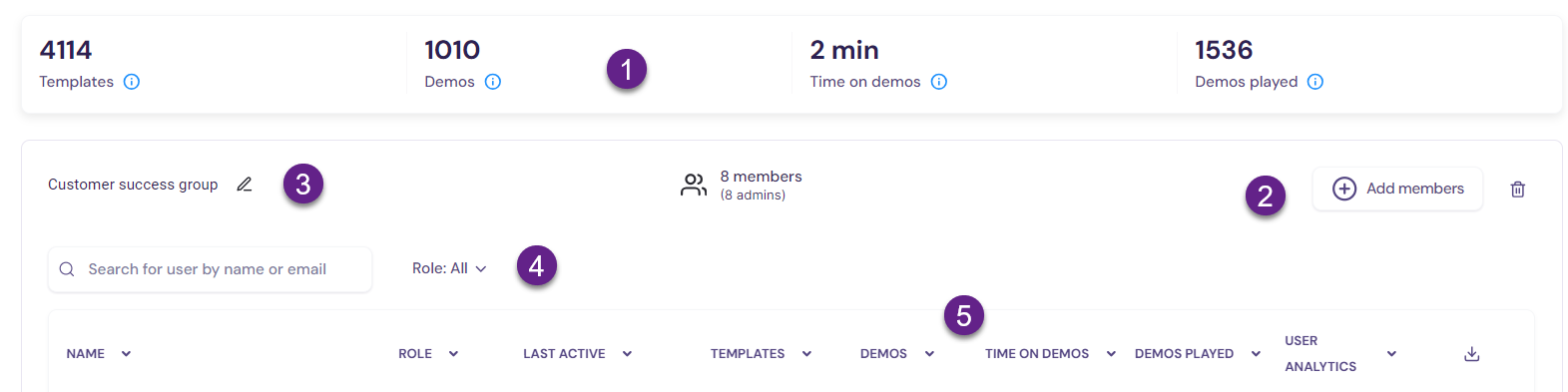
Screen contents
Header (#1)
- Count of templates
- Count of demos
- Average time spent on demos
- Count of demos played
Add members (#2)
Group name (#3) - can edit
Filter (#4) by role
Group details (#5)
- Name
- Role
- Last active date
- Templates
- Demos
- Time on demos
- User analytics
- Download to Excel
Webhooks
Webhooks are 'behind the scenes' objects. Instead of constantly checking for updates, a webhook tells an app or service to send a message whenever something specific happens. This way, the app or service only gets the information it needs when it needs it, saving time and effort.
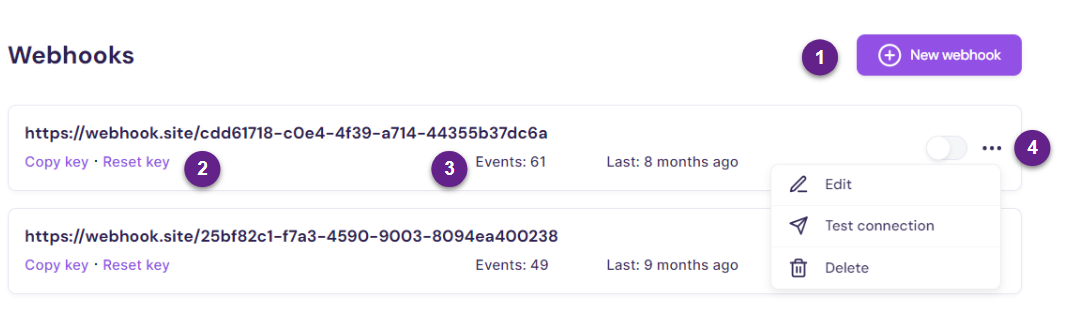
- Add new webhook button (#1)
- Copy / reset key link (#2)
- Event count and time period (#3)
- 3 dots dropdown (#4): Edit, Test connection, Delete.
For more on webhooks, head over to the article Configure Webhooks.
Walnut security policies
You can find Walnut's security policies and practices in our Data Processing Agreement and you can request access to policies at https://security.walnut.io/.