Overview
Walnut uses role-based access control to help teams collaborate efficiently while maintaining clear governance over who can create, edit, share, and manage assets across the workspace.
Each role is designed around common team workflows — from administrators managing workspace configuration, to builders creating demo content, to presenters sharing interactive experiences with customers.
Use roles to balance content creation, governance, and presentation workflows. Builders typically operate as Editors, while sales teams or field teams often operate as Presenters who personalize and share experiences without editing core templates.
Role Types
Walnut offers five distinct user roles, each designed to support different responsibilities within your workspace.
- Account Owner
The primary owner of the Walnut workspace. Account Owners have full access to all workspace settings, billing configuration, integrations, assets, and user management. - Admin
Admins manage workspace configuration and team governance. They can manage users, adjust company settings, configure integrations, and create and manage all asset types including demo templates, playlists, and Deal Room templates. - Editor
Editors are the primary content builders in Walnut. They can create, edit, and manage demos, templates, playlists, and Deal Room templates. This role is typically used by Solution Engineers, Product Marketing, Enablement, and Customer Success teams responsible for building demo content. - Presenter
Presenters focus on sharing and personalizing content for customer interactions. They can create demos, build playlists, and create Deal Rooms from existing Deal Room templates. Presenters can also connect demos and assets to Deal Rooms for customer-facing experiences, but they cannot edit core templates. - Viewer
Viewers have limited access designed for team members who primarily present or review demos. They can view and share demos but do not have content creation or editing permissions.
Permissions by Role
The table below outlines what each role can view, create, or manage across demos, templates, playlists, Deal Rooms, and workspace administration.
| Permission | Admin | Editor | Presenter | Viewer |
|---|---|---|---|---|
| View demos | ✔️ | ✔️ | ✔️ | ✔️ |
| Share demos internally or externally | ✔️ | ✔️ | ✔️ | ✔️ |
| Create demos | ✔️ | ✔️ | ✔️ | |
| Download offline demos | ✔️ | ✔️ | ✔️ | |
| Add presenter notes | ✔️ | ✔️ | ||
| Access Insights & analytics | ✔️ | ✔️ | ✔️ | |
| Play demos from the Chrome extension | ✔️ | ✔️ | ✔️ | |
| Capture screens / record product flows | ✔️ | ✔️ | ||
| View templates | ✔️ | ✔️ | ✔️ | |
| Edit demo templates | ✔️ | ✔️ | ||
| Create playlists | ✔️ | ✔️ | ✔️ | |
| Create Deal Room templates | ✔️ | ✔️ | ||
| Create Deal Rooms from templates | ✔️ | ✔️ | ✔️ | |
| Connect demos or assets to Deal Rooms | ✔️ | ✔️ | ✔️ | |
| Share templates internally | ✔️ | ✔️ | ||
| Control editing permissions | ✔️ | |||
| Adjust company settings | ✔️ | |||
| Configure integrations | ✔️ | |||
| Organize workspace folders | ✔️ | |||
| Assign or change user roles | ✔️ |
Assigning or Changing Roles
Admins can assign or update roles for users in your workspace.
To assign or change a role:
- Navigate to Company Settings → Users.
- Select the user and open the Role dropdown.
- Choose the role you would like to assign.
Change the Account Owner
Account Owners can transfer workspace ownership to another user by selecting Make Owner from the role dropdown next to that user.
Remove or Archive Users
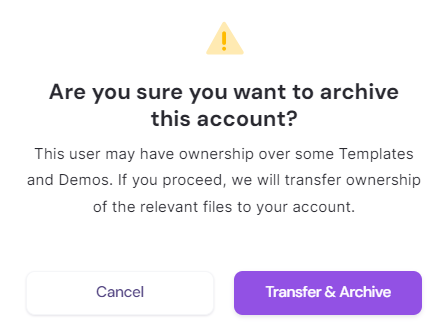
Admins can remove or archive users from the workspace. If the user owns demos or templates, those assets will automatically be reassigned to the account owner.
To remove or archive a user:
- Navigate to Account Settings → Users.
- Click the X in the far-right column next to the user.
- Select Transfer & Archive to confirm.