---
title: "Create demo variables"
slug: "/help/demos/personalize/variables/create-variables"
last_updated: "2026-04-15T10:41:52Z"
zendesk_id: 32068744972563
zendesk_url: "https://help.walnut.io/hc/en-us/articles/32068744972563-Create-Variables"
locale: "en-us"
category: "Getting Started"
section: "Editing & Customization Basics"
product: "demos"
topic: "personalize/variables"
displayed_sidebar: "demosSidebar"
sidebar_position: 7
---

## **Overview**

Walnut variables help you build once and personalize at scale.

Instead of duplicating templates or manually updating the same content over and over, you can convert specific text, images, avatars, or dates into reusable variables. This gives you a much more flexible way to tailor demos for different viewers, workflows, and use cases while keeping your template structure consistent.

Variables are one of the easiest ways to scale personalization in Walnut. They help teams reduce repetitive editing, keep templates cleaner, and adapt demos more quickly for outbound, follow-up, and customer-facing workflows.

---

## **Variable Types**

Walnut supports four main variable types, each designed for a different type of personalization.

:::tip[Text]

Replaces part or all of a text element, including text inside guides.

-   **Date:** Replaces a static date with a dynamic one based on a selected format and offset.
-   **Image:** Replaces one image with another across the template.
-   **Avatar:** Replaces guide avatars, either globally or on selected guides. Avatar updates do not use the standard Variables menu, but they serve a similar personalization purpose.

:::

:::note[Looking for advanced personalization workflows?]

If you want to map variables to Salesforce, URL parameters, or lead forms, see [**Smart Demo Personalization with URL, CRM, and Lead Form Variables**](https://help.walnut.io/hc/en-us/articles/28697364380435) for a full setup guide and source-specific examples.

:::

---

## **Add Text Variables**

Text variables are the most flexible variable type in Walnut. You can use them to personalize on-screen content, guide text, product names, company names, contact names, and more.

There are a few different ways to work with text variables depending on your workflow:

-   Create a brand-new text variable first, then apply it later
-   Replace text with an existing variable
-   Use Find & Replace to apply variables across multiple instances at once
-   Create a variable while replacing text in the same workflow

---

### **Create a Standalone Text Variable**

This workflow is useful when you want to create the variable first and decide where to apply it afterward.

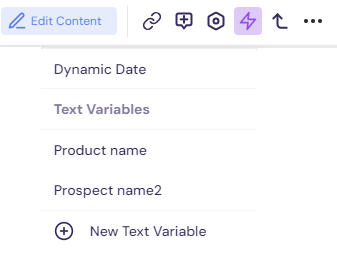
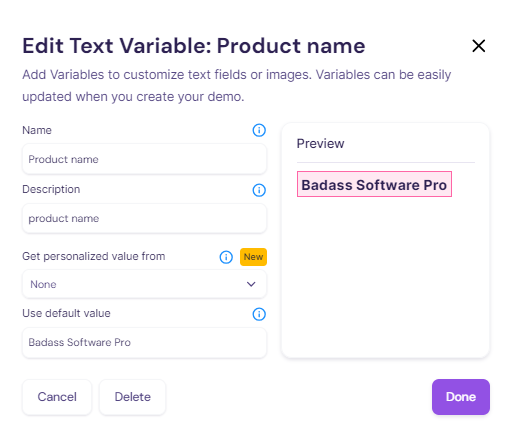
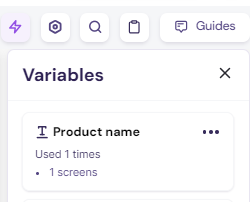
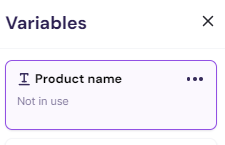
<details><summary><strong>To create a standalone text variable:</strong></summary><ol><li data-list-item-id="e76e04957217ac13cf234c6b511ba22a5">Click any text element, or right-click a text element, to open the editing toolbar.</li><li data-list-item-id="e423694c33e1fa5a12b9e92a149443ac4"><p>Click the <strong>Variables</strong> icon to open the variables options.</p><p><img src="/images/51ed0bf25675afb5.png" alt="Screenshot showing the Variables icon in the Walnut editor toolbar." width="241" height="192" /></p></li><li data-list-item-id="e452703be10a38a4b528aeacd312b61e7"><p>Click <strong>New Text Variable</strong>.</p><p><img src="/images/7837ab9b474cbb72.png" alt="Screenshot showing the New Text Variable option in Walnut." width="336" height="290" /></p></li><li data-list-item-id="e2997f6fc0e33c969e9189c444716d7f9">Complete all required fields:<ul><li data-list-item-id="e127cc1796cdf1a948b03fc73279ebb43"><strong>Name:</strong> The label used for the variable</li><li data-list-item-id="e131f21defb94695f318f18bb6999425c"><strong>Description:</strong> Helpful context for your team</li><li data-list-item-id="e72b885edddd847843cb5bb5f31b589d6"><strong>Get personalized value from:</strong> None, Salesforce, URL, or lead form</li><li data-list-item-id="ef6b03c7e89facd89a7b73cf4b7d54df2"><strong>Default value:</strong> The fallback text shown if no personalized value is supplied</li></ul></li><li data-list-item-id="e675ec1f9412cda1de13eb182a9d9fcde">Click <strong>Done</strong>.</li><li data-list-item-id="e1ee13e92259c7b2b00255ba27e9e9a44"><p>Open the <strong>Variables</strong> pane again to review where the variable is being used.</p><p><img src="/images/cdbf349d20fc99f2.png" alt="Screenshot showing the Variables pane in Walnut." width="250" height="202" /></p></li></ol><p>If you created the variable from a text element you did not actually want to change, you can restore that text afterward. The variable itself will still exist and can be applied elsewhere.</p><p><img src="/images/b9675a79a80a9d24.png" alt="Screenshot showing a variable listed as not yet in use in Walnut." width="225" height="145" /></p></details>

:::tip[Best practice]

Use clear, human-readable variable names like **Company Name**, **First Name**, or **Product Name**. Clean naming makes personalization much easier to manage later.

:::

---

### **Replace Text with an Existing Variable**

If the variable already exists, you can quickly replace a text element with it.

<details><summary><strong>To replace text with an existing variable:</strong></summary><ol><li data-list-item-id="ecfb9c8a326be7f0c0a5ab6e21cc6b6ac">Click the text element you want to replace.</li><li data-list-item-id="e9ef1c3e315f8cca9a26698d634fe9ca8">Click the <strong>Variables</strong> icon.</li><li data-list-item-id="e008177546d395d6546b298546ca46677">Select the existing variable from the list.</li><li data-list-item-id="e6d2656ba9c591d3699cdfb06d78d95fa">The selected text is replaced with the variable.</li></ol></details>

---

## **Use Find & Replace with Variables**

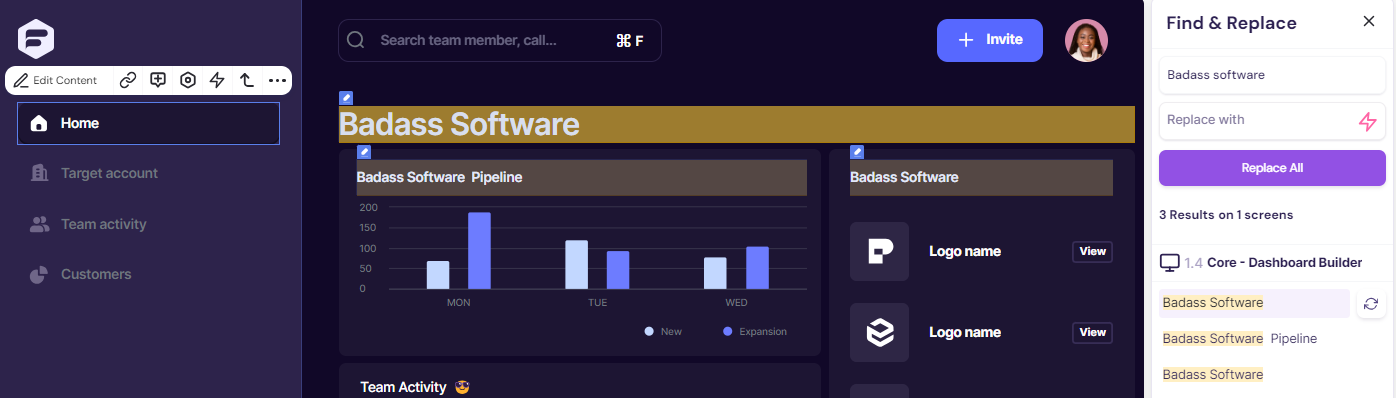
Walnut’s **Find & Replace** tool helps you replace repeated text across a template much faster.

This is especially useful when the same product name, company name, or repeated phrase appears in multiple places and you want to convert all instances into a variable at once.

:::note[Before you start]

-   Find & Replace scans all matching text in the template, including text behind overlays.
-   Existing variables appear in the replacement dropdown when relevant.
-   Review matches carefully before replacing all instances.

:::

---

### **Replace Text with an Existing Variable Using Find & Replace**

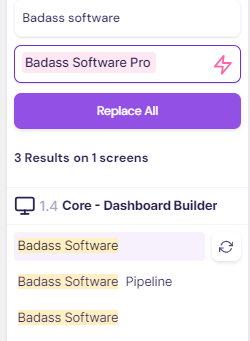
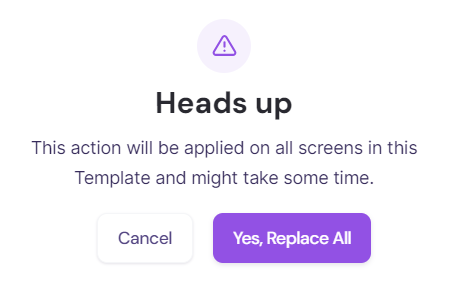
<details><summary><strong>To replace a text string with an existing variable using Find &amp; Replace:</strong></summary><ol><li data-list-item-id="e6fd083b4d029978c9d0c3d84a4cea480">Open the template in edit mode.</li><li data-list-item-id="e4730e889e9829bcd0b215aca3dc33407">Click the parent element or screen where you want to search.</li><li data-list-item-id="e68185f4e20d2236457b7ae49993ada84"><p>Click the <strong>Search</strong> icon from the editor subheader to open the <strong>Find &amp; Replace</strong> pane.</p><p><img src="/images/82737d7d02a391c0.png" alt="Screenshot showing the Find and Replace pane in the Walnut editor." width="1396" height="398" /></p></li><li data-list-item-id="e30486eede090b4464b2061c3df7883f8">Enter the text you want to replace.</li><li data-list-item-id="e04dea97e7e64bbb729d81a0d8df97710"><p>In the <strong>Replace with</strong> field, select the existing variable.</p><p><img src="/images/3051d62e91c14d3b.png" alt="Screenshot showing an existing variable selected in Find and Replace." width="192" height="262" /></p></li><li data-list-item-id="e76f119d0fb0b69c7fb174b7fbd5f9fcd">Review the results.</li><li data-list-item-id="eb8223e02461f371e2be438c247808c6f">Click <strong>Replace All</strong>.</li><li data-list-item-id="e50a1513b0176cc7bbbbf991de421add9"><p>Confirm the action.</p><p><img src="/images/4ddd02c69859cb73.png" alt="Screenshot showing the Replace All confirmation message in Walnut." width="288" height="172" /></p></li></ol><p>Once confirmed, all matching text is replaced with the selected variable.</p></details>

---

### **Replace Text and Create the Variable at the Same Time**

If you have repeated text in the template but have not created the variable yet, you can do both in one workflow.

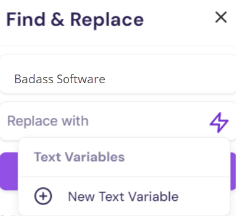
<details><summary><strong>To replace text and create the variable at the same time:</strong></summary><ol><li data-list-item-id="e0441bbcfd45def84943065ebc0b7fa2f">Repeat steps 1 through 4 from the previous Find &amp; Replace workflow.</li><li data-list-item-id="ea8aecc1d16d24f8142352455933753a0"><p>In the <strong>Replace with</strong> field, select <strong>New Text Variable</strong>.</p><p><img src="/images/03e2741f9620ac83.png" alt="Screenshot showing the New Text Variable option in the Find and Replace replacement menu." /></p></li><li data-list-item-id="e3c283b8f63d1f101ef547d9b9bbc6735"><p>Complete the variable setup window.</p><p><img src="/images/7837ab9b474cbb72.png" alt="Screenshot showing the text variable setup window in Walnut." width="480" height="415" /></p></li><li data-list-item-id="eb016c23edece468cfe6d17ba14c9cefd">Add the variable name, description, source, and default value.</li><li data-list-item-id="e275e56506b988580ce00de4198bc7f32">Click <strong>Done</strong>.</li><li data-list-item-id="e955a50a25ea17b7a523a301a2091c7a0">Click <strong>Replace All</strong>.</li></ol><p>Walnut creates the variable and applies it to all matching text in one step.</p></details>

---

### **Replace Text Using a Personalized CRM Variable**

This workflow is similar to creating a new text variable, but you must choose the CRM source during setup.

Depending on your connected source, available mapped values may include company name, full name, first name, or last name.

---

## **Add Image Variables**

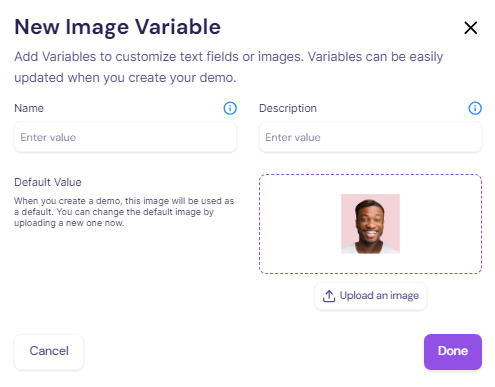
Image variables let you swap one image for another while keeping the rest of the template structure unchanged.

This is especially helpful when personalizing logos, product visuals, screenshots, or branded graphics across different demos.

<details><summary><strong>To replace an image with an image variable:</strong></summary><ol><li data-list-item-id="eb7ee1f78d6e2d51cde14d46ccc43d093"><p>Right-click the image and select <strong>Variables &gt; New image variable</strong>, or click the <strong>Variables</strong> icon from the edit toolbar.</p><p><img src="/images/c5644c596610caff.png" alt="Screenshot showing how to create a new image variable in Walnut." width="480" height="375" /></p></li><li data-list-item-id="ee2bd12c65f34d2a07524a8e5e882aa3f">Complete the variable details.</li><li data-list-item-id="e4e5b5cfd1d9a60fff3cd3594a1c63ccf">Click <strong>Done</strong>.</li></ol><div><p><strong>Note:</strong> The selected image becomes the default value for the variable, but you can update it later by uploading a different image.</p></div></details>

---

## **Add Dynamic Date Variables**

Dynamic Date is a built-in variable that keeps date-based content current inside your demo.

It is useful when you want to show:

-   today’s date
-   tomorrow’s date
-   yesterday’s date
-   a date offset by days, weeks, or months

You can also control the date format, which makes Dynamic Date especially useful when building demos for different regions or formatting needs.

---

### **Add a Dynamic Date Variable**

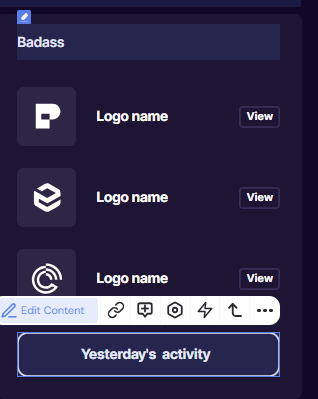
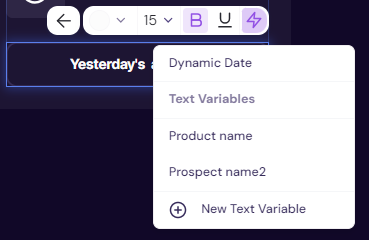
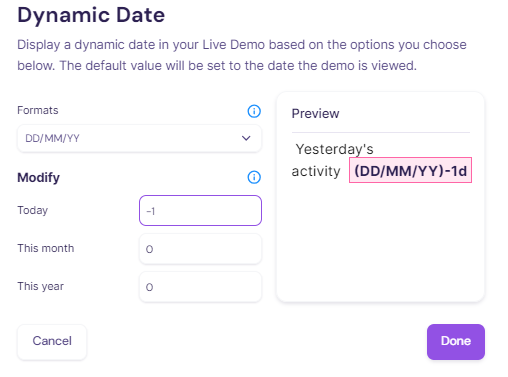
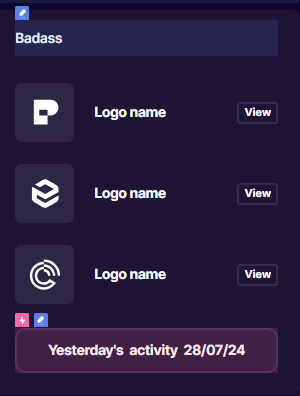
<details><summary><strong>To add a dynamic date variable:</strong></summary><ol><li data-list-item-id="ea3ca80d65304e2860f445ca4255bacf7"><p>Open the template in edit mode and locate the text where you want the dynamic date to appear.</p><p><img src="/images/70f0e03bf9b8ff72.png" alt="Screenshot showing a text area where a dynamic date will be inserted in Walnut." width="192" height="241" /></p></li><li data-list-item-id="e7c9721f46a6cdbf686847177d25c2508">Click <strong>Edit Content</strong> and place your cursor where the date should appear.</li><li data-list-item-id="e3d9e8f00de19debf533449993887be78"><p>Click the <strong>Variables</strong> icon and select <strong>Dynamic Date</strong>.</p><p><img src="/images/5925f006b53350cc.png" alt="Screenshot showing the Dynamic Date option in the Variables menu." width="288" height="188" /></p></li><li data-list-item-id="e79ca5832669eb05b36601103d8a4da07"><p>Choose the date format and set the offset if needed.</p><p><img src="/images/cd01e11c34c91f47.png" alt="Screenshot showing dynamic date formatting and offset options in Walnut." width="336" height="250" /></p></li><li data-list-item-id="e5ea5fbc347d3cde135c2871a2126ecfb">Click <strong>Done</strong>.</li><li data-list-item-id="ead4b16aa397113c69d4e42de65edf0bb"><p>In edit mode, a variable tag appears where the dynamic date has been added.</p><p><img src="/images/5ec25fded3649203.png" alt="Screenshot showing a dynamic date variable tag in the Walnut editor." width="240" height="317" /></p></li></ol></details>

:::note[Example]

To display yesterday’s date, set the date offset to **\-1 day**.

:::

---

### **Remove a Dynamic Date Variable**

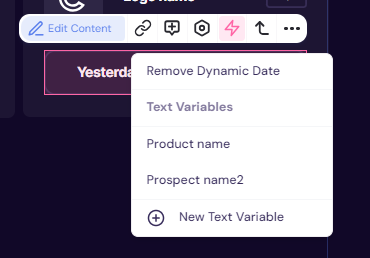
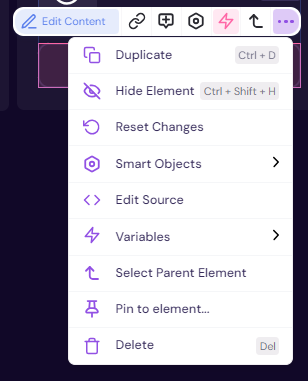
<details><summary><strong>To remove a dynamic date variable:</strong></summary><ol><li data-list-item-id="e8b527cb745ea0fa5b277fb99027c2171"><p>Select the dynamic date, click the <strong>Variables</strong> icon, and choose <strong>Remove Dynamic Date</strong>.</p><p><img src="/images/1f0702db11211ebd.png" alt="Screenshot showing the Remove Dynamic Date option in Walnut." width="288" height="201" /></p></li><li data-list-item-id="e2bb789f02b694eb2c099d3009c42de76"><p>Alternatively, click the <strong>three-dot menu</strong> and select <strong>Variables &gt; Remove Dynamic Date</strong>.</p><p><img src="/images/4fa032ca775bb39e.png" alt="Screenshot showing the Remove Dynamic Date option from the three-dot menu in Walnut." width="288" height="356" /></p></li></ol></details>

---

## **Add Avatar Variables**

Avatars help personalize your guides and give them a more human, branded, or role-specific presence.

You can apply the same avatar across every guide in a template, or choose different avatars for selected guides.

:::tip[Note]

Avatar updates do not open the standard Variables menu, but they function in a similar way by letting you swap guide-level visual identity without rebuilding the guide itself.

:::

---

### **Add the Same Avatar to All Guides**

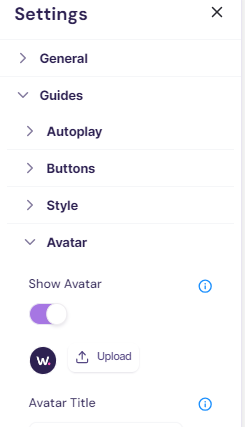
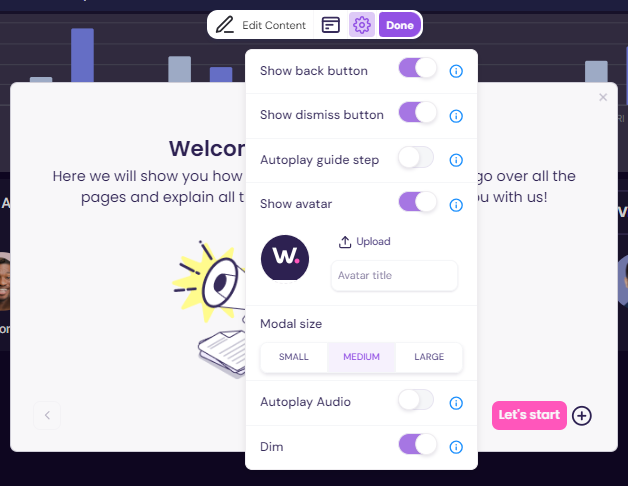
<details><summary><strong>To add the same avatar to all guides:</strong></summary><ol><li data-list-item-id="eb72ef62493196e8e885bc0fb8091ec91">Open the template in edit mode.</li><li data-list-item-id="ec9698b25c972c82645f6e7000f8f2dfc"><p>From the right-hand toolbar, click the <strong>Guides</strong> icon to open the Guides pane, then click the <strong>gear</strong> icon.</p><p><img src="/images/07b45e7d4dc45692.png" alt="Screenshot showing the Guides pane settings access in Walnut." width="309" height="77" /></p></li><li data-list-item-id="ec8dc0f02bb5d5fffc6a3c1ccafa58d3b"><p>Select <strong>Avatar</strong> and upload the new image.</p><p><img src="/images/f9267c4beeb6d007.png" alt="Screenshot showing avatar upload options for all guides in Walnut." width="192" height="333" /></p></li><li data-list-item-id="e132d52fc97463397011fefcaca40a601">The new avatar is applied across all guides in the template.</li></ol></details>

---

### **Add or Change an Avatar on Selected Guides**

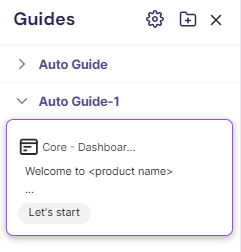
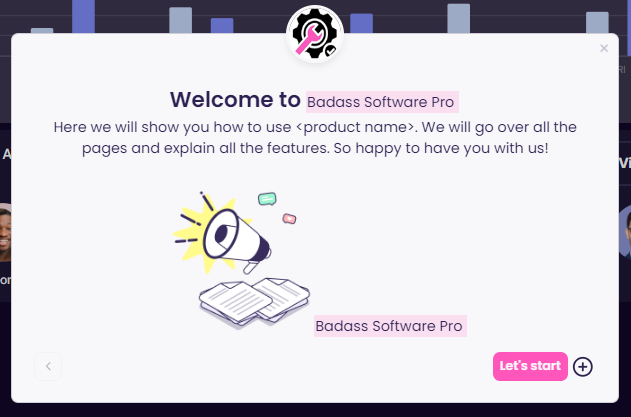
<details><summary><strong>To add or change an avatar on selected guides:</strong></summary><ol><li data-list-item-id="eca603ece7a1669ccce14c247df516839"><p>Open the template in edit mode, then click the <strong>Guides</strong> icon from the right-hand toolbar.</p><p><img src="/images/ffbaab3d8717b948.png" alt="Screenshot showing the Guides pane in Walnut." width="240" height="252" /></p></li><li data-list-item-id="e3b769ca803ac0ca77f4c4993bcac50bb">Select the guide you want to update.</li><li data-list-item-id="e86777b249aa7df8c3e30d4b6a36534c5"><p>Click the guide pane highlight area to open the guide editing toolbar.</p><p><img src="/images/f3ddadbc965d014c.png" alt="Screenshot showing the selected guide and edit toolbar in Walnut." width="336" height="260" /></p></li><li data-list-item-id="efa3493e9cbfb1974ef128fa7c7854491">Click the <strong>Settings</strong> icon and upload a new avatar.</li><li data-list-item-id="e81365b0fbfe6156a121840676f5d9d69"><p>The new avatar is applied only to the selected guide.</p><p><img src="/images/3cacb4af67e7696f.png" alt="Screenshot showing a guide with an updated avatar in Walnut." width="336" height="222" /></p></li></ol><p>Repeat this process for any other guides where you want a different avatar.</p></details>

---

## **Key Takeaways**

:::note[Text variables]

are the most flexible option for personalizing repeated content across templates and guides.

-   **Find & Replace** is the fastest way to convert repeated text into variables across a template.
-   **Image variables** help you personalize visual assets without rebuilding layouts.
-   **Dynamic Date** keeps time-sensitive content current automatically.
-   **Avatar updates** help tailor guide presentation globally or at the guide level.

:::

:::note[Final Takeaway]

Variables are one of the most practical ways to scale personalization in Walnut. They help you keep templates reusable, reduce manual edits, and create experiences that feel more relevant without multiplying your build work.

:::